
4 Starting Up and Logging In to the Device
This chapter describes the specific operations for connecting cables, starting up the device, and logging in.
4.1 Connecting Cables
Describes the method for connecting the cables.
Preparation:
- Have obtained accessories that are functioning correctly, such as a USB hub, a voltage/current signal source, a router, and a power adapter.
- Have access to a functioning network.
- Have obtained functioning network cables and other signal connection cables.
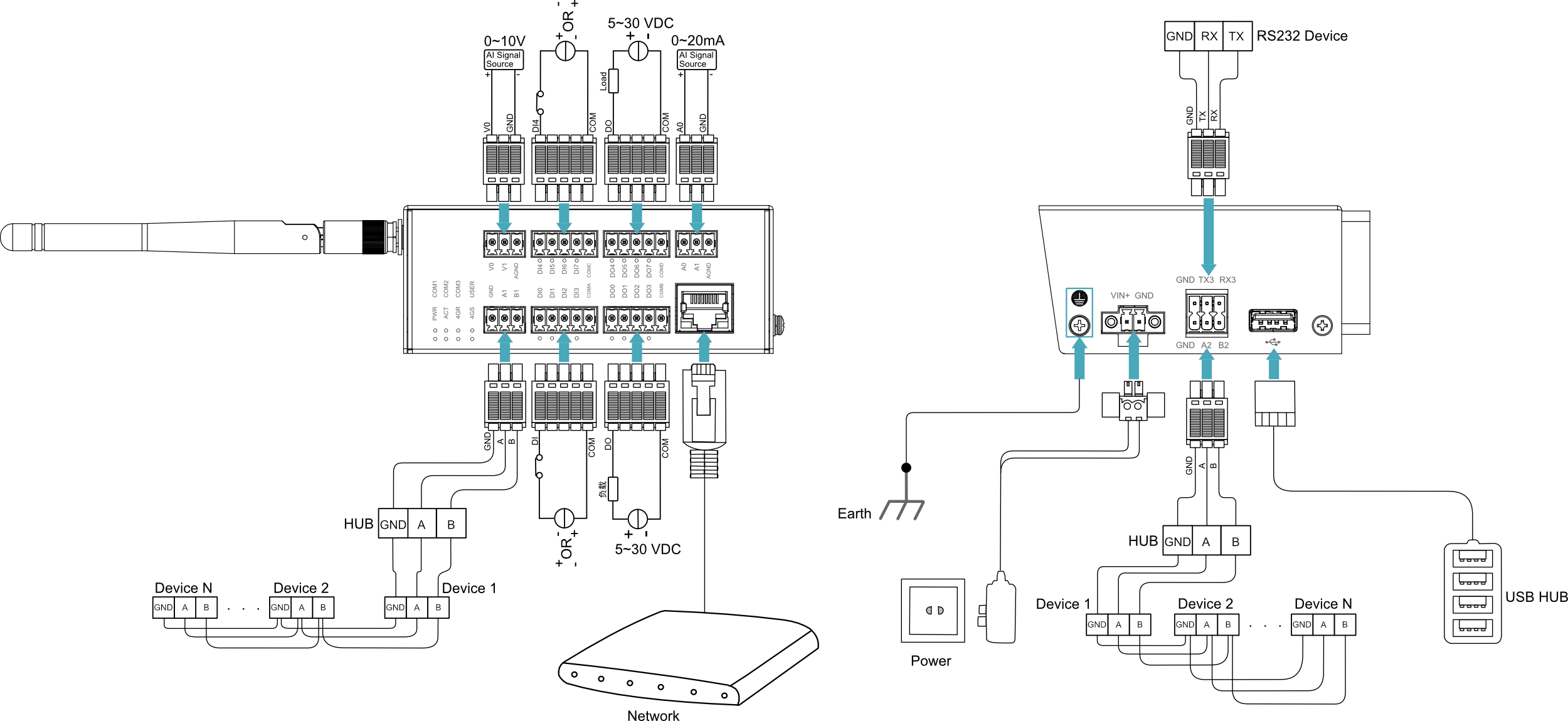
Schematic diagram of connecting cables:
For the pin definitions of each interface and the specific wiring methods, please refer to 1.6 Interface.
TIP
The RS485-1 (GND/A1/B1) port has the serial console login mode enabled by default. If it needs to be used as a regular serial port, you must first disable the serial console login mode using the raspi-config command.
4.2 Starting Up the System
The ED-IPC1220 device does not include a power switch. The system will start up once power is connected.
- The red PWR LED lights up, indicating the device is receiving power normally.
- The green ACT LED blinks, indicating the system is starting up normally.
4.3 Logging In to the System
The ED-IPC1220 device includes two RS485 ports. The RS485-1 (GND/A1/B1) port has the serial console login mode enabled by default, allowing users to log in to the device through this port. The following describes the detailed procedure.
TIP
Default username: pi; Default password: raspberry.
Preparation:
- Have a functioning Windows PC, and a serial terminal tool (such as MobaXterm) is installed on the Windows PC.
- Have connected both the ED-IPC1220 and the PC to the same router (with the router in DHCP mode for automatic IP assignment), so that the ED-IPC1220 and the PC are on the same IP subnet.
- Have a USB-to-RS485 converter.
- Have obtained necessary connection cables (for connecting the device's RS485-1 port to the USB-to-RS485 converter).
Steps:
The following procedure uses a Windows system as an example.
- Connect the ED-IPC1220 and the PC to the same router (so they are on the same IP subnet). Then, connect the RS485-1 port on the ED-IPC1220 to the Windows PC via the USB-to-RS485 converter, as shown in the figure below.

- Open
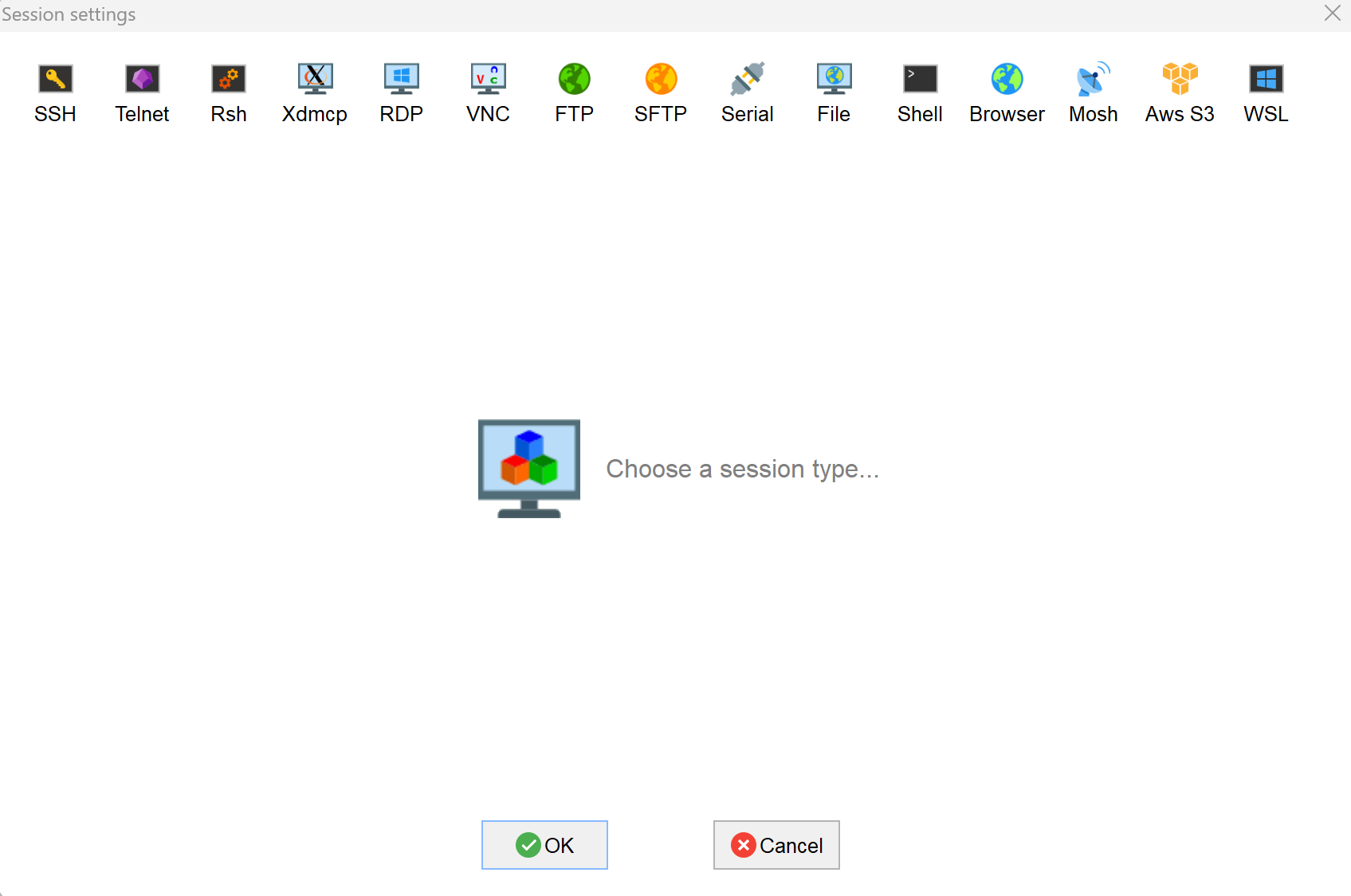
MobaXterm, click the button to open the session creation window, as shown below.
- Click the
 icon to open the serial connection interface. Set the "Serial port" and "Speed", then click "OK".
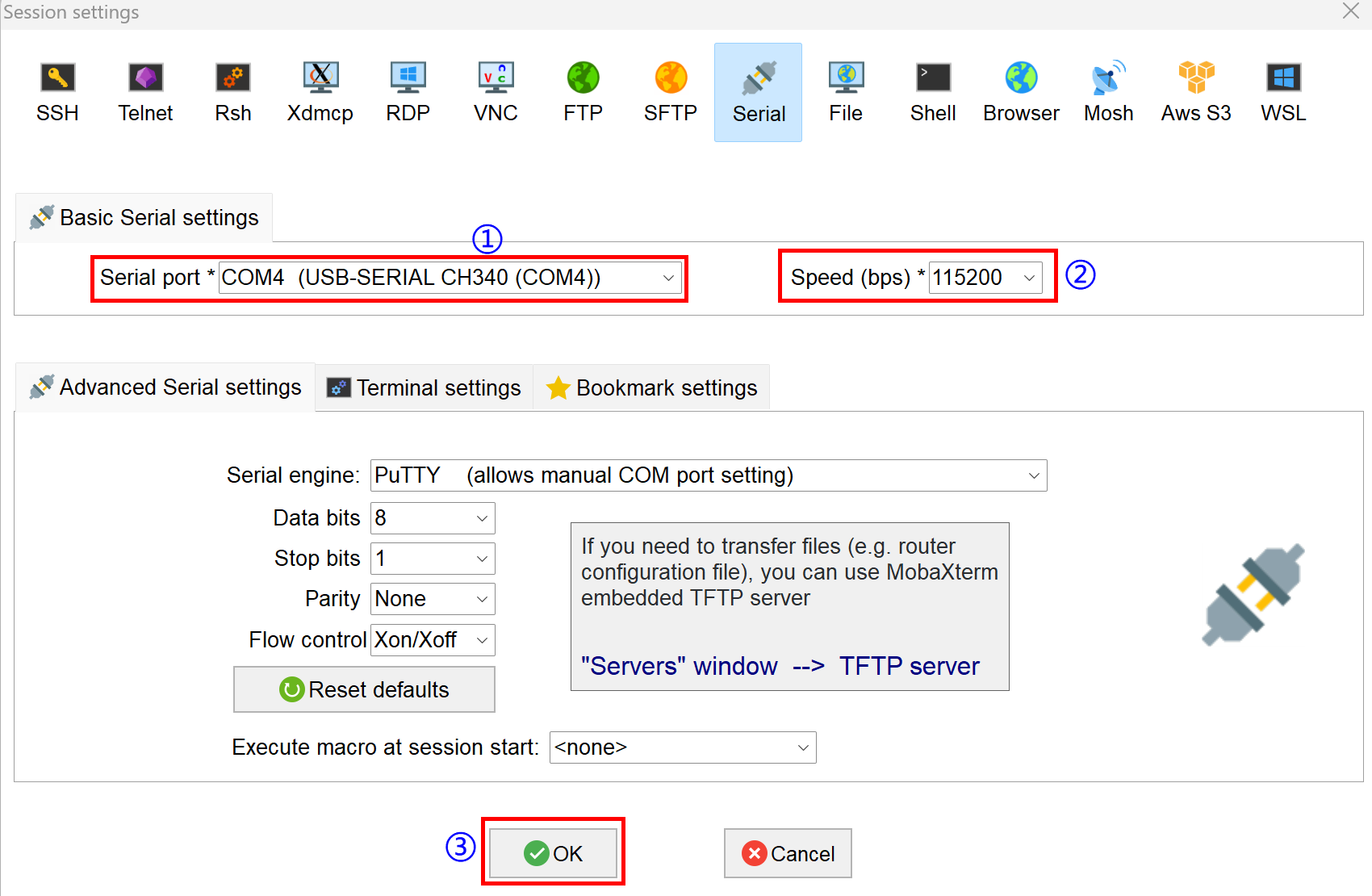
- "Serial port": Select the serial port corresponding to the USB-to-RS485 converter.
- "Speed(115200)": Select "115200".
- "Terminal settings" and "Advanced Serial settings" can be kept as default.
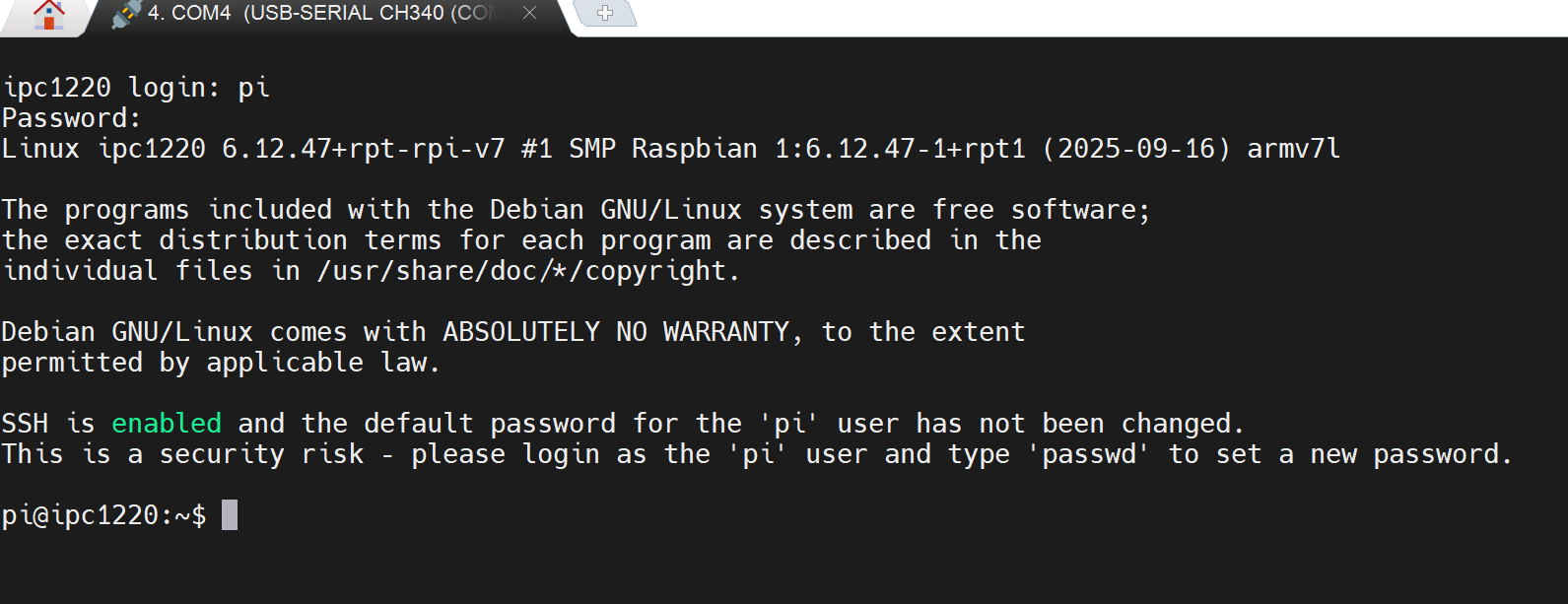
- In the opened terminal pane, press "Enter" to enter login mode.
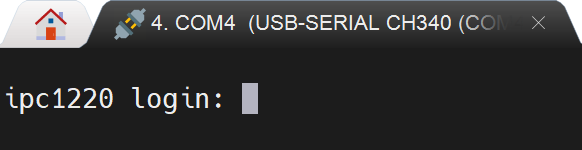
- Enter the username and password as prompted to log in to the system.
TIP
Default username: pi; Default password: raspberry.
- Execute the following command to query the device's IP address.
ifconfig