
OTA Upgrade Configuration for ED-IPC and ED-HMI
1 Overview
Introduces the background, target audience, and scope of application for OTA upgrade configuration of ED-IPC and ED-HMI.
1.1 Background
Raspberry Pi has officially released Raspberry Pi Connect, which supports updating devices through remote push updates. As a result, an increasing number of ED-IPC and ED-HMI users have raised requirements for remote upgrades. To address this, our engineers have completed the development and verification of related functions and produced supporting guidance documents to help users successfully implement OTA upgrades for their devices.
This document describes how to create A/B images using rpi-image-gen, generate OTA upgrade packages, and finally upload the upgrade package to complete device updates, thereby achieving a complete OTA upgrade process.
1.2 Target Audience
- Engineers familiar with Raspberry Pi products
- Engineers familiar with Raspberry Pi Connect services
1.3 Scope of Application
The product models applicable to this application are as follows:
| Software | Product Models |
|---|---|
| Standard Raspberry Pi OS (Trixie) | ED-IPC and ED-HMI based on Raspberry Pi 5: ED-IPC3020 ED-HMI3020-070C/101C ED-HMI3010-070C/101C/116C/133C/156C/185C/215C ED-HMI based on Raspberry Pi 4: ED-HMI2002-070C/101C ED-IPC and ED-HMI based on Raspberry Pi CM5: ED-IPC3100 ED-IPC3200 ED-IPC3400 ED-IPC3630 ED-HMI3120-070C/101C/116C/133C/156C/185C/215C ED-HMI3630-101C/116C/133C/156C ED-IPC and ED-HMI based on Raspberry Pi CM4: ED-IPC2000 ED-IPC2100 ED-IPC2200 ED-IPC2400 ED-IPC260 ED-HMI2020-070C/101C ED-HMI2120-070C/101C ED-HMI2220-070C/101C ED-HMI2630-101C |
2 Configuration Guide
The overall process of OTA upgrade configuration is divided into 4 main stages: first, create the initial A/B image; second, generate the incremental OTA upgrade package based on that image; third, host the upgrade package in the cloud and complete registration; fourth, remotely push the update and perform verification.
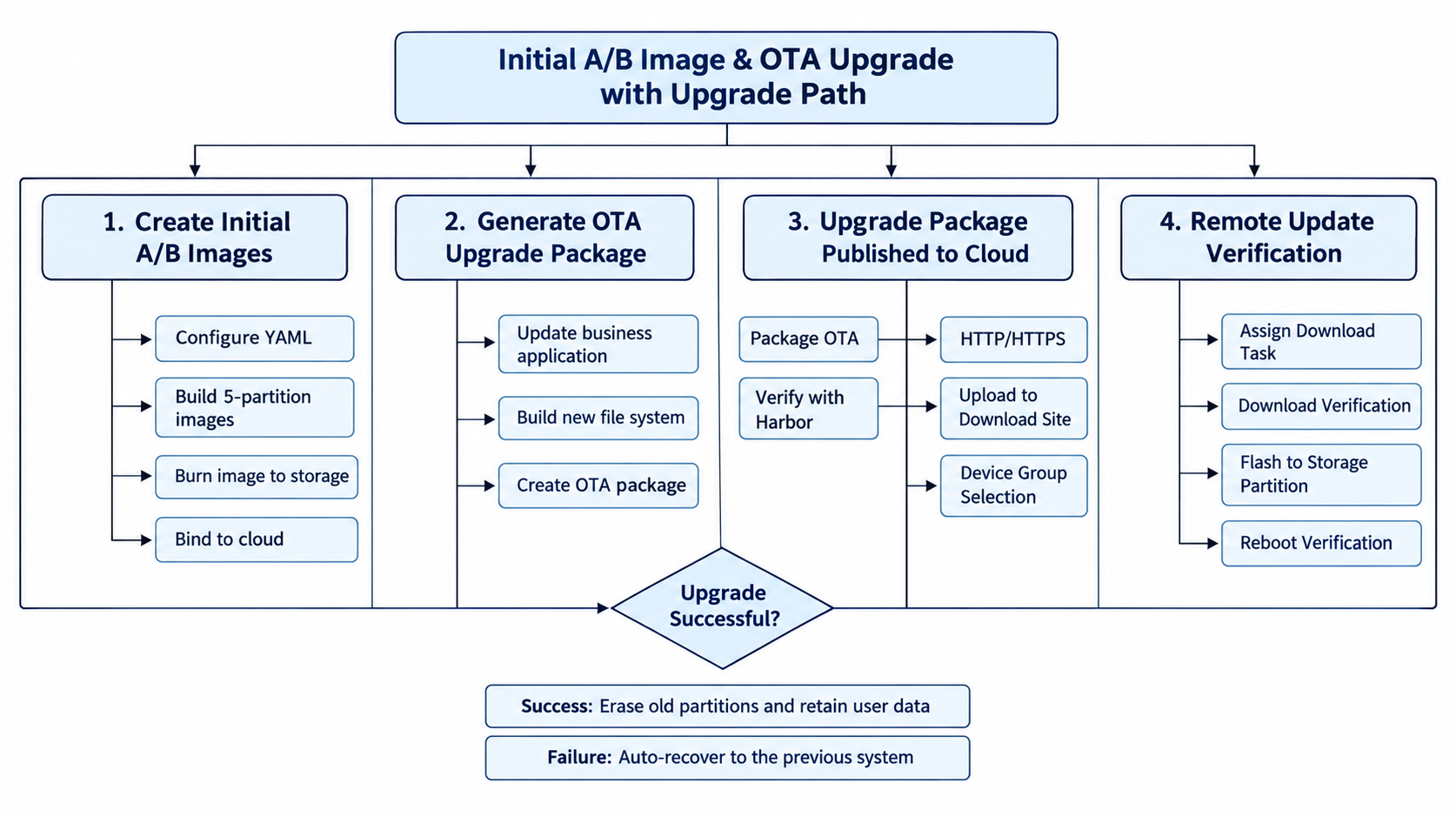
The following sections use Raspberry Pi 5 as an example to detail the specific configuration methods for these 4 stages.
2.1 Creating the Initial A/B Image
Creating an A/B image on Raspberry Pi 5 includes the following 4 steps, please execute them in order:
- Register a
Raspberry Pi Connectaccount and log in. - Install system dependencies on Raspberry Pi 5.
- Generate the image on Raspberry Pi 5 using
rpi-image-gen. - Flash the generated A/B image to an SD card and back it up.
2.1.1 Logging into Raspberry Pi Account and Obtaining Connect Key
Preparation:
- A Windows computer is prepared, powered on normally, and connected to the network.
Steps:
- Enter the URL in the browser on the Windows PC: https://connect.raspberrypi.com/devices to access the Raspberry Pi ID login interface.
- Log in using your Raspberry Pi account.
TIP
If you do not have a registered Raspberry Pi account, click "create one for free" to register.
- On the
Raspberry Pi Connectinterface, select the "Settings" tab, then click "Create auth key" next to "Auth key" to create a Connect authorization key.
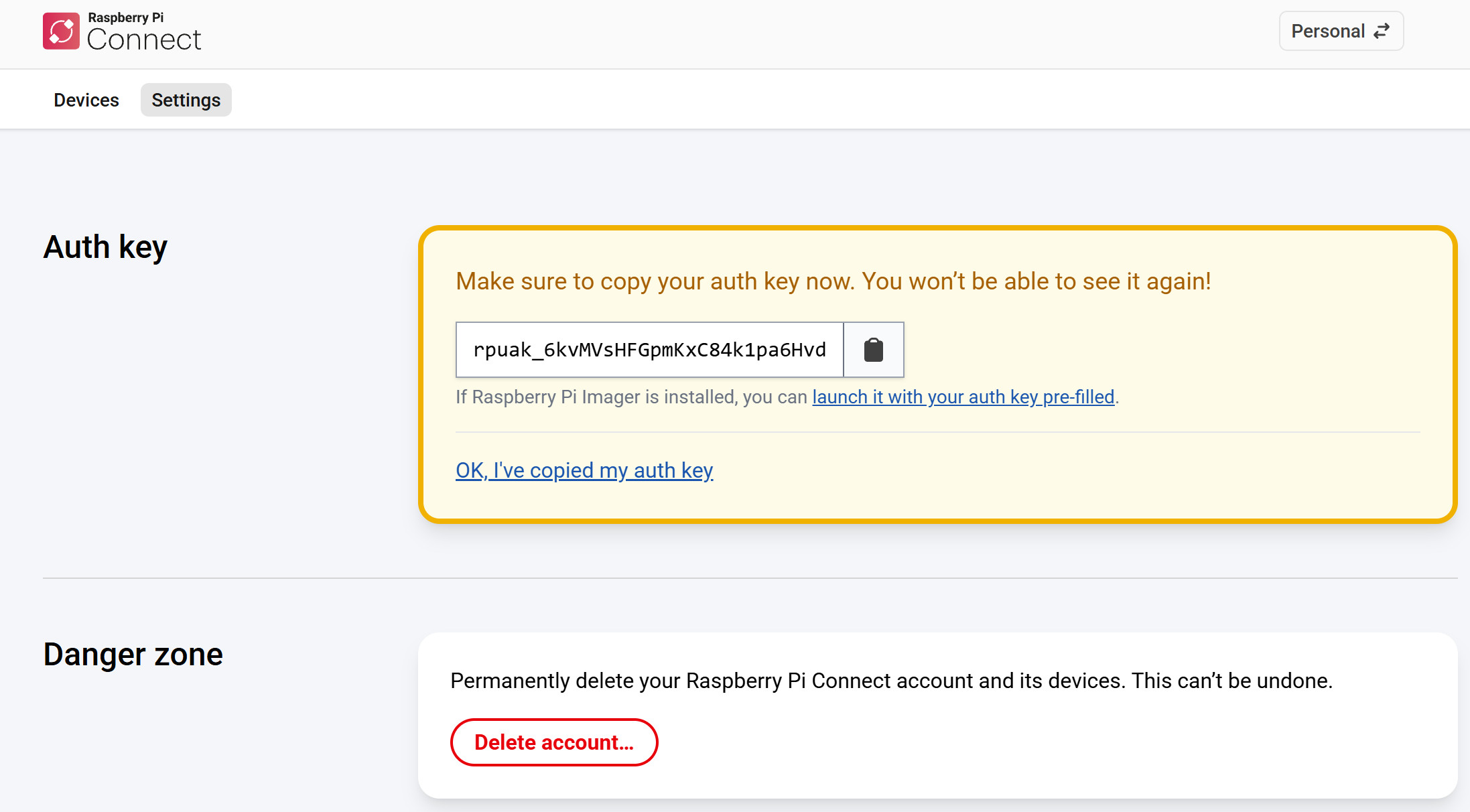
- Copy the key and save it locally.
TIP
The key is valid for 6 hours. Please plan its usage time in advance.
2.1.2 Installing System Dependencies
Describes the procedure for installing system dependencies on Raspberry Pi 5.
Preparation:
- Raspberry Pi 5 is powered on normally and connected to the network.
- Ensure Raspberry Pi 5 can access GitHub.
Steps:
Update software sources.
a. Open the terminal window on Raspberry Pi 5 and execute the following command to open the
/etc/apt/sources.listfile.sudo nano /etc/apt/sources.listb. Delete all content in the original file, then add the following content.
deb https://mirrors.tuna.tsinghua.edu.cn/debian trixie main contrib non-free-firmware
deb https://mirrors.tuna.tsinghua.edu.cn/debian-security trixie-security main contrib non-free-firmware
deb https://mirrors.tuna.tsinghua.edu.cn/debian trixie-updates main contrib non-free-firmware
c. Press
ctrl+oto save the file, then pressEnter, and finally pressctrl+xto exit file editing mode.Update system sources.
a. Open the terminal window on Raspberry Pi 5 and execute the following command to open the
/etc/apt/sources.list.d/raspi.listfile.sudo nano /etc/apt/sources.list.d/raspi.listb. Add the following content to the file.
deb https://mirrors.tuna.tsinghua.edu.cn/raspberrypi trixie mainc. Press
ctrl+oto save the file, then pressEnter, and finally pressctrl+xto exit file editing mode.In the terminal window on Raspberry Pi 5, execute the following commands in sequence to clone the
rpi-image-genproject and install all dependencies.git clone https://github.com/raspberrypi/rpi-image-gen.git cd rpi-image-gen sudo apt update sudo ./install_deps.sh
2.1.3 Generating the A/B Image
Describes the procedure for generating an image using rpi-image-gen.
Preparation:
- The Raspberry Pi Connect authorization key has been obtained.
- System dependencies have been installed on Raspberry Pi 5.
- An SD card and a card reader are prepared.
Steps:
- Open the terminal window on Raspberry Pi 5 and execute the following command to open the
rpi-image-gen/examples/ota/config/ota.yamlfile.
sudo nano rpi-image-gen/examples/ota/config/ota.yaml
- Configure OTA parameters as needed.
version: Initial image version, fill in "1.0.0" for the first time;hostname: Unique device hostname, set custom value;packagesFill in tools that need to be pre-installed. (No need to fill in when building the image for the first time; add only when subsequent upgrades are needed)
Example:
packages:
- python3
- iproute2
- ./local_pkgs/firmware.deb #Package name
device: Fill in the username and password (required when building the image for the first time; the password must contain uppercase letters, lowercase letters, numbers, and symbols).
Example:
device:
user1: pi
user1pass: Raspberry1!
user1sudo: passwd
locale: Complete system localization configuration, setting language, time zone, and keyboard. (Required for the first time)
Example:
locale:
default: en_US.UTF-8
keyboard_keymap: us
keyboard_layout: English (US)
timezone: Asia/Shanghai
Press
ctrl+oto save the file, then pressEnter, and finally pressctrl+xto exit file editing mode.Execute the following command to build the A/B image.
./rpi-image-gen build -S ./examples/ota/ -c ota.yaml -- IGconf_connect_authkey=rpuak_xxxx
Where rpuak_xxxx is the Raspberry Pi Connect key saved in the previous step.
TIP
- The A/B image built using the
./rpi-image-gen build -S ./examples/ota/ -c ota.yaml -- IGconf_connect_authkey=rpuak_xxxxcommand can only be used on ED-IPC and ED-HMI based on Raspberry Pi 5 and Raspberry Pi CM5. - If you need to build an A/B image for ED-IPC and ED-HMI based on Raspberry Pi 4/CM4, you can use the following command.
./rpi-image-gen build -S ./examples/ota/ -c ota.yaml -- IGconf_device_layer=rpi4 IGconf_connect_authkey=rpuak_xxxx
- After the A/B image is built, obtain the image from the
/home/pi/rpi-image-gen/work/image-myapp/directory on Raspberry Pi 5, where the image file ismyapp.img。
2.1.4 Flashing the A/B Image to an SD Card
Describes the procedure for flashing the A/B image to an SD card.
Preparation:
- The A/B image has been built on Raspberry Pi 5.
- An SD card and a card reader are prepared.
Steps:
- Insert the SD card into the card reader, then insert the card reader into the USB port of Raspberry Pi 5.
- Open the terminal window on Raspberry Pi 5 and execute the following command to install
Raspberry Pi Imager.
sudo apt install rpi-imager
- Execute the following command to start the
Raspberry Pi Imagertool.
sudo rpi-imager
- Select "OS" in the left menu bar, click "Use custom" at the bottom of the "Choose operating system" image file list on the right, then navigate to the A/B image file in the
/home/pi/rpi-image-gen/work/image-myapp/directory and click "OPEN".
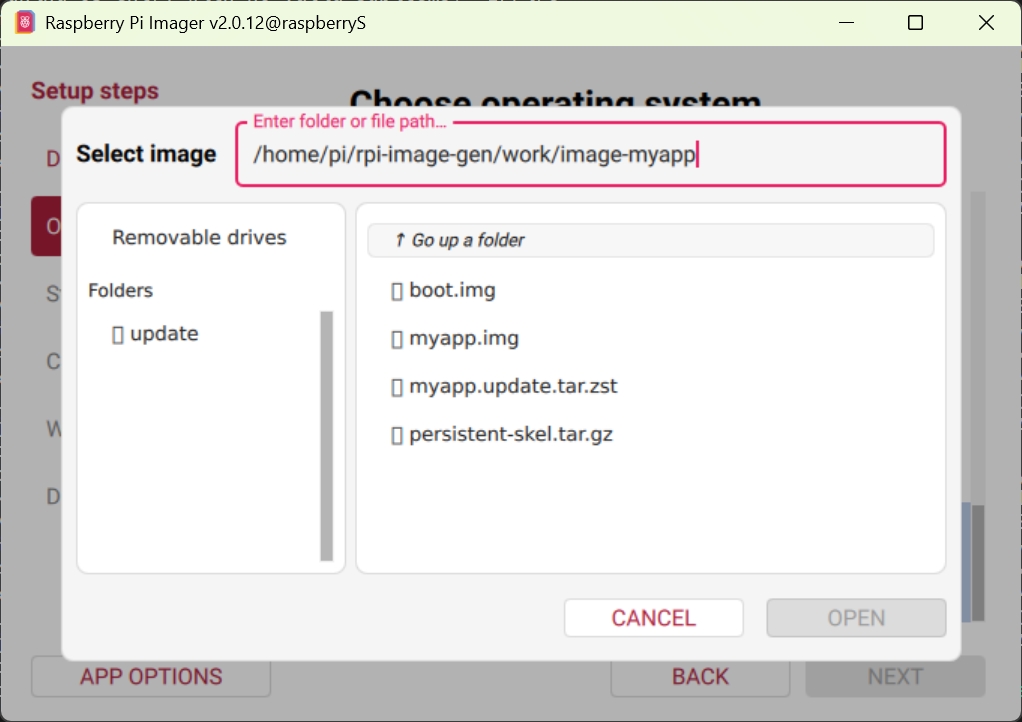
- Select "Storage" in the left menu bar, choose the drive letter corresponding to the SD card under "Select your storage device" on the right, then click "NEXT".
- Select "Writing" in the left menu bar, confirm the image information under "Write image" on the right, then click "NEXT".
- Click "NEXT" in the pop-up prompt box to start writing the image.
- After the image writing is complete, file verification will proceed automatically.
- After file verification is complete, the right side of the "Done" menu will display "Write complete", then click "FINISH" at the bottom right to complete the flashing.
- Disconnect the card reader from Raspberry Pi 5 and remove the SD card from the card reader.
TIP
- Flashing the A/B image to an SD card here is just an example scenario.
- If the ED-IPC or ED-HMI to be upgraded does not support booting from an SD card, you can copy the A/B image and flashing it to the eMMC of the ED-IPC or ED-HMI to be upgraded.
2.2 Binding the ED-IPC or ED-HMI Device to the Cloud
Describes the procedure for binding the ED-IPC or ED-HMI device to be upgraded to the cloud.
Preparation:
- The ED-IPC or ED-HMI device to be upgraded (supports booting from SD card) is available.
- The SD card with the flashed A/B image is available.
Steps:
Insert the SD card into the card slot of the ED-IPC or ED-HMI device to be upgraded.
Power on the ED-IPC or ED-HMI device, wait for it to start normally, then enter the username and password to log in to the device.
TIP
The username and password used for login here are configured through OTA parameters when generating the A/B image.
Connect the ED-IPC or ED-HMI device to the network so that it can access the internet normally.
Log in to the Raspberry Pi Connect page (https://connect.raspberrypi.com/devices) on the Windows computer. Check the device list on the "Devices" page for the ED-IPC or ED-HMI device.

If the ED-IPC or ED-HMI device appears in the list, the binding is successful.
- In the terminal window of the ED-IPC or ED-HMI device, execute the following command to check the system version information.
cat /etc/rpi-issue
If the returned information contains content similar to the following, it indicates that the image is deployed normally:
Generated using rpi-image-gen e3828f885c860f15991468883d3b8484b0eaf9d8 on 2025-12-09
Artefact version: 1.0.0
2.3 Generating the OTA Upgrade Package
Describes the procedure for generating the OTA upgrade package on Raspberry Pi 5.
Preparation:
- The A/B image has been built on Raspberry Pi 5.
Steps:
- Open the terminal window on Raspberry Pi 5 and execute the following command to open the
rpi-image-gen/examples/ota/config/ota.yamlfile.
sudo nano rpi-image-gen/examples/ota/config/ota.yaml
- Modify OTA parameters as needed.
version: It is recommended to upgrade from 1.0.0 to 1.0.1.packages: Add the upgrade content and required tools.
Example:
packages:
- python3
- iproute2
- ./local_pkgs/firmware.deb
python3 and iproute2 represent the required apt package names. ./local_pkgs/firmware.deb represents the local path of the file to be upgraded. The directory structure for files to be upgraded is as follows:
rpi-image-gen/
└── examples/
    └── ota/                # -S specifies root directory
        ├── config/
        │   └── ota.yaml
        └── local_pkgs/
            └── firmware.deb   # Private deb files go here
- Execute the following command to clear the cache.
sudo rm -rf ./work
- Execute the following command to build the OTA upgrade package.
./rpi-image-gen build -S ./examples/ota/ -c ota.yaml
TIP
- The OTA upgrade package built using the
./rpi-image-gen build -S ./examples/ota/ -c ota.yamlcommand can only be used on ED-IPC and ED-HMI based on Raspberry Pi 5 and Raspberry Pi CM5. - If you need to build an OTA upgrade package for ED-IPC and ED-HMI based on Raspberry Pi 4/CM4, you can use the following command.
./rpi-image-gen build -S ./examples/ota/ -c ota.yaml -- IGconf_device_layer=rpi4
- After the OTA upgrade package is built, obtain the file from the
/home/pi/rpi-image-gen/work/image-myapp/directory on Raspberry Pi 5, where the file ismyapp.update.tar.zst.
2.4 OTA Upgrade
Describes the procedure for performing an OTA upgrade via Raspberry Pi Connect.
Preparation:
- The ED-IPC or ED-HMI device to be upgraded is powered on normally and connected to the network.
- The ED-IPC or ED-HMI device to be upgraded is displayed in the device list on the
Raspberry Pi Connectpage. - The OTA upgrade package file has been obtained and copied to a specified directory on the Windows computer.
Steps:
Log in to the Raspberry Pi Connect page (https://connect.raspberrypi.com/devices) on the Windows computer. Find the ED-IPC or ED-HMI device to be upgraded in the device list on the "Devices" page.
Click "Deploy" to the right of the device information.

- In the "New deployment" interface that opens, upload the OTA upgrade package (
myapp.update.tar.zstfile) in the "File" area.
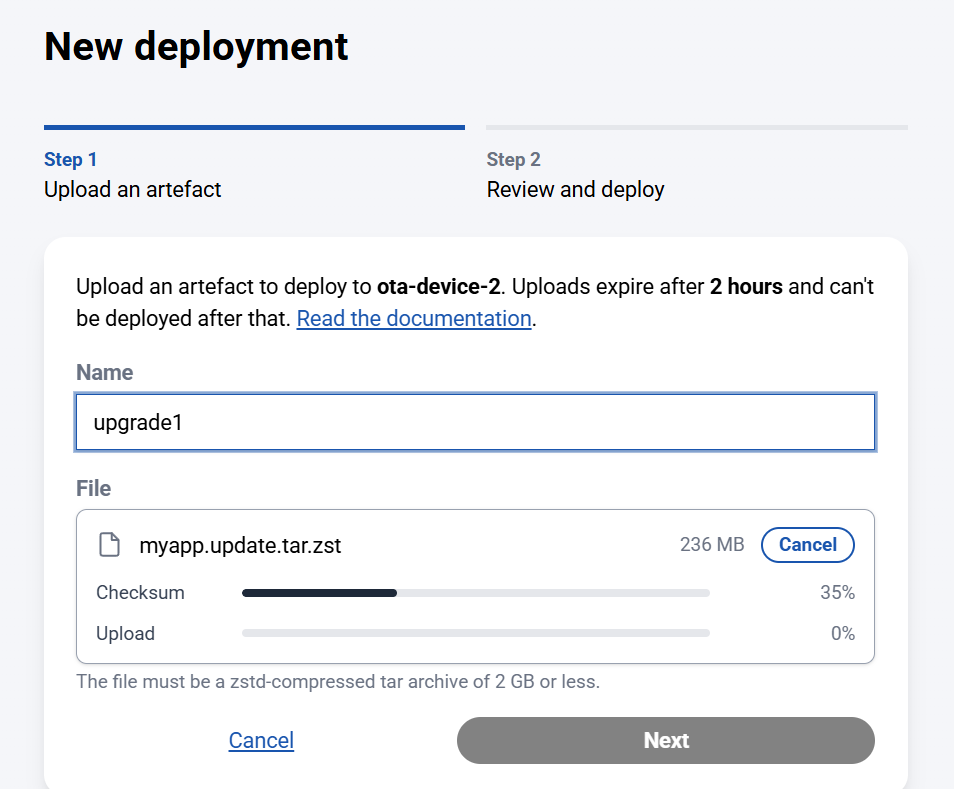
- After the file upload is complete, click "Deploy".
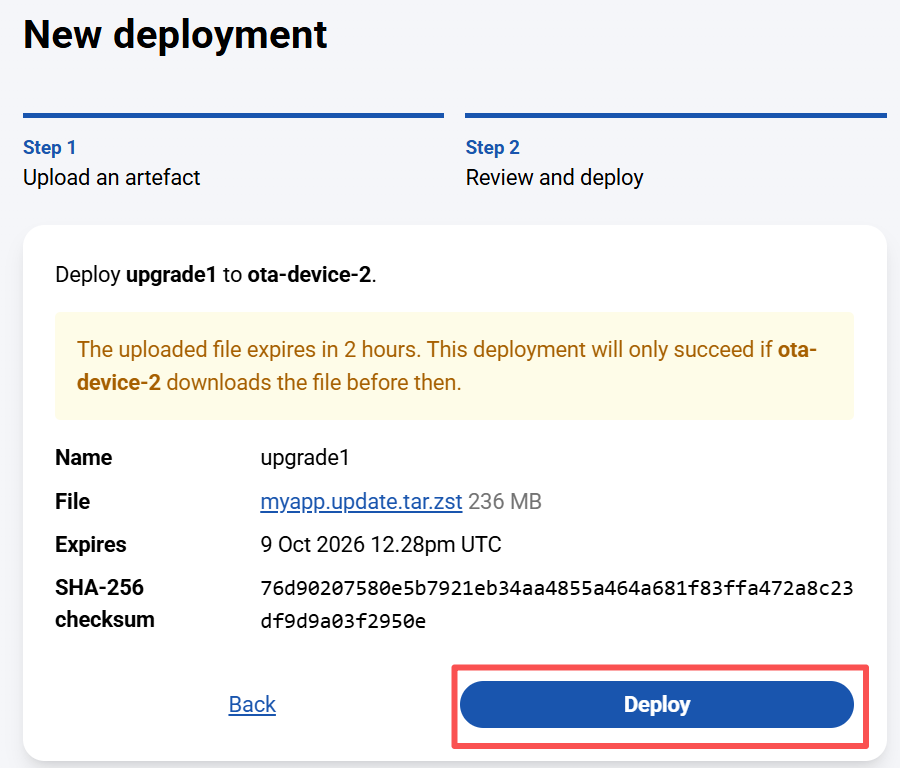
- Check the upgrade status on the "Deployments" interface. If the status is "Succeeded", the upgrade is successful.
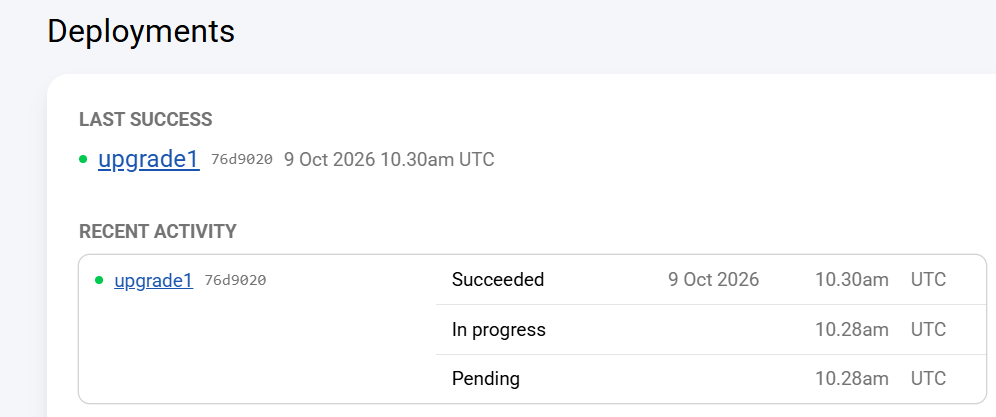
- On the upgraded ED-IPC or ED-HMI device, open the terminal window and execute the following command to check the version information.
cat /etc/rpi-issue
If the Artefact version in the returned information shows the new version number, the upgrade is successful.
3 FAQ
Q1:authkey expiration causing online binding failure
Phenomenon:
When building the A/B image for the first time, the error message shows that the authentication key is rejected and cannot log in to the cloud.
Cause:
The personal rpuak key is only valid for 6 hours. If it is backed up and stored for too long, it expires, causing cloud authentication to fail.
Solution:
Generate a new authkey on the Raspberry Pi Connect page, then rebuild the A/B image.
Q2:Username and password not configured before building the A/B image, SSH/local terminal cannot log in after device boots
Phenomenon:
- After flashing the A/B image and restarting the device after OTA upgrade, SSH prompts authentication failure regardless of the password entered.
- After connecting an external monitor and keyboard, logging in with username
piresults in a password error. - Build log prints
[SKIP] IGconf_device_user1pass, indicating the layer did not write the user login password.
Cause:
- When building the A/B image, the
user1passpassword configuration was not filled inota.yaml. - The configuration enabled
openssh.pubkey_only=y, allowing only key-based login, and no SSH public key was pre-configured, making password login directly invalid. - Build parameters were missing user configuration items, resulting in an empty password/disabled password login for the
piuser in the image.
Solution:
- Modify the complete user and password information in
examples/ota/config/ota.yaml, such as theuser1,user1pass, anduser1sudofields in the example below.
device:
	user1: pi
	user1pass: Raspberry1!
	user1sudo: passwd
openssh:
	pubkey_only: n
- Rebuild the A/B image and OTA upgrade package, then re-flash and re-upgrade the device.
Q3:dpkg cannot find the upgraded deb package on the upgraded device
Phenomenon:
On the device that underwent OTA upgrade, dpkg cannot find the upgraded deb package, but the functionality of the local deb package works.
Cause:
In the image-rota A/B partition architecture, /var is stored independently per system slot in a persistent partition and is created when the device is first flashed with the image. The default OTA upgrade only includes the boot and system partitions and does not synchronously update the corresponding /var data. Therefore, after the OTA upgrade, the dpkg database may still retain the software package records from the initial image, inconsistent with the currently running system. However, the program files in the new system are unaffected and can still run normally.