
Using ED-IPC and ED-HMI on Standard Raspberry Pi OS (Trixie)
1 Overview
Introduces the background and scope of using ED-IPC and ED-HMI on the standard Raspberry Pi OS (Trixie).
1.1 Background
Some of our ED-IPC and ED-HMI series products are shipped with Raspberry Pi OS (Bookworm) pre-installed. To meet the needs of users who wish to develop applications based on Raspberry Pi OS (Trixie), we have completed the relevant adaptation and optimization for this scenario.
Currently, the ED-IPC and ED-HMI series products are fully compatible with the native drivers of the standard Raspberry Pi OS (Trixie). For versions of Raspberry Pi OS (Trixie) released on or after September 15, 2026, users only need to first modify the config.txt configuration file to enable the required ports, and then install the corresponding software packages for extended functionalities to ensure normal operation. This upgrade effectively broadens the application range of the products and allows for more flexible responses to the diverse needs of different users.
1.2 Scope of Application
This application applies to the EDATEC ED-IPC3630 and ED-HMI3630 series products. The compatible OS versions and corresponding product models are as follows:
| Software Scope | Product Models |
|---|---|
| Standard Raspberry Pi OS (Trixie, releases from September 15, 2026 onwards) | ED-HMI3630-101C ED-HMI3630-116C ED-HMI3630-133C ED-HMI3630-156C ED-IPC3630 |
2 Configuration Guide
This chapter describes the specific configuration methods for using the ED-IPC3630 and ED-HMI3630 series products on the standard Raspberry Pi OS (Trixie, releases from September 15, 2026 onwards). The configuration steps vary slightly depending on the product model; please follow the instructions corresponding to your specific model.
2.1 For ED-HMI3630-101C Series
The configuration process consists of the following two steps, which should be performed sequentially:
Modify the
config.txtconfiguration file: Modify the configuration file according to the product model to enable the required ports.Install software packages: After completing the configuration modification, install the corresponding software packages for extended functionalities to ensure normal operation.
2.1.1 Modifying the config.txt File
Preparation:
- The device has been flashed with the latest standard Raspberry Pi OS (Trixie, release dated September 15, 2026 or later).
- The device has booted up normally and an external monitor is connected.
Steps:
- Open a terminal window on the device and execute the following command to open the
/boot/firmware/config.txtfile.
sudo nano /boot/firmware/config.txt
- Add the following information at the
[all]section at the end of the/boot/firmware/config.txtfile.
dtoverlay=vc4-kms-dsi-edatec-panel-101c,i2c4,interrupt=7
dtoverlay=ed-ipc,ipc3600
dtoverlay=uart1
dtoverlay=uart2
dtoverlay=uart3
dtoverlay=uart4
dtoverlay=spi1-2cs,cs0_spidev=off,cs1_spidev=off
dtoverlay=mcp2515,spi1-0,oscillator=16000000,interrupt=15
dtoverlay=mcp2515,spi1-1,oscillator=16000000,interrupt=14
dtoverlay=sdio-pi5
dtparam=rtc=off
dtoverlay=i2c-rtc,pcf8563,i2c_csi_dsi0
force_eeprom_read=0
disable_poe_fan=1
dtparam=i2c_arm=on
enable_uart=1
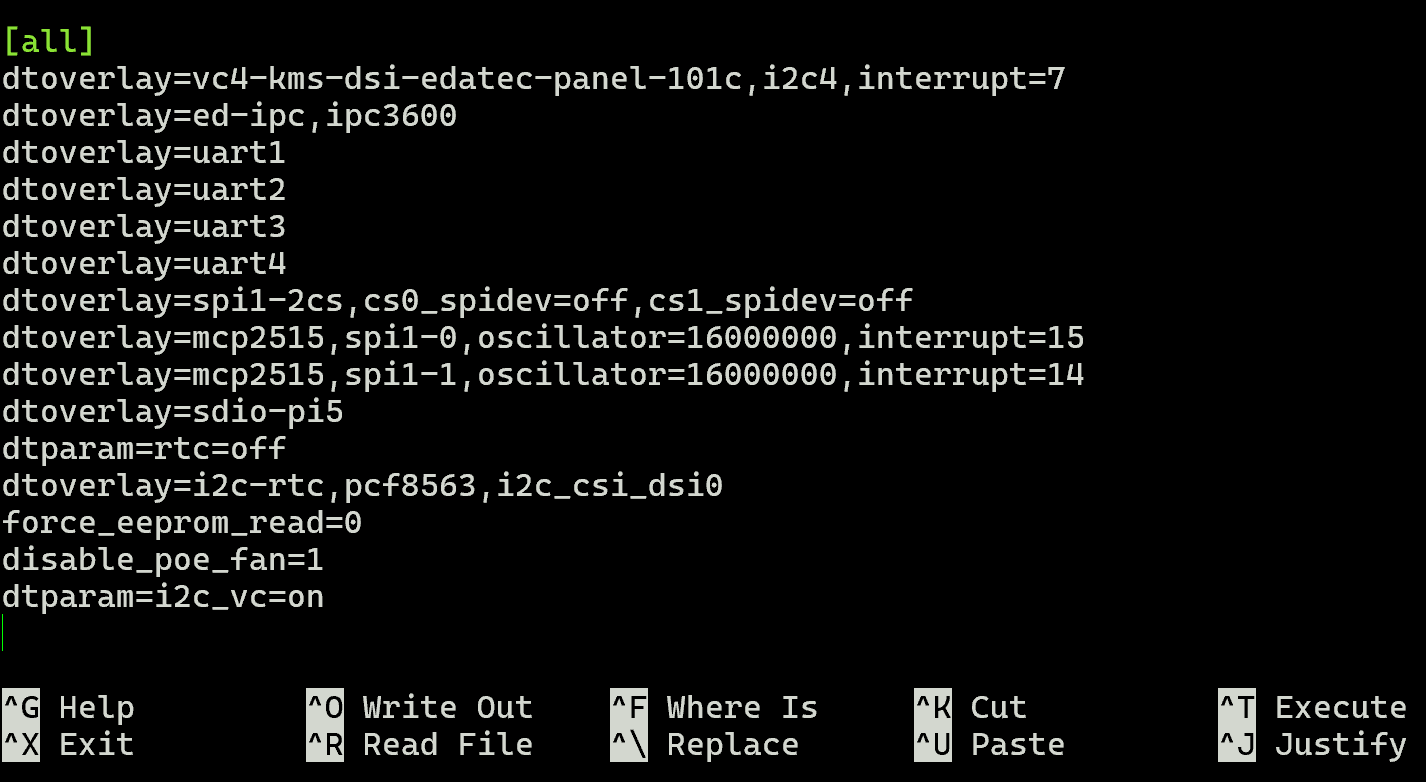
The result after adding the information is shown in the figure below:
Press
ctrl+oto save the file, then pressEnter, and finally pressctrl+xto exit the file editing mode.Execute the following command to add the udev rules for COM ports.
sudo tee /etc/udev/rules.d/98-com.rules >/dev/null <<'EOF'
KERNEL=="ttyAMA2", PROGRAM="/bin/sh -c 'echo 1'", SYMLINK+="com%c"
KERNEL=="ttyAMA4", PROGRAM="/bin/sh -c 'echo 2'", SYMLINK+="com%c"
KERNEL=="ttyAMA1", PROGRAM="/bin/sh -c 'echo 3'", SYMLINK+="com%c"
KERNEL=="ttyAMA3", PROGRAM="/bin/sh -c 'echo 4'", SYMLINK+="com%c"
EOF

- Execute the following command to add the udev rules for CAN ports.
sudo tee /etc/udev/rules.d/50-can.rules >/dev/null <<'EOF'
SUBSYSTEM=="net", ACTION=="add", DRIVERS=="?*", DEVPATH=="/devices/platform/axi/*.pcie/*.spi/spi_master/spi1/spi1.0/net/can*", NAME="canb0"
SUBSYSTEM=="net", ACTION=="add", DRIVERS=="?*", DEVPATH=="/devices/platform/axi/*.pcie/*.spi/spi_master/spi1/spi1.1/net/can*", NAME="canb1"
EOF

- Create an automation script to configure the LCD screen properties.
a. Execute the following command to create the configuration script file.
sudo nano ed-hmi-primary.sh
b. Copy the following content into the script file.
#!/bin/bash

D_DSI="DSI-2"
D_I2C="10-0014"
I2C_ALIAS="i2c_csi_dsi0"

init_i2c()
{
    local t_dsi
    local t_i2c

    t_dsi=$(
        dtc -I fs /proc/device-tree 2>/dev/null |
        sed -nE "s/.*${I2C_ALIAS} = (.*i2c.*);$/\1/p" |
        sed 's/\//\\\//g'
    )

    t_i2c=$(
        dtc -I fs /proc/device-tree 2>/dev/null |
        sed -nE "s/.*\<i2c([0-9]*) = ${t_dsi};$/\1/p" |
        head -n 1
    )

    if [ -n "${t_i2c}" ]; then
        D_I2C="${t_i2c}-0014"
    fi
}

update_wayfire()
{
    local t_user=$1

    mkdir -p "/home/${t_user}/.config"

    cat > "/home/${t_user}/.config/wayfire.ini" << EOF
[command]
repeatable_binding_volume_up = KEY_VOLUMEUP
command_volume_up = wfpanelctl volumepulse volu
repeatable_binding_volume_down = KEY_VOLUMEDOWN
command_volume_down = wfpanelctl volumepulse vold
binding_mute = KEY_MUTE
command_mute = wfpanelctl volumepulse mute
binding_menu = <super>
command_menu = wfpanelctl smenu menu
binding_terminal = <ctrl> <alt> KEY_T
command_terminal = lxterminal
binding_bluetooth = <ctrl> <alt> KEY_B
command_bluetooth = wfpanelctl bluetooth menu
binding_netman = <ctrl> <alt> KEY_W
command_netman = wfpanelctl netman menu
binding_grim = KEY_SYSRQ
command_grim = grim
binding_orca = <ctrl> <alt> KEY_SPACE
command_orca = gui-pkinst orca reboot
binding_quit = <ctrl> <alt> KEY_DELETE
command_quit = lxde-pi-shutdown-helper
binding_power = KEY_POWER
command_power = pwrkey

[input-device:generic ft5x06 (79)]
output = ${D_DSI}

[input-device:generic ft5x06 (80)]
output = ${D_DSI}

[input-device:FT5406 memory based driver]
output = ${D_DSI}

[input]
xkb_model = pc105
xkb_layout = gb
xkb_variant =

[output:${D_DSI}]
mode = 800x1280@40000
position = 0,0
transform = 90
primary = true

[input-device:Goodix Capacitive TouchScreen]
output = ${D_DSI}

[input-device:${D_I2C} Goodix Capacitive TouchScreen]
output = ${D_DSI}

[window-rules]
rule-1 = on created if title is "LXTerminal" then maximize
EOF
}

update_kanshi()
{
    local t_user=$1

    mkdir -p "/home/${t_user}/.config/kanshi"

    cat > "/home/${t_user}/.config/kanshi/config" << EOF
profile {
        output ${D_DSI} mode 800x1280 position 0,0 transform 90
}

profile {
        output ${D_DSI} mode 800x1280 position 0,0 transform 90
        output HDMI-A-1 enable position 1280,0 transform normal
}
EOF
}

update_labwc()
{
    local t_user=$1

    mkdir -p "/home/${t_user}/.config/labwc"

    cat > "/home/${t_user}/.config/labwc/rc.xml" << EOF
<?xml version="1.0" encoding="UTF-8"?>
<labwc_config>
  <touch deviceName="Goodix Capacitive TouchScreen" mapToOutput="${D_DSI}" />
  <touch deviceName="${D_I2C} Goodix Capacitive TouchScreen" mapToOutput="${D_DSI}" />
</labwc_config>
EOF
}

update_labwc_autostart()
{
    local t_user=$1

    mkdir -p "/home/${t_user}/.config/labwc"

    cat > "/home/${t_user}/.config/labwc/autostart" << EOF
if [ -f /home/${t_user}/.config/wf-panel-pi.ini ]; then

    grep -q "^monitor=" /home/${t_user}/.config/wf-panel-pi.ini

    if [ \$? -ne 0 ]; then
        sed -i "/^\[panel\]/a\monitor=${D_DSI}" \
            /home/${t_user}/.config/wf-panel-pi.ini
    fi

else

    cat > /home/${t_user}/.config/wf-panel-pi.ini << EOL
[panel]
monitor=${D_DSI}
launcher_000001=lxde-x-www-browser.desktop
launcher_000002=pcmanfm.desktop
launcher_000003=lxterminal.desktop
EOL

fi
EOF
}

update_squeekboard()
{
    local file="/etc/xdg/labwc/autostart"

    if [ ! -f "${file}" ]; then
        return
    fi
    if grep -q "^export SQUEEKBOARD_PREFERRED_OUTPUT=" "${file}"; then
        sed -i \
            "s|^export SQUEEKBOARD_PREFERRED_OUTPUT=.*|export SQUEEKBOARD_PREFERRED_OUTPUT=${D_DSI}|" \
            "${file}"

    else
        sed -i \
            "1i export SQUEEKBOARD_PREFERRED_OUTPUT=${D_DSI}" \
            "${file}"

    fi
}

update_wayland()
{
    local home
    local t_user

    for home in /home/*; do

        [ -d "${home}" ] || continue

        t_user=$(basename "${home}")

        echo "Configuring Wayland for user: ${t_user}"

        update_wayfire "${t_user}"
        update_kanshi "${t_user}"
        update_labwc "${t_user}"
        update_labwc_autostart "${t_user}"

        chown -R "${t_user}:${t_user}" \
            "/home/${t_user}/.config"

    done

    update_squeekboard
}

update_x11()
{
    cat > /usr/share/dispsetup.sh << 'EOF'
#!/bin/sh

D_DSI=$(xrandr | awk '/^DSI.* connected/ {print $1; exit}')

D_HDMI=$(xrandr | awk '/^HDMI.* connected/ {print $1; exit}')

D_TOUCH=$(xinput | awk -F'id=' \
'/Goodix Capacitive TouchScreen/ && /pointer/ {
    gsub(/^.*↳ /,"",$1)
    sub(/[ \t]+$/,"",$1)
    print $1
    exit
}')


if [ -n "$D_DSI" ]; then

    if [ -n "$D_HDMI" ] && \
       xrandr \
       --output "$D_HDMI" \
       --auto \
       --pos 1280x0 \
       --output "$D_DSI" \
       --primary \
       --mode 800x1280 \
       --pos 0x0 \
       --rotate left \
       --dryrun
    then

        xrandr \
        --output "$D_HDMI" \
        --auto \
        --pos 1280x0 \
        --output "$D_DSI" \
        --primary \
        --mode 800x1280 \
        --pos 0x0 \
        --rotate left

    elif xrandr \
         --output "$D_DSI" \
         --primary \
         --mode 800x1280 \
         --pos 0x0 \
         --rotate left \
         --dryrun
    then

        xrandr \
        --output "$D_DSI" \
        --primary \
        --mode 800x1280 \
        --pos 0x0 \
        --rotate left

    fi


    if [ -n "$D_TOUCH" ]; then
        xinput --map-to-output "$D_TOUCH" "$D_DSI"
    fi

fi

if [ -e /usr/share/ovscsetup.sh ]; then
    /usr/share/ovscsetup.sh
fi

exit 0
EOF

    chmod 755 /usr/share/dispsetup.sh
}

run()
{
    if [ "$(id -u)" -ne 0 ]; then
        echo "ERROR: this script must be run as root"
        exit 1
    fi
    init_i2c
    update_wayland
    update_x11

    echo "HMI36 101C display setup completed."
}

run
c. Execute the following commands to make the script executable and run it.
sudo chmod +x ed-hmi-primary.sh && sudo ./ed-hmi-primary.sh

- After the LCD screen property configuration is complete, execute the following command to reboot the device for the changes to take effect.
sudo reboot
- After the device restarts successfully, the screen should display correctly, and all interfaces should function properly.
2.1.2 Installing Software Packages
Preparation:
The device has completed the modification of the config.txt file.
Steps:
- Open a terminal window and execute the following commands in sequence to download the key and create the
edatec.listfile.
curl -sS https://apt.edatec.cn/pubkey.gpg | sudo gpg --dearmor -o /etc/apt/trusted.gpg.d/edatec-archive-stable.gpg
echo "deb https://apt.edatec.cn/raspbian stable main" | sudo tee /etc/apt/sources.list.d/edatec.list
sudo apt update
- Execute the following command to install the
ed-rebootpackage.
sudo apt install ed-reboot
- Execute the following command to install the
ed-rtcpackage.
sudo apt install ed-rtc
- Execute the following command to install the
ed-cltepackage.
sudo apt install ed-clte
- Execute the following command to install the
ed-usb-toolspackage.
sudo apt install ed-usb-tools
- Execute the following command to install the
ed-lvdpackage.
sudo apt install ed-lvd
2.2 For ED-IPC3630, ED-HMI3630-116C, ED-HMI3630-133C, and ED-HMI3630-156C Series
The configuration process consists of the following two steps, which should be performed sequentially:
Modify the
config.txtconfiguration file: Modify the configuration file according to the product model to enable the required ports.software packages: After completing the configuration modification, install the corresponding software packages for extended functionalities to ensure normal operation.
2.2.1 Modifying the config.txt File
Preparation:
- The device has been flashed with the latest standard Raspberry Pi OS (Trixie, release dated September 15, 2026 or later).
- The device has booted up normally and an external monitor is connected.
Steps:
- Open a terminal window on the device and execute the following command to open the
/boot/firmware/config.txtfile.
sudo nano /boot/firmware/config.txt
- Add the following information at the
[all]section at the end of the/boot/firmware/config.txtfile`.
dtoverlay=ed-ipc,ipc3600
dtoverlay=uart1
dtoverlay=uart2
dtoverlay=uart3
dtoverlay=uart4
dtoverlay=spi1-2cs,cs0_spidev=off,cs1_spidev=off
dtoverlay=mcp2515,spi1-0,oscillator=16000000,interrupt=15
dtoverlay=mcp2515,spi1-1,oscillator=16000000,interrupt=14
dtoverlay=sdio-pi5
dtparam=rtc=off
dtoverlay=i2c-rtc,pcf8563,i2c_csi_dsi0
force_eeprom_read=0
disable_poe_fan=1
dtparam=i2c_arm=on
enable_uart=1
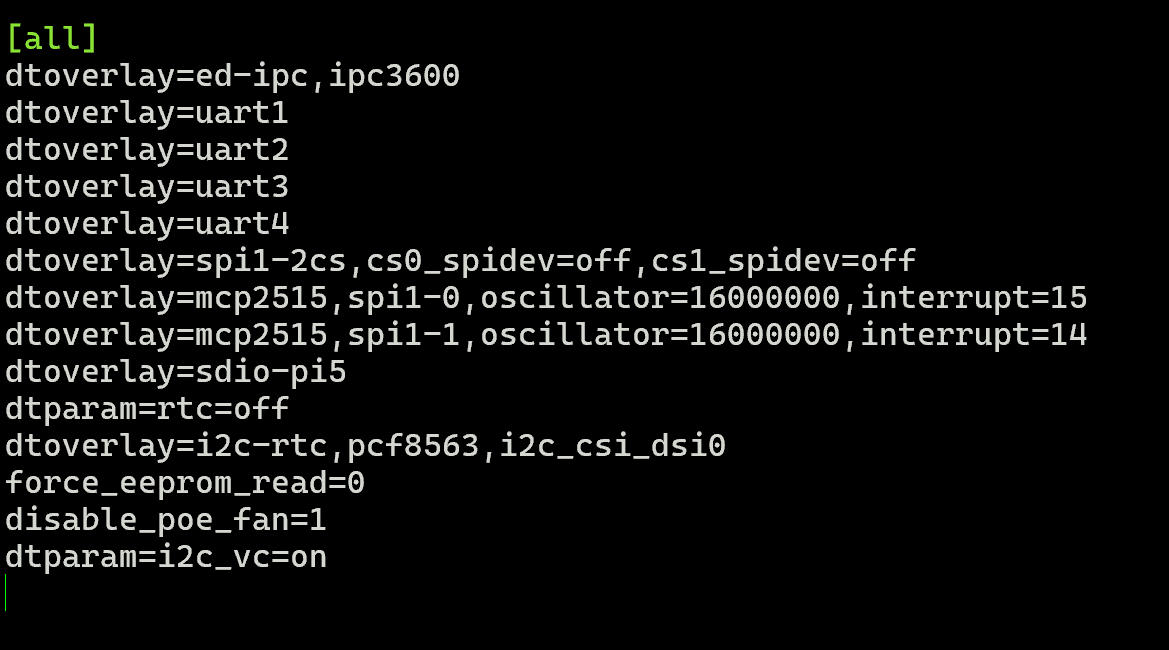
The result after adding the information is shown in the figure below:
- Press
ctrl+oto save the file, then pressEnter, and finally pressctrl+xto exit the file editing mode. - Execute the following command to add the udev rules for COM ports.
sudo tee /etc/udev/rules.d/98-com.rules >/dev/null <<'EOF'
KERNEL=="ttyAMA2", PROGRAM="/bin/sh -c 'echo 1'", SYMLINK+="com%c"
KERNEL=="ttyAMA4", PROGRAM="/bin/sh -c 'echo 2'", SYMLINK+="com%c"
KERNEL=="ttyAMA1", PROGRAM="/bin/sh -c 'echo 3'", SYMLINK+="com%c"
KERNEL=="ttyAMA3", PROGRAM="/bin/sh -c 'echo 4'", SYMLINK+="com%c"
EOF
- Execute the following command to add the udev rules for CAN ports.
cat > "/etc/udev/rules.d/50-can.rules" <<'EOF'
SUBSYSTEM=="net", ACTION=="add", DRIVERS=="?*", DEVPATH=="/devices/platform/axi/*.pcie/*.spi/spi_master/spi1/spi1.0/net/can*", NAME="canb0"
SUBSYSTEM=="net", ACTION=="add", DRIVERS=="?*", DEVPATH=="/devices/platform/axi/*.pcie/*.spi/spi_master/spi1/spi1.1/net/can*", NAME="canb1"
EOF
- Execute the following command to reboot the device for the changes to take effect.
sudo reboot
- After the device restarts successfully, the screen should display correctly, and all interfaces should function properly.
2.2.2 Installing Software Packages
Preparation:
The device has completed the modification of the config.txt file.
Steps:
- Open a terminal window and execute the following commands in sequence to download the key and create the
edatec.listfile.
curl -sS https://apt.edatec.cn/pubkey.gpg | sudo gpg --dearmor -o /etc/apt/trusted.gpg.d/edatec-archive-stable.gpg
echo "deb https://apt.edatec.cn/raspbian stable main" | sudo tee /etc/apt/sources.list.d/edatec.list
sudo apt update
- Execute the following command to install the
ed-rebootpackage.
sudo apt install ed-reboot
- Execute the following command to install the
ed-rtcpackage.
sudo apt install ed-rtc
- (Optional) Execute the following command to install the
ed-ddcci-mib-toolpackage.
sudo apt install ed-ddcci-mib-tool
TIP
ED-HMI3630-116C, ED-HMI3630-133C, and ED-HMI3630-156C all require the installation of the ed-ddcci-mib-tool package, while the ED-IPC3630 does not need to install this package.
- Execute the following command to install the
ed-cltepackage.
sudo apt install ed-clte
- Execute the following command to install the
ed-usb-toolspackage.
sudo apt install ed-usb-tools
- Execute the following command to install the
ed-lvdpackage.
sudo apt install ed-lvd