
Flashing eMMC of ED-IPC and ED-HMI via Linux Computer
1. Overview
Introduce the background and scope of flashing the eMMC of ED-IPC and ED-HMI devices via a Linux computer.
1.1. Background
If you are unable to successfully flash the eMMC of ED-IPC or ED-HMI devices from a Windows computer due to system configuration or other reasons, it is recommended to use a Linux computer as the host instead. This guide provides detailed instructions on how to flash the eMMC of ED-IPC and ED-HMI devices using a Linux computer.
1.2. Scope of Application
This application applies to all ED-IPC and ED-HMI models equipped with eMMC storage.
2. Configuration Guide
Describes the specific steps for flashing the eMMC of ED-IPC and ED-HMI devices via a Linux computer. The following sections take flashing the eMMC of an ED-IPC2100 using a Raspberry Pi 5 (as the Linux computer) as an example.
The Raspberry Pi 5 (Linux computer) operating system includes both Desktop and Lite versions, each requiring different flashing procedures. They are described separately below.
TIP
The operating system used on the Raspberry Pi 5 is Raspberry Pi OS (Desktop) 64-bit trixie (Debian 13) and Raspberry Pi OS (Lite) 64-bit trixie (Debian 13), released on October 6, 2026.
2.1 Raspberry Pi 5 (Linux Computer) Running Raspberry Pi OS (Desktop)
Before flashing the eMMC of the ED-IPC2100 via the Raspberry Pi 5, first connect the Raspberry Pi 5 to the ED-IPC2100, then start rpiboot, and finally use the Raspberry Pi Imager tool to flash the eMMC.
Preparation:
- The Raspberry Pi 5 is powered on and connected to the network.
- A Micro USB to USB-A cable (USB flashing cable) is prepared.
TIP
- If the ED-IPC or ED-HMI device uses a Type-C USB interface for flashing, prepare a Type-C USB to USB-A cable (USB flashing cable).
- If you need to use a specific image for flashing, download the image in advance and save it to a specified path on the Raspberry Pi 5.
Steps:
Connect the Raspberry Pi 5 to the ED-IPC2100 device.
a. Disconnect the power supply from the ED-IPC2100.
b. Connect the USB flashing cable: connect one end to the Micro USB port on the ED-IPC2100 side and the other end to a USB port on the Raspberry Pi 5.
c. Reconnect the power supply to the ED-IPC2100.
TIP
To ensure normal entry into rpiboot mode later, disconnect the ED-IPC2100 power before connecting the USB flashing cable.
Download and start rpiboot on the Raspberry Pi 5.
a. Open a terminal window on the Raspberry Pi 5 and run the following commands to install the compilation dependencies required by
usbboot.sudo apt update sudo apt install -y git libusb-1.0-0-dev pkg-config build-essentialb. Run the following command to clone the
usbbootrepository.sudo apt update sudo apt install -y git libusb-1.0-0-dev pkg-config build-essentialc. Run the following command to compile.
sudo apt update sudo apt install -y git libusb-1.0-0-dev pkg-config build-essentiald. After compilation is complete, an executable file named
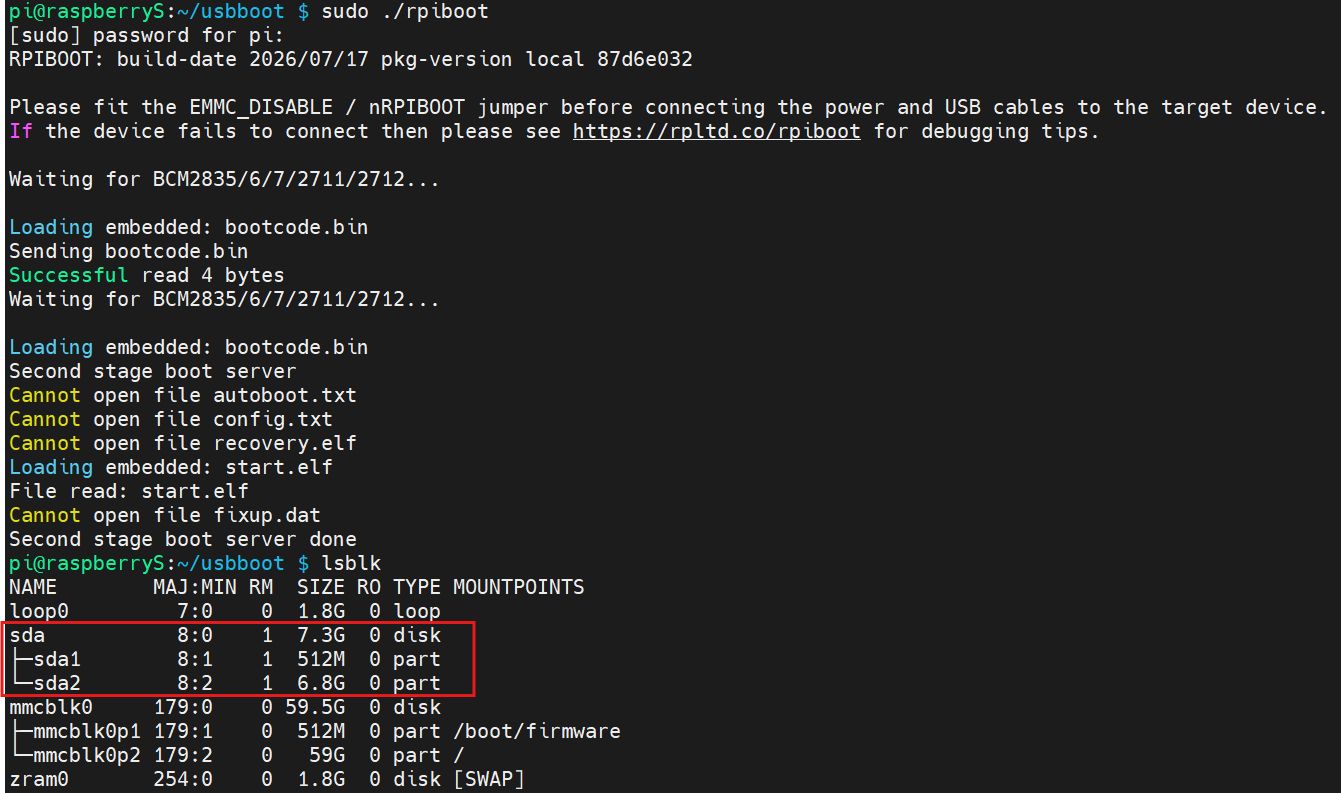
rpibootwill be generated in the current directory. Run the following command within theusbbootdirectory.sudo ./rpibootOnce
rpiboothas started successfully, run the following command to check if the target ED-IPC2100 device is recognized.
lsblk
If the output contains content similar to what is highlighted in the red box in the image below, the ED-IPC2100 device has been recognized.
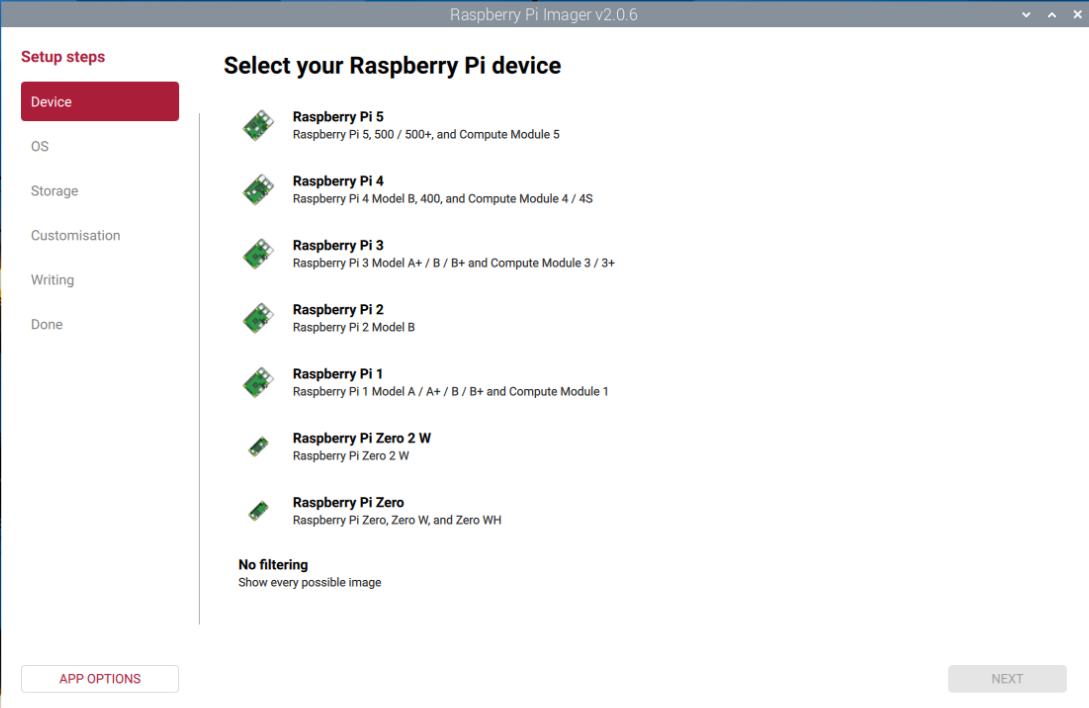
- Run the following command to launch the
Raspberry Pi Imagertool.
sudo rpi-imager
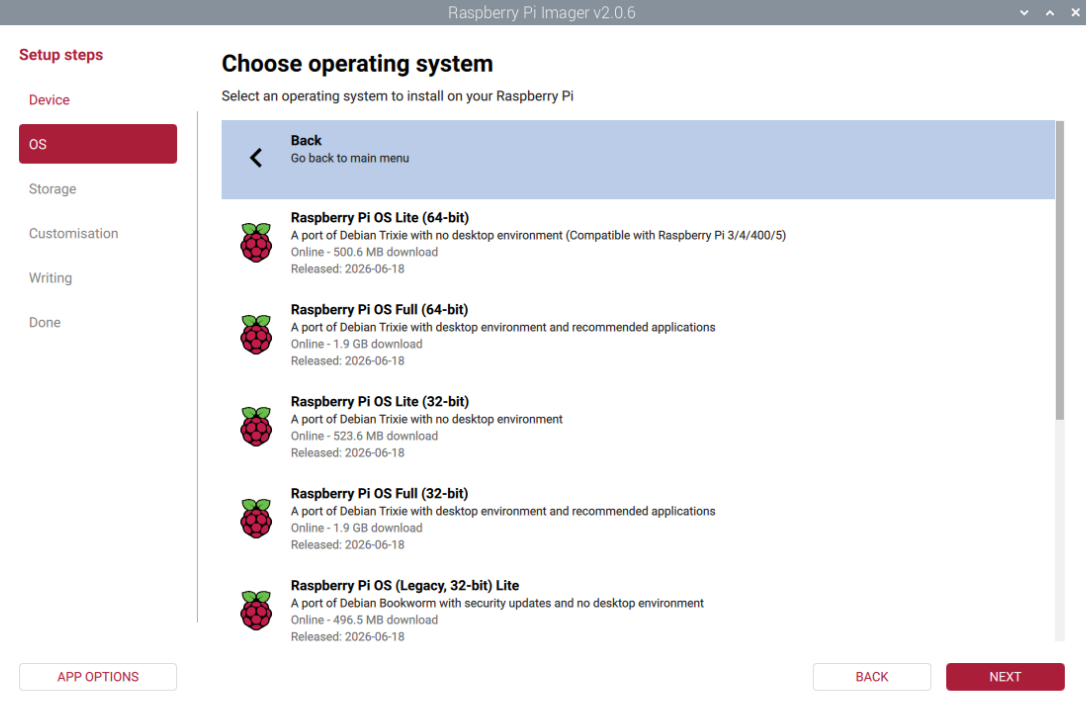
- Select "OS" in the left menu, and choose the desired image file from the "Choose operating system" list on the right.
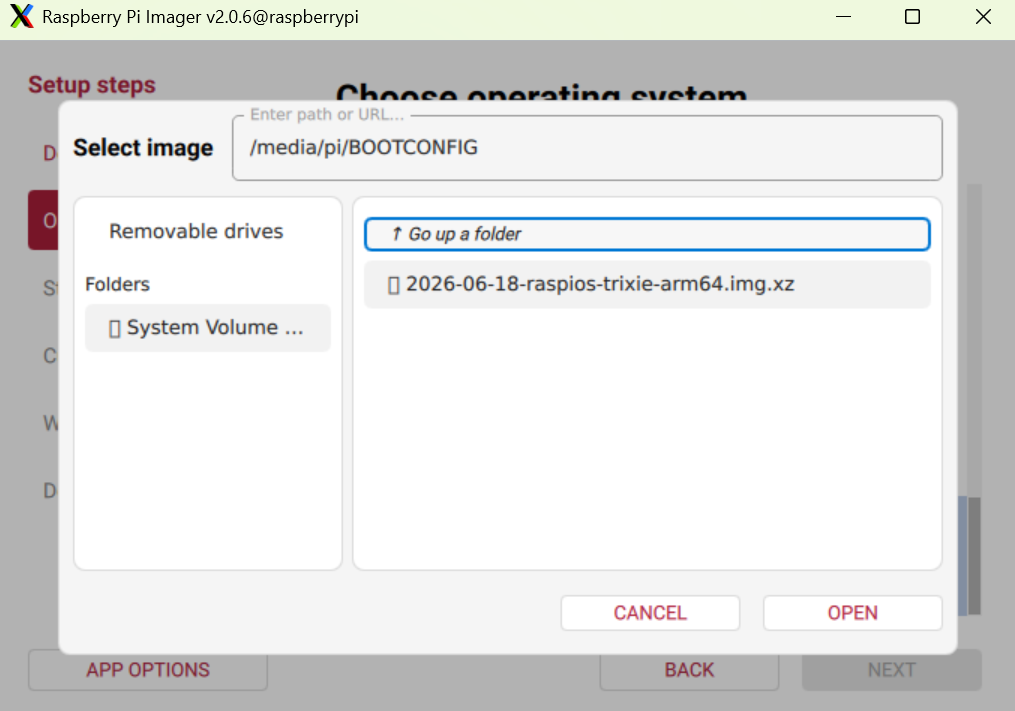
TIP
If you need to select a custom image, click "Use custom" at the bottom of the "Choose operating system" image list on the right. In the file manager window that pops up, navigate to the custom path, select the desired image file, and click "OPEN".
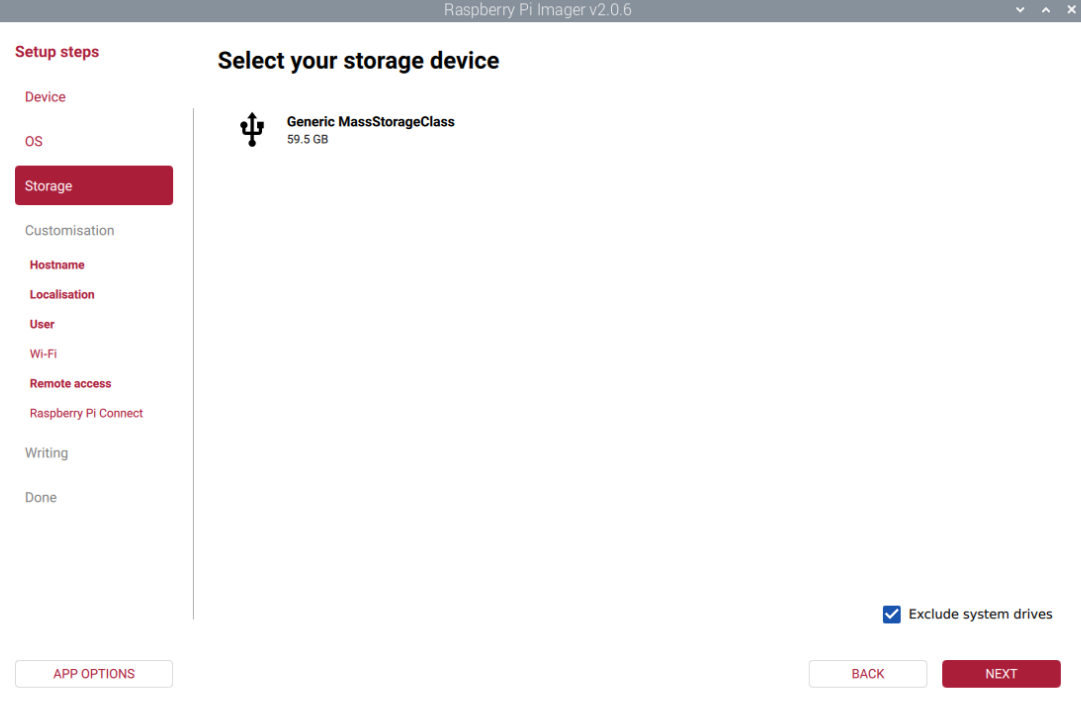
- Select "Storage" in the left menu, choose the target ED-IPC2100 device from the "Select your storage device" list on the right, and click "NEXT".
TIP
Carefully verify based on disk capacity to avoid accidentally selecting the Raspberry Pi 5's own system disk. The target device can only be seen after running rpiboot.
- Configure parameters such as Hostname, Localisation, User, Wi-Fi, Remote access, and Raspberry Pi Connect under "Customisation" as needed, then click "NEXT".
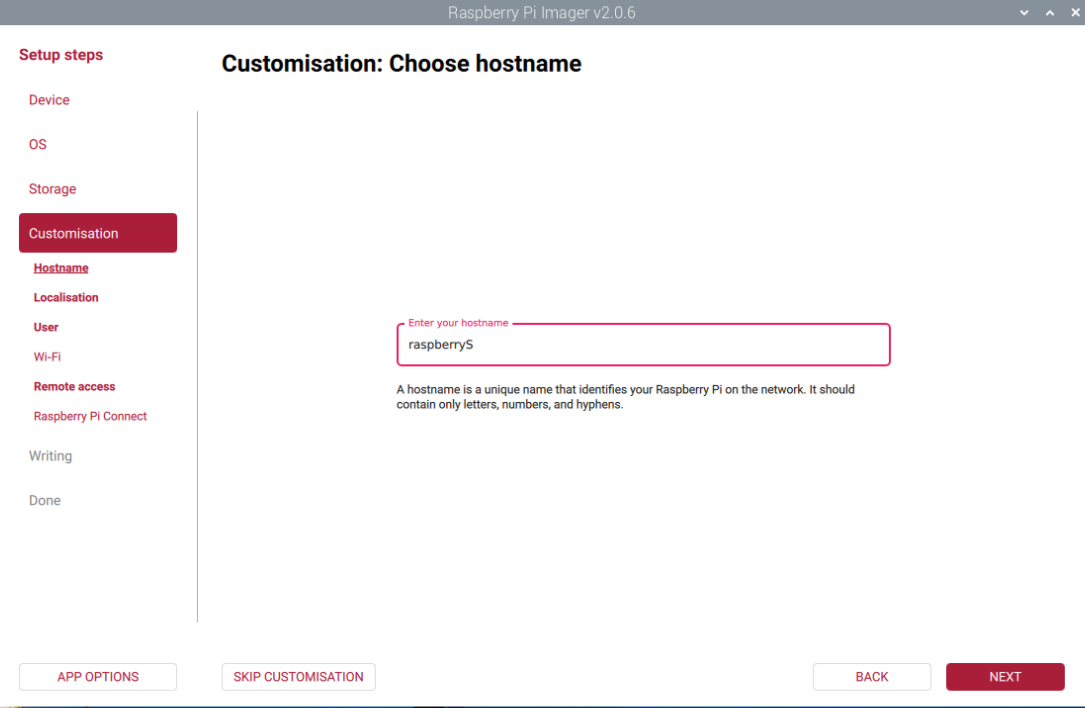
hostname: Set the device name on the network.Remote access: Check this option and select "Use password authentication" (or use a key).User: Pre-set login username and password.Wi-Fi: Pre-set Wi-Fi SSID and password; the device will automatically connect upon startup.Localisation: Set time zone (e.g., Asia/Shanghai) and keyboard layout.
TIP
If a custom image was selected in step 6, the "Customisation" settings may not be available.
- Select "Writing" in the left menu, confirm the image information in the "Write image" section on the right, and click "NEXT".
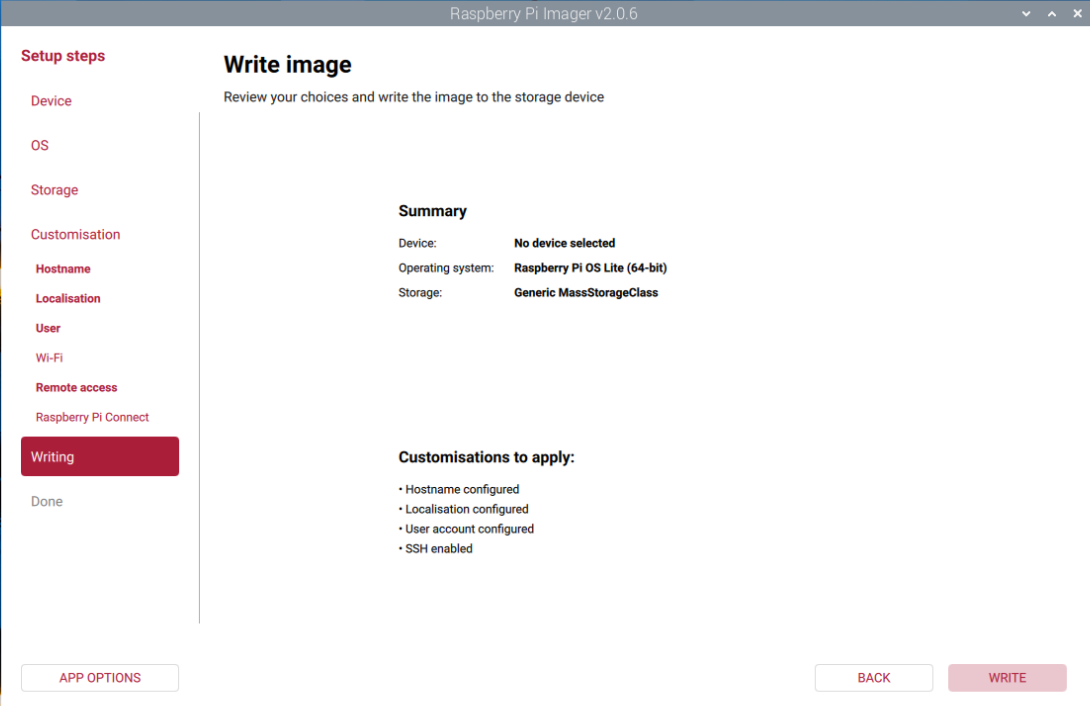
- Click "NEXT" in the confirmation dialog that appears to start writing the image.
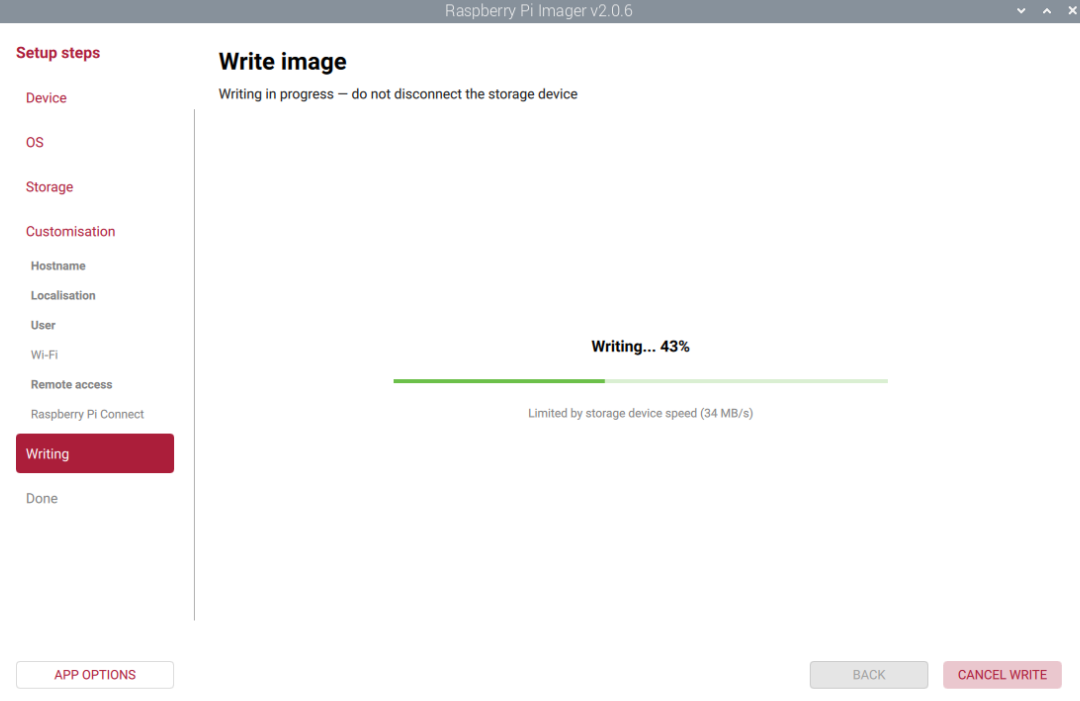
After the image writing is complete, file verification will proceed automatically.
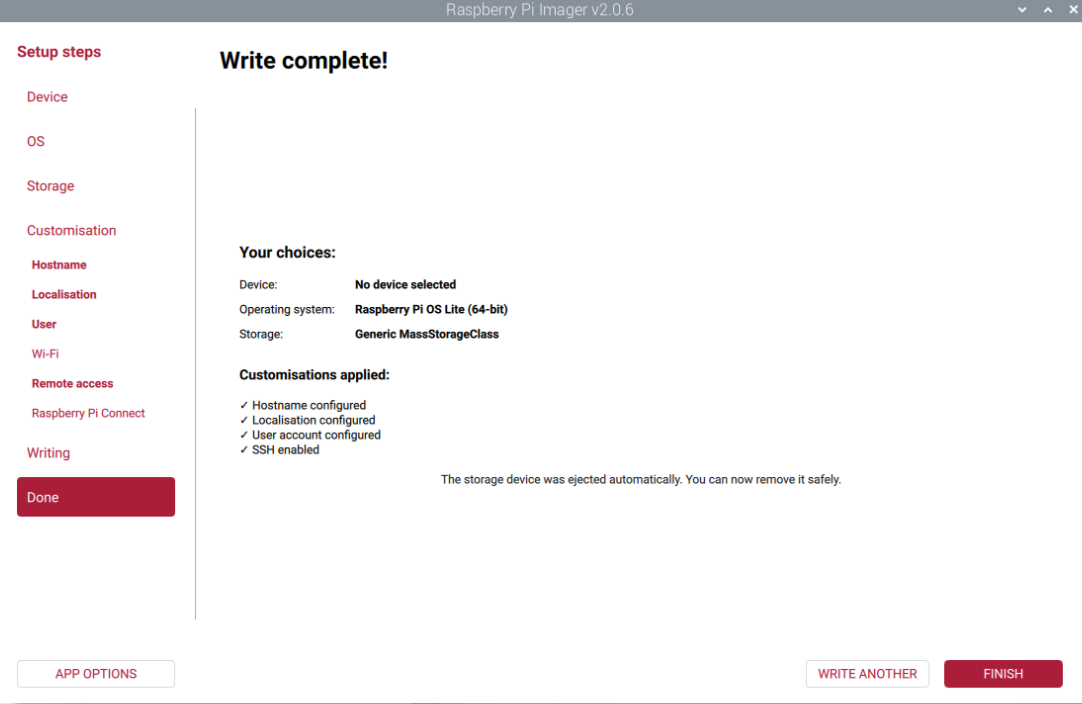
Once file verification is complete, "Write complete" will be displayed on the right side of the "Done" menu. Click "FINISH" in the bottom right corner to complete the flashing process.
- Disconnect the USB flashing cable connecting the Raspberry Pi 5 and the ED-IPC2100, then reconnect the power supply to the ED-IPC2100.
2.2 Raspberry Pi 5 (Linux Computer) Running Raspberry Pi OS (Lite)
Before flashing the eMMC of the ED-IPC2100 via the Raspberry Pi 5, first connect the Raspberry Pi 5 to the ED-IPC2100, then start rpiboot, and finally use the Raspberry Pi Imager tool to flash the eMMC.
Preparation:
- The Raspberry Pi 5 is powered on and connected to the network.
- A Micro USB to USB-A cable (USB flashing cable) is prepared.
TIP
- If the ED-IPC or ED-HMI device uses a Type-C USB interface for flashing, prepare a Type-C USB to USB-A cable (USB flashing cable).
- If you need to use a specific image for flashing, download the image in advance and save it to a specified path on the Raspberry Pi 5.
Steps:
Connect the Raspberry Pi 5 to the ED-IPC2100 device.
a. Disconnect the power supply from the ED-IPC2100.
b. Connect the USB flashing cable: connect one end to the Micro USB port on the ED-IPC2100 side and the other end to a USB port on the Raspberry Pi 5.
c. Reconnect the power supply to the ED-IPC2100.
TIP
To ensure normal entry into rpiboot mode later, disconnect the ED-IPC2100 power before connecting the USB flashing cable.
Download and start rpiboot on the Raspberry Pi 5.
a. Open a terminal window on the Raspberry Pi 5 and run the following commands to install the compilation dependencies required by
usbboot.sudo apt update sudo apt install -y git libusb-1.0-0-dev pkg-config build-essentialb. Run the following command to clone the
usbbootrepository.sudo apt update sudo apt install -y git libusb-1.0-0-dev pkg-config build-essentialc. Run the following command to compile.
sudo apt update sudo apt install -y git libusb-1.0-0-dev pkg-config build-essentiald. After compilation is complete, an executable file named
rpibootwill be generated in the current directory. Run the following command within theusbbootdirectory.sudo ./rpibootOnce
rpiboothas started successfully, run the following command to check if the target ED-IPC2100 device is recognized.
lsblk
If the output contains content similar to what is highlighted in the red box in the image below, the ED-IPC2100 device has been recognized.
- Run the following commands sequentially to install the
Raspberry Pi Imagertool.
sudo apt update
sudo apt install -y rpi-imager
- Run the following command to launch the
Raspberry Pi Imagertool.
sudo rpi-imager
- Select "OS" in the left menu, and choose the desired image file from the "Choose operating system" list on the right.
TIP
If you need to select a custom image, click "Use custom" at the bottom of the "Choose operating system" image list on the right. In the file manager window that pops up, navigate to the custom path, select the desired image file, and click "OPEN".
- Select "Storage" in the left menu, choose the target ED-IPC2100 device from the "Select your storage device" list on the right, and click "NEXT".
TIP
Carefully verify based on disk capacity to avoid accidentally selecting the Raspberry Pi 5's own system disk. The target device can only be seen after running rpiboot.
- Configure parameters such as Hostname, Localisation, User, Wi-Fi, Remote access, and Raspberry Pi Connect under "Customisation" as needed, then click "NEXT".
hostname: Set the device name on the network.Remote access: Check this option and select "Use password authentication" (or use a key).User: Pre-set login username and password.Wi-Fi: Pre-set Wi-Fi SSID and password; the device will automatically connect upon startup.Localisation: Set time zone (e.g., Asia/Shanghai) and keyboard layout.
TIP
If a custom image was selected in step 6, the "Customisation" settings may not be available.
- Select "Writing" in the left menu, confirm the image information in the "Write image" section on the right, and click "NEXT".
- Click "NEXT" in the confirmation dialog that appears to start writing the image.
After the image writing is complete, file verification will proceed automatically.
Once file verification is complete, "Write complete" will be displayed on the right side of the "Done" menu. Click "FINISH" in the bottom right corner to complete the flashing process.
- Disconnect the USB flashing cable connecting the Raspberry Pi 5 and the ED-IPC2100, then reconnect the power supply to the ED-IPC2100.