
3 Configuring the Network
This chapter describes how to connect to the network and configure various network parameters using the ed-clte.
3.1 Connecting to the Network
Select the appropriate connection method based on whether your network requires APN configuration.
3.1.1 Scenario Without APN Configuration
After installing the ed-clte, if your 4G network does not require APN configuration, the network will connect automatically. You can confirm the network status by following the steps below.
Preparation:
- The device has been started normally.
- The SIM card has been correctly installed into the SIM card slot.
NOTE
Hot-swapping of the SIM card is not supported.
Steps:
- Open a terminal window and execute the following command to check whether the 4G port is connected.
ifconfig
The returned information is shown in the figure below (the wwan0 or usb0 port indicates the 4G port):
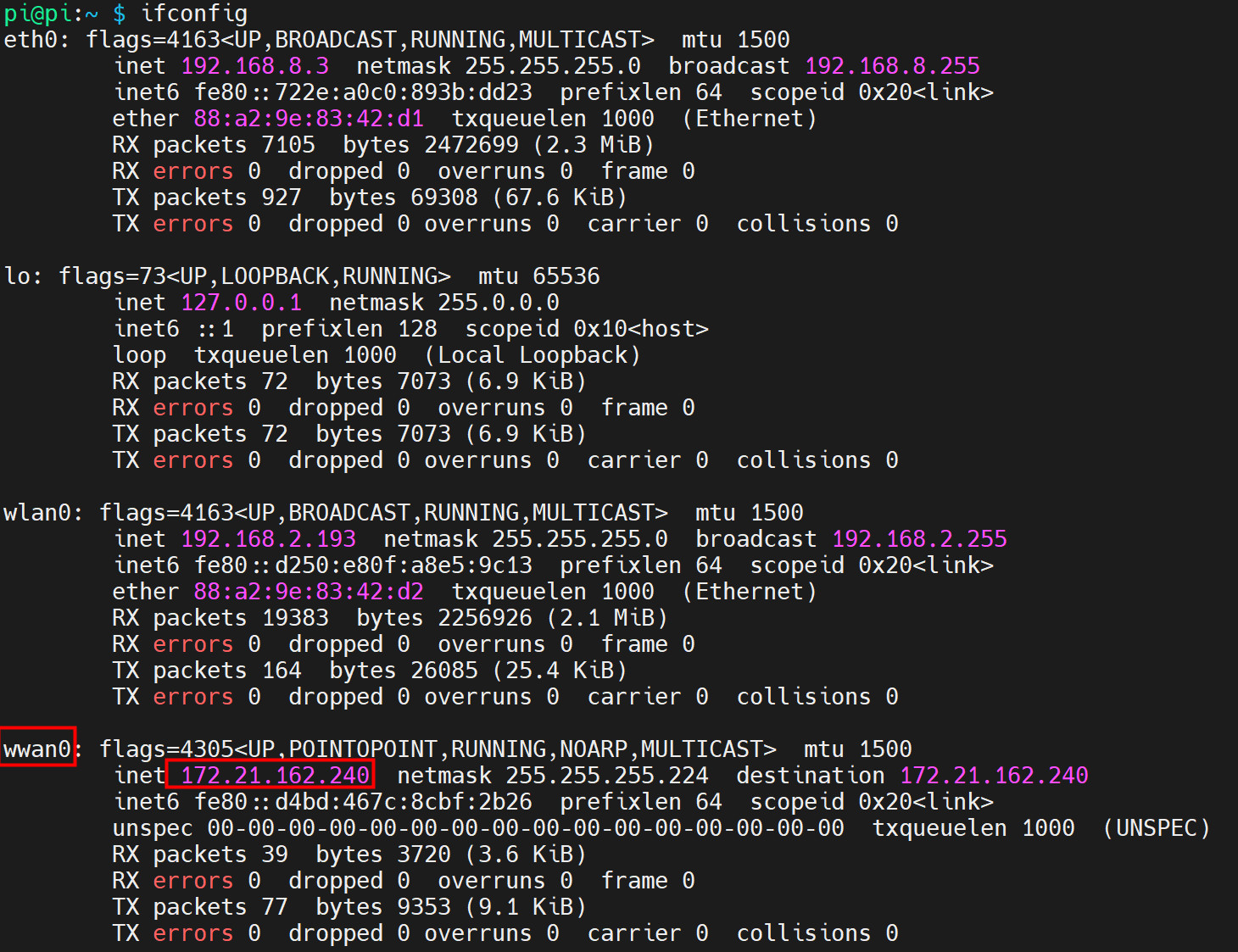
- f the wwan0/usb0 port in the returned information shows a specific IP address, the 4G port is connected.
- If the wwan0/usb0 port in the returned information does not show a specific IP address, the 4G port is not connected.
The 4G port name varies by device model, as shown in the table below:
| Product Model | 4G Port Name |
|---|---|
| ED-IPC1100、ED-IPC1200、ED-IPC1220 | usb0 |
| ED-IPC2100、ED-IPC2200、ED-IPC2600 ED-CM4SEN、ED-CM4MEDIA、ED-CM4IND ED-IPC3100、ED-IPC3200、ED-IPC3600 ED-HMI2120-070C、ED-HMI2120-101C ED-HMI2220-070C、ED-HMI2220-101C ED-HMI2630-101C、ED-HMI3120-070C ED-HMI3120-101C、ED-HMI3120-116C ED-HMI3120-133C、ED-HMI3120-156C ED-HMI3120-185C、ED-HMI3120-215C ED-HMI3630-101C、ED-HMI3630-116C ED-HMI3630-133C、ED-HMI3630-156C ED-SBC2300、ED-SBC3300 | wwan0 |
- Execute the following command to check the 4G service status and network status.
sudo systemctl status ed-lte-daemon.service
The returned information is shown in the figure below:
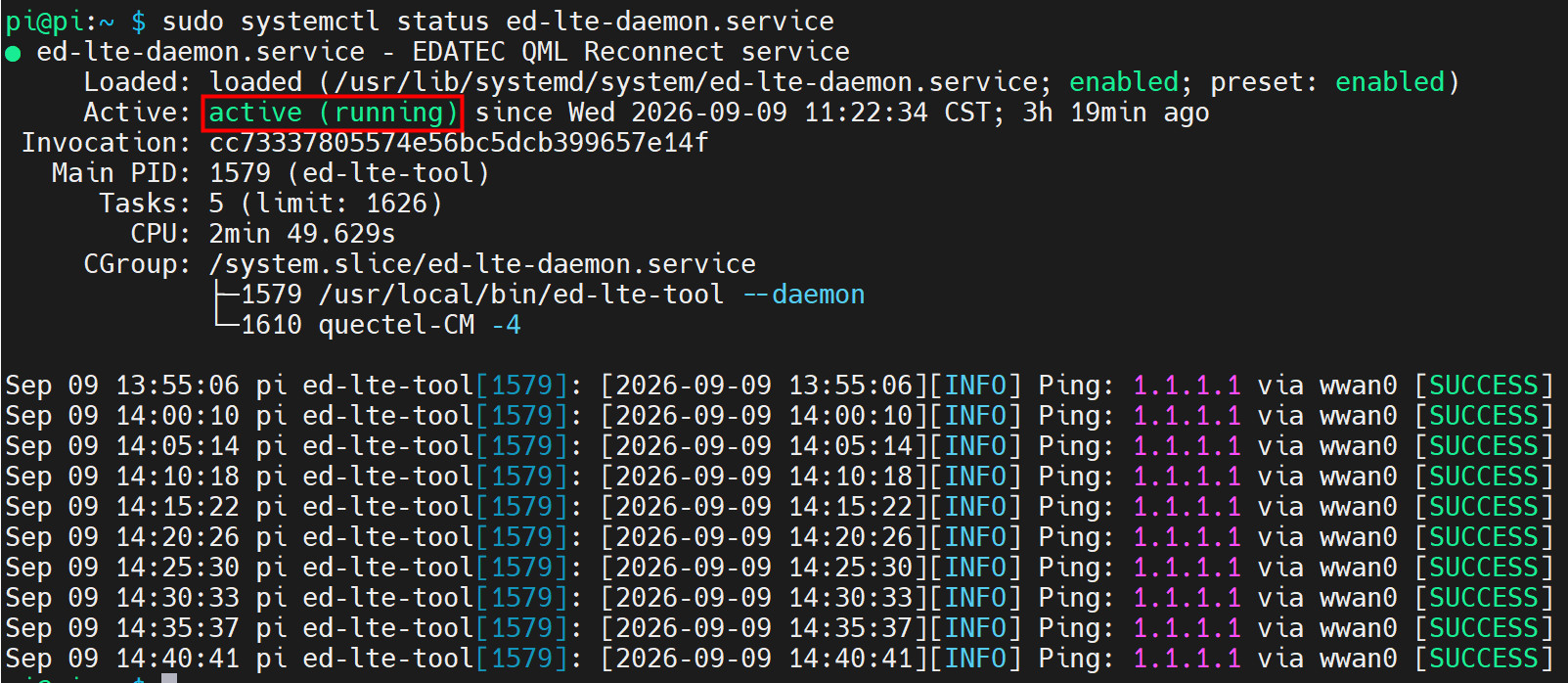
- If the information at the marked position reads "Active: active (running)", the 4G service status is normal.
- If the information at the marked position reads "Active: inactive (dead)", the 4G service status is abnormal.
- In the network connection information, if the status is [SUCCESS], network communication is normal.
3.1.2 Scenario With APN Configuration
After installing the ed-clte, if your 4G network requires APN configuration, you can follow the steps below to configure it.
Preparation:
- The device has been started normally.
- The SIM card has been correctly installed into the SIM card slot.
- The APN name, username, and password have been obtained. This document uses the following information as an example.
- APN Name: APN1
- Username: admin
- Password: admin
NOTE
Hot-swapping of the SIM card is not supported.
Steps:
- Open a terminal window and execute the following commands sequentially to open the
ed-qml.confconfiguration file.
cd /etc/
sudo nano ed-qml.conf
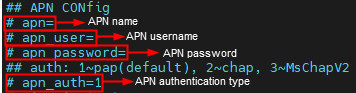
- Set the "apn", "apn_user", and "apn_password" in the "APN CONfig" section as needed.
TIP
When configuring "apn", "apn_user", and "apn_password", delete the # character preceding the parameter to enable the configured parameter.
Press
ctrl+oto save the file, then pressEnter, and finally pressctrl+xto exit the file editing mode.Execute the following command to restart the 4G service and apply the configuration.
sudo systemctl restart ed-lte-daemon.service
- Execute the following command to check whether the 4G port is connected.
ifconfig
The returned information is shown in the figure below (the wwan0 or usb0 port indicates the 4G port):
- If the wwan0/usb0 port in the returned information shows a specific IP address, the 4G port is connected.
- If the wwan0/usb0 port in the returned information does not show a specific IP address, the 4G port is not connected.
The 4G port name varies by device model, as shown in the table below:
| Product Model | 4G Port Name |
|---|---|
| ED-IPC1100、ED-IPC1200、ED-IPC1220 | usb0 |
| ED-IPC2100、ED-IPC2200、ED-IPC2600 ED-CM4SEN、ED-CM4MEDIA、ED-CM4IND ED-IPC3100、ED-IPC3200、ED-IPC3600 ED-HMI2120-070C、ED-HMI2120-101C ED-HMI2220-070C、ED-HMI2220-101C ED-HMI2630-101C、ED-HMI3120-070C ED-HMI3120-101C、ED-HMI3120-116C ED-HMI3120-133C、ED-HMI3120-156C ED-HMI3120-185C、ED-HMI3120-215C ED-HMI3630-101C、ED-HMI3630-116C ED-HMI3630-133C、ED-HMI3630-156C ED-SBC2300、ED-SBC3300 | wwan0 |
- Execute the following command to check the 4G service status and network status.
sudo systemctl status ed-lte-daemon.service
The returned information is shown in the figure below:
- If the information at the marked position reads "Active: active (running)", the 4G service status is normal.
- If the information at the marked position reads "Active: inactive (dead)", the 4G service status is abnormal.
- In the network connection information, if the status is [SUCCESS], network communication is normal.
3.2 Basic Configuration Commands
The following are commonly used query and configuration commands, suitable for troubleshooting abnormal network connections.
| Command | Description |
|---|---|
| sudo ed-lte-tool --daemon | Start the network monitoring daemon and automatically connect to the network. |
| ifconfig | Check whether the 4G port is connected, where the wwan0 or usb0 port indicates the 4G port, as shown in the figure below.
|
| sudo systemctl status ed-lte-daemon.service | Check the 4G service status and network status, as shown in the figure below.
|
| sudo systemctl enable ed-lte-daemon.service | Enable the network service |
| sudo systemctl start ed-lte-daemon.service | Start the network service |
| sudo systemctl stop ed-lte-daemon.service | Stop the network service |
| sudo ed-lte-tool -m | View network module information |
| sudo ed-lte-tool -s | View network signal strength |
| sudo ed-lte -c | Manually dial up to connect to the network |
| sudo ed-lte -d | Manually disconnect the network; automatic reconnection is not supported after disconnection |
| sudo ed-lte -r | Manual reset of the 4G module |
| cd /var/log/ed-qmi/ sudo nano xxxx-xx-xx.log | Navigate to the /var/log/ed-qmi/ directory and view the log file for a specified date, where xxxx-xx-xx represents the year-month-day format, e.g., 2026-06-18 |
| journalctl -u ed-lte-daemon.service | View real-time network logs |
TIP
If the 4G port is connected normally but the 4G service status is found to be abnormal, you can execute the following commands sequentially to enable and start the network service.
sudo systemctl enable ed-lte-daemon.service
sudo systemctl start ed-lte-daemon.service
TIP
- If the device has a 4G indicator LED, after successfully connecting to the 4G network using the ed-clte, you can determine whether the network is connected by checking the 4G indicator LED status.
- The 4G indicator LED being lit indicates that the device is connected to the 4G network.
- The 4G indicator LED being off indicates that the device is not connected to the network.
- The 4G indicator LED being lit indicates that the device is connected to the 4G network.
3.3 Configuring Network Parameters
After successfully connecting to the network, users can edit the /etc/ed-qml.conf file to configure various network parameters as needed.
TIP
When configuring parameters, delete the # character preceding the parameter to make the configured parameter take effect.
3.3.1 Configuring 4G Module Reset
The 4G module reset can be enabled in the ed-qml.conf configuration file.
Steps:
- Open a terminal window and execute the following commands sequentially to open the
ed-qml.confconfiguration file.
cd /etc/
sudo nano ed-qml.conf
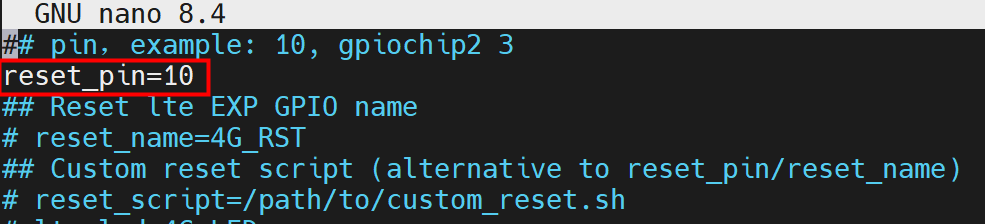
- Configure the 4G module reset parameters as needed. The 4G module reset can be implemented via Pin number, Pin name, or a custom script. Users can choose one method according to their actual situation.

- Configure via Pin number:
- Configure via Pin name:
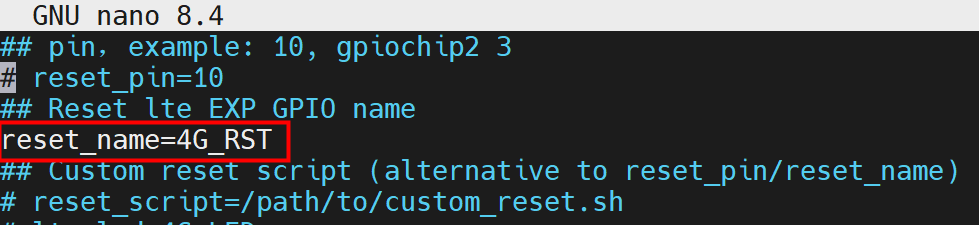
- Configure via custom script:

The Pin number and Pin name vary for each device. Please configure them according to the actual values.
| Product Model | Pin Number | Pin Name |
|---|---|---|
| ED-CM4SEN | 10 | - |
| ED-CM4MEDIA | 10 | - |
| ED-CM4IND | 10 | - |
| ED-IPC1100 | - | 4G_RST |
| ED-IPC1200 | - | 4G_RST |
| ED-IPC1220 | - | 4G_RST |
| ED-IPC2100 | - | 4G_RST |
| ED-IPC2200 | - | 4G_RST |
| ED-SBC2300 | - | 4G_RST |
| ED-IPC2600 | - | 4G_RST |
| ED-IPC3100 | - | 4G_RST |
| ED-IPC3200 | - | 4G_RST |
| ED-SBC3300 | - | 4G_RST |
| ED-IPC3600 | - | 4G_RST |
| ED-HMI2120-070C、ED-HMI2120-101C | - | 4G_RST |
| ED-HMI2220-070C、ED-HMI2120-101C | - | 4G_RST |
| ED-HMI2630-101C | - | 4G_RST |
| ED-HMI3120-070C、ED-HMI3120-101C ED-HMI3120-116C、ED-HMI3120-133C ED-HMI3120-156C、ED-HMI3120-185C ED-HMI3120-215C | - | 4G_RST |
| ED-HMI3630-101C、ED-HMI3630-116C、ED-HMI3630-133C、ED-HMI3630-156C | - | 4G_RST |
| ED-SBC2300、ED-SBC3300 | - | 4G_RST |
Press
ctrl+oto save the file, then pressEnter, and finally pressctrl+xto exit the file editing mode.Execute the following command to restart the 4G network service and apply the configuration.
sudo systemctl restart ed-lte-daemon.service
TIP
After configuring the 4G module reset parameters, when the network connection is abnormal, the ed-clte mechanism will first attempt to connect automatically. If the connection remains abnormal, it will initiate airplane mode detection. If the 4G network still cannot connect after airplane mode detection, the software will automatically reset the 4G module at intervals of 10 minutes, 20 minutes, 30 minutes, and 1 hour.
3.3.2 Configuring 4G Module LED
The 4G module LED can be configured in the ed-qml.conf configuration file.
Steps:
- Open a terminal window and execute the following commands sequentially to open the
ed-qml.confconfiguration file.
cd /etc/
sudo nano ed-qml.conf
- Configure the 4G module LED as needed. The 4G module LED can be implemented via Pin number or LED name. Users can choose one method according to their actual situation.
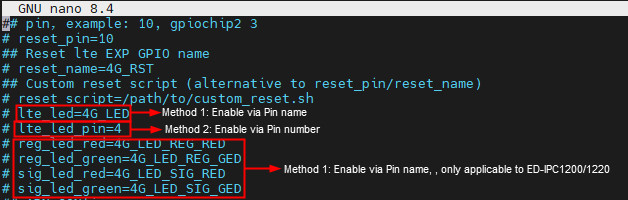
- Configure via Pin number:
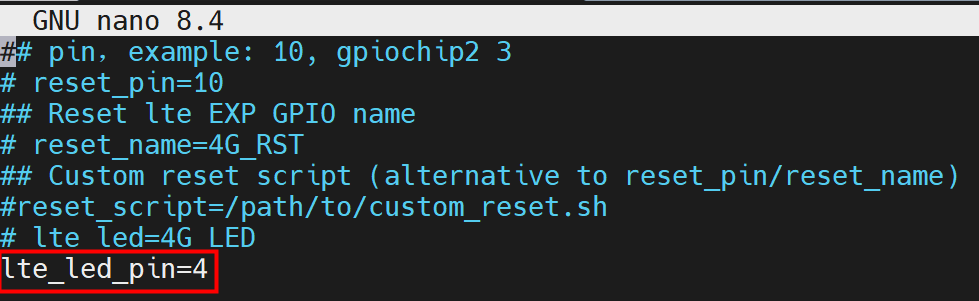
- Configure via Pin name:
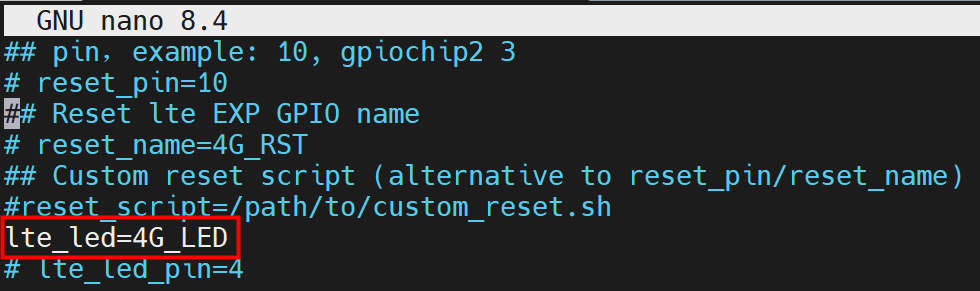
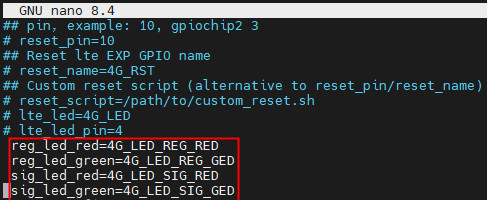
The Pin number and name corresponding to the 4G module LED vary for each device. Please configure them according to the actual values.
| Product Model | LED Pin Number | LED Name |
|---|---|---|
| ED-IPC1100 | - | 4G_LED |
| ED-IPC1200 | - | 4G_LED_REG_RED 4G_LED_REG_GED 4G_LED_SIG_RED 4G_LED_SIG_GED |
| ED-IPC1220 | - | 4G_LED_REG_RED 4G_LED_REG_GED 4G_LED_SIG_RED 4G_LED_SIG_GED |
| ED-IPC2100 | - | 4G_LED |
| ED-IPC2200 | - | 4G_LED |
| ED-IPC2600 | - | 4G_LED |
| ED-IPC3100 | - | 4G_LED |
| ED-IPC3200 | - | 4G_LED |
| ED-IPC3600 | - | 4G_LED |
| ED-HMI2120-070C、ED-HMI2120-101C | - | 4G_LED |
| ED-HMI2220-070C、ED-HMI2120-101C | - | 4G_LED |
| ED-HMI2630-101C | - | 4G_LED |
| ED-HMI3120-070C、ED-HMI3120-101C ED-HMI3120-116C、ED-HMI3120-133C ED-HMI3120-156C、ED-HMI3120-185C ED-HMI3120-215C | - | 4G_LED |
| ED-HMI3630-101C、ED-HMI3630-116C ED-HMI3630-133C、ED-HMI3630-156C | - | 4G_LED |
TIP
ED-IPC1200 and ED-IPC1220 include 2 dual-color 4G indicator LEDs with 4 states. The recommended configuration is as follows:
4GR LED:
reg_led_red=4G_LED_REG_RED
reg_led_green=4G_LED_REG_GED4GS LED:
sig_led_red=4G_LED_SIG_RED
sig_led_green=4G_LED_SIG_GED
Press
ctrl+oto save the file, then pressEnter, and finally pressctrl+xto exit the file editing mode.Execute the following command to restart the 4G network service and apply the configuration.
sudo systemctl restart ed-lte-daemon.service
TIP
After configuring the 4G module LED, the 4G indicator LED has two states.
- When the network is being connected, the 4G indicator LED blinks.
- After the network is successfully connected, the 4G indicator LED stays solid on.
3.3.3 Configuring APN
The APN can be configured in the ed-qml.conf configuration file.
Steps:
- Open a terminal window and execute the following commands sequentially to open the
ed-qml.confconfiguration file.
cd /etc/
sudo nano ed-qml.conf
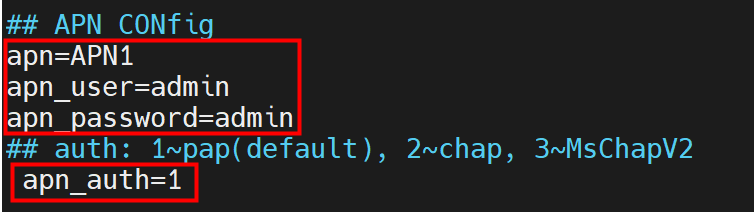
- Set the "apn", "apn_user", and "apn_password" in the "APN CONfig" section as needed.
- APN Name: User-defined.
- APN Username: User-defined.
- APN Password: User-defined.
- APN Authentication Type: Default is pap. Users can configure it as chap or MschapV2 based on the actual SIM card type.
Configuration example:
Press
ctrl+oto save the file, then pressEnter, and finally pressctrl+xto exit the file editing mode.Execute the following command to restart the 4G network service and apply the configuration.
sudo systemctl restart ed-lte-daemon.service
3.3.4 Configuring SIM Pin
If the SIM card used for 4G internet access has a pin, the SIM Pin can be configured in the ed-qml.conf configuration file.
Steps:
- Open a terminal window and execute the following commands sequentially to open the
ed-qml.confconfiguration file.
cd /etc/
sudo nano ed-qml.conf
- Set "sim_pin" as needed.
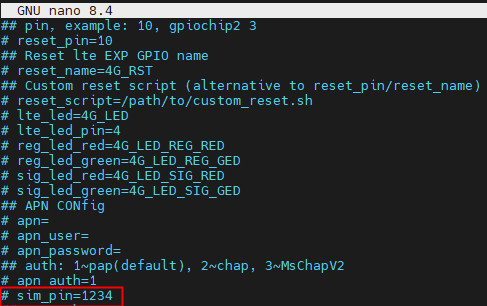
- sim_pin: User-defined.
Configuration example (setting the sim_pin to 1234):
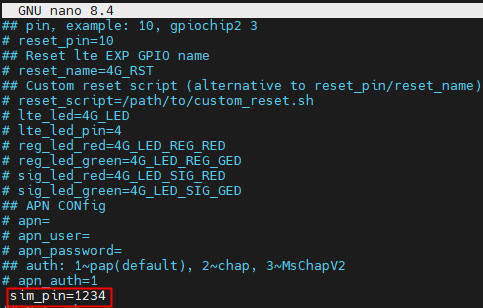
Press
ctrl+oto save the file, then pressEnter, and finally pressctrl+xto exit the file editing mode.Execute the following command to restart the 4G network service and apply the configuration.
sudo systemctl restart ed-lte-daemon.service
3.3.5 Configuring ping_server
Since some users use internal networks, the ping_server needs to be configured with an internal address to properly detect the network status. The ping_server can be configured in the ed-qml.conf configuration file.
Steps:
- Open a terminal window and execute the following commands sequentially to open the
ed-qml.confconfiguration file.
cd /etc/
sudo nano ed-qml.conf
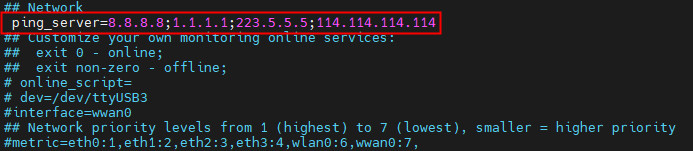
- Set the network ping_server as needed.

- The default ping_server includes four DNS server IPs: 8.8.8.8, 1.1.1.1, 223.5.5.5, and 114.114.114.114.
- The ping_server supports custom settings and can be specified as other DNS server IPs or domain names (e.g., baidu.com). It also supports configuration as a custom script.
Configuration example:
Press
ctrl+oto save the file, then pressEnter, and finally pressctrl+xto exit the file editing mode.Execute the following command to restart the 4G network service and apply the configuration.
sudo systemctl restart ed-lte-daemon.service
3.3.6 Configuring Network Priority
Network priority can be configured in the ed-qml.conf configuration file.
Steps:
- Open a terminal window and execute the following commands sequentially to open the
ed-qml.confconfiguration file.
cd /etc/
sudo nano ed-qml.conf
- Set the metric values for eth0, eth1, eth2, wlan0, and wwan0 as needed to adjust the priority of network ports.
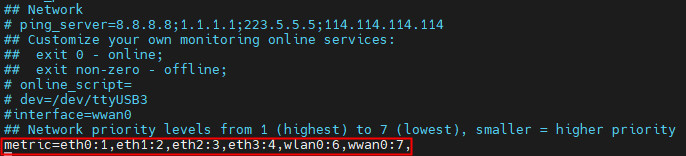
- eth0, eth1, and eth2: Represent Ethernet ports. Different device models have different numbers of ports.
- wlan0: Represents the Wi-Fi port.
- wwan0: Represents the 4G network port (the 4G network port on some devices is usb0).
The larger the metric value for a port, the lower the priority of that port. As shown in the figure above, the network priority is: eth0 > eth1 > eth2 > wlan0 > wwan0
TIP
The default network priority from the factory is Ethernet > Wi-Fi > 4G.
- If Ethernet is not connected, it will automatically switch to Wi-Fi.
- If neither Ethernet nor Wi-Fi is connected, it will automatically switch to the 4G network.
Press
ctrl+oto save the file, then pressEnter, and finally pressctrl+xto exit the file editing mode.Execute the following command to restart the 4G network service and apply the configuration.
sudo systemctl restart ed-lte-daemon.service