
5 Configuring System
This chapter introduces how to configure system.
WARNING
The ED-PAC3020 device comes pre-installed with a valid CODESYS license by default. Reinstalling the operating system will invalidate the CODESYS license. Do not attempt to install the OS on your own.
5.1 Finding Device IP
5.2 Remote Login
5.3 Configuring Wi-Fi
5.4 Configuring Ethernet IP
5.5 Configuring Bluetooth
5.6 Configuring Buzzer
The buzzer is controlled using GPIO6.
Execute the following command to turn on the buzzer:
pinctrl set 6 op dh
Execute the following command to turn off the buzzer:
pinctrl set 6 op dl
5.7 Configuring RTC
5.8 Configuring Serial Port
This chapter introduces the configuration method of RS232 and RS485.
5.8.1 Installing Picocom Tool
In the Linux environment, you can use the picocom tool to debug the serial ports RS232 and RS485.
Execute the following command to install the picocom tool.
sudo apt-get install picocom
5.8.2 Configuring RS232
The ED-PAC3020 contains 1 RS232 interface, and its corresponding COM port and device files are listed in the table below:
| Number of RS232 Ports | Corresponding COM Port | Corresponding Device File |
|---|---|---|
| 1 | COM1 | /dev/com1 |
Preparation:
The RS232 ports of ED-PAC3020 has been connected with external device.
Steps:
- Execute the following command to open the serial port com1, and configure the serial port baud rate to 115200.
picocom -b 114200 /dev/com1
- Input commands as needed to control external device.
5.8.3 Configuring RS485
The ED-PAC3020 contains 1 RS485 interface, and its corresponding COM port and device files are listed in the table below:
| Number of RS485 Ports | Corresponding COM Port | Corresponding Device File |
|---|---|---|
| 1 | COM2 | /dev/com2 |
Preparation:
The RS485 ports of ED-PAC3020 has been connected with external device.
Steps:
- Execute the following command to open the serial port com2, and configure the serial port baud rate to 115200.
picocom -b 115200 /dev/com2
- Input commands as needed to control external device.
5.9 Configuring Audio
5.10 CODESYS License Management
The ED-PAC3020 device comes pre-installed with a CODESYS license by default. You can back up and restore the license by accessing the "PLC Setting" interface.
5.10.1 License Backup
Preparation:
- A Windows PC has been set up with an IP address in the same subnet as the device. For example, if the device’s IP (1000M Ethernet port) is
192.168.0.100, set the PC’s IP to192.168.0.99. - A functioning Ethernet cable has been prepared.
Steps:
Connect the device's 1000M Ethernet port to the PC via an Ethernet cable, then power on the device.
Enter
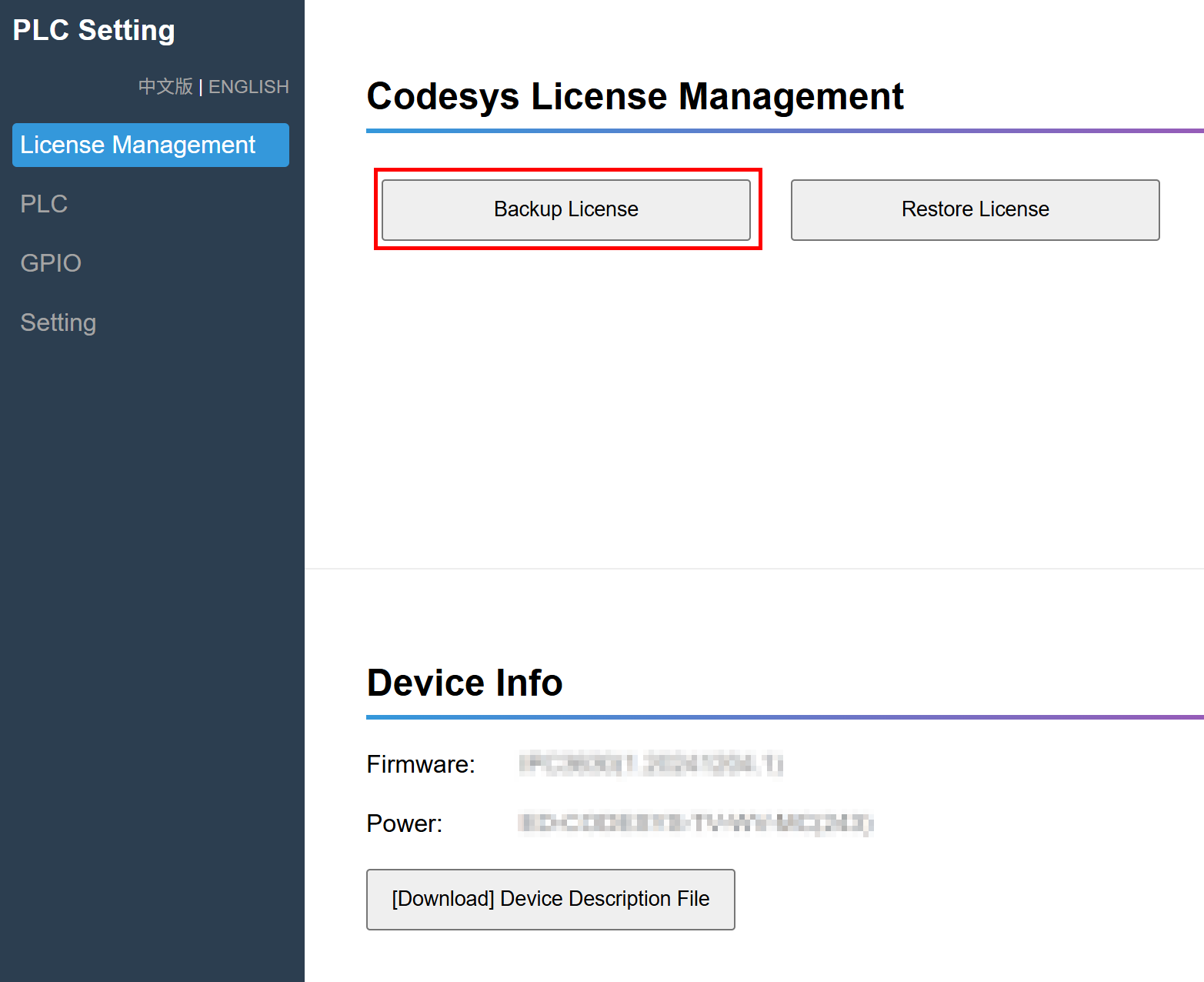
http://192.168.0.100:8100in the PC’s web browser to access the "PLC Setting" interface.In the "Codesys License Management" interface, click "Backup License" to download the license file and save it locally.
TIP
The backed-up license file can only be restored on the same device.
5.10.2 License Restore
Preparation:
- A Windows PC has been set up with an IP address in the same subnet as the device. For example, if the device’s IP (1000M Ethernet port) is
192.168.0.100, set the PC’s IP to192.168.0.99. - A functioning Ethernet cable has been prepared.
- The backed-up license file has been obtained.
Steps:
Connect the device's 1000M Ethernet port to the PC via an Ethernet cable, then power on the device.
Enter
http://192.168.0.100:8100in the PC’s web browser to access the "PLC Setting" interface.In the "Codesys License Management" interface, click "Restore License".
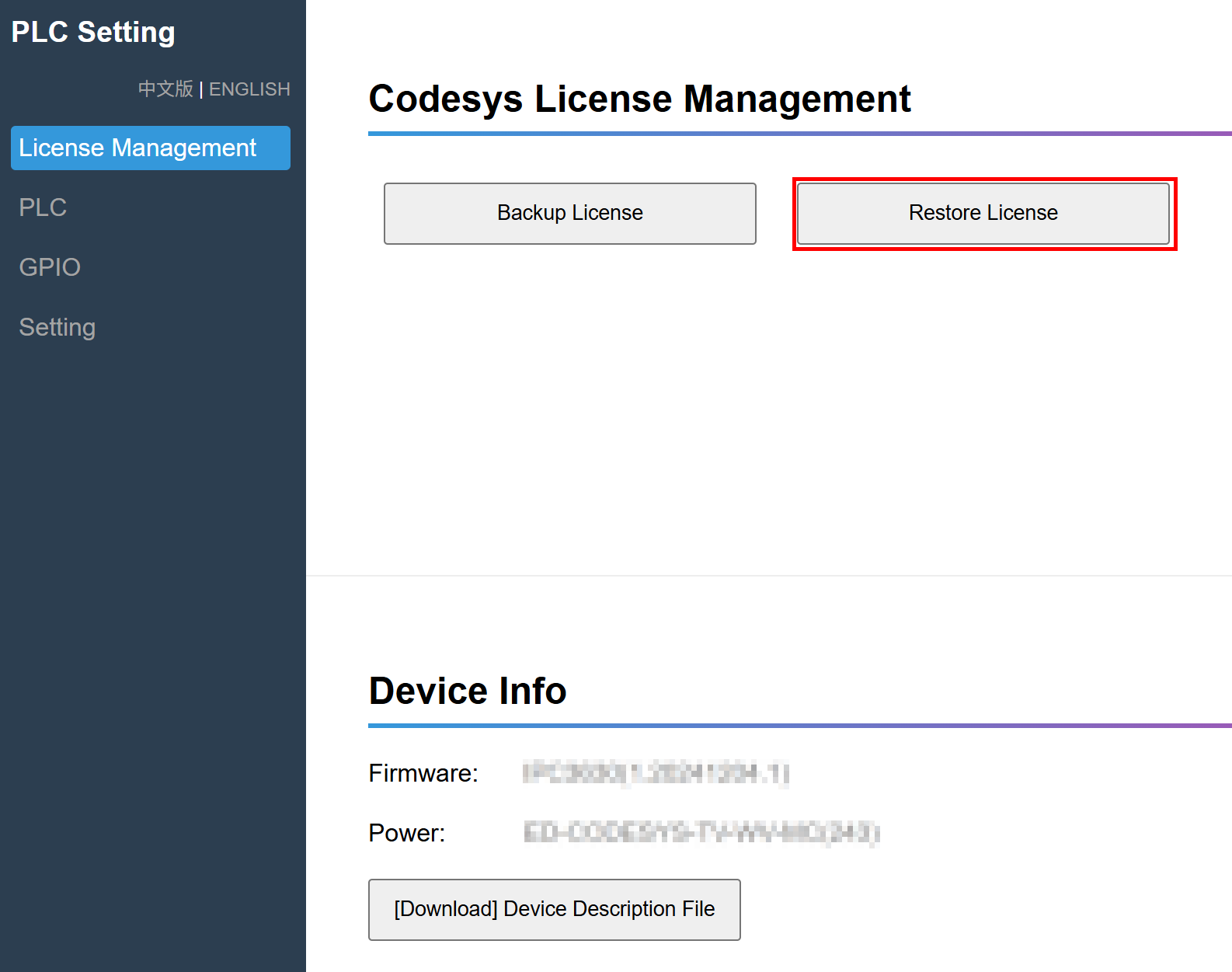
As prompted, select the obtained license file under a custom path.
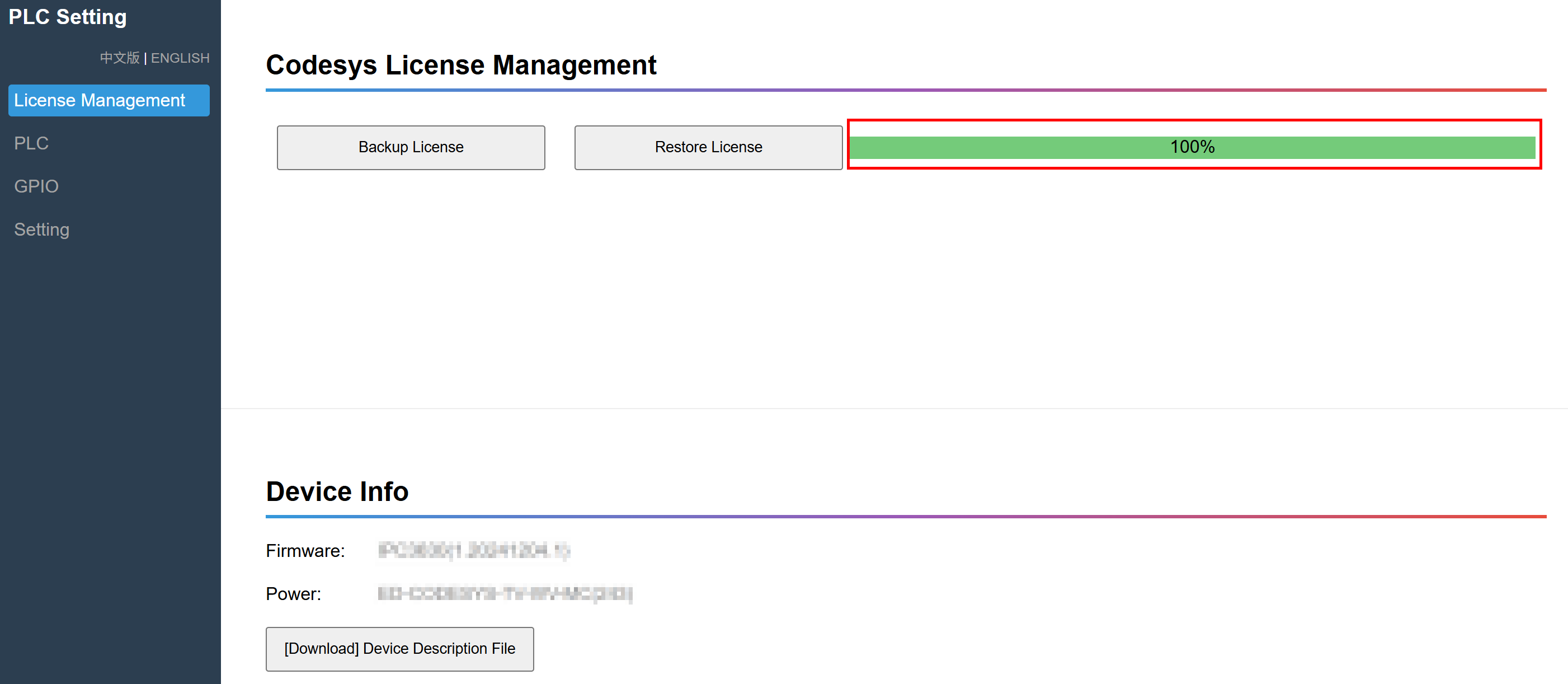
After a successful License Restore, a 100% progress bar will be displayed in the right-hand panel.
- Open the device’s terminal command pane, execute the following command, and restart the device.
sudo reboot