
5 Configuring System
This chapter introduces how to configure system.
5.1 Finding Device IP
5.2 Remote Login
5.3 Configuring Storage Devices
5.4 Configuring Ethernet IP
5.5 Configuring Wi-Fi
5.6 Configuring Bluetooth
5.7 Configuring 4G
The ED-IPC1100 device has 4G functionality enabled by default. When a user inserts a SIM card and powers on the device, the 4G network will automatically connect.
5.7.1 Scenarios Without APN Configuration
If the user's 4G network does not require APN configuration, the 4G network status can be checked by following the steps below.
Preparation:
- The ED-IPC1100 device has started up normally.
- A Nano SIM card with 4G network capability has been correctly installed into the SIM card slot of the ED-IPC1100.
NOTE
Please turn off the power before inserting or removing the Nano SIM card.
Steps:
- Open the command window and execute the following command to check if the 4G network is connected.
ifconfig
The returned information is as shown in the figure below (the usb0 interface indicates the 4G interface):
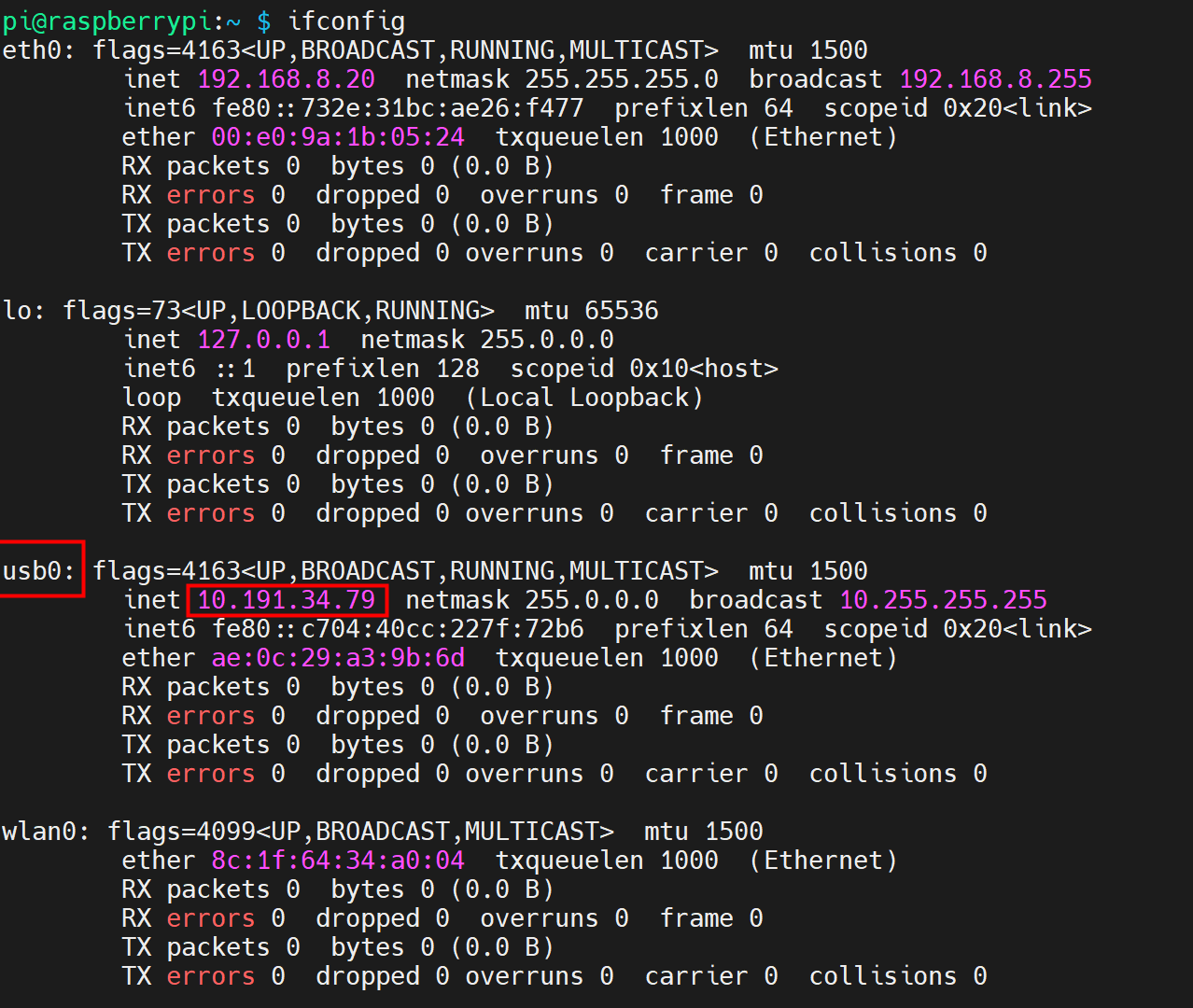
- If the usb0 interface in the returned information displays a specific IP address, it indicates that the 4G network is connected.
- If the usb0 interface in the returned information does not display a specific IP address, it indicates that the 4G network is not connected.
- Execute the following command to query the status of the 4G service.
sudo systemctl status ed-ec800m.service
The returned information is as shown in the figure below:
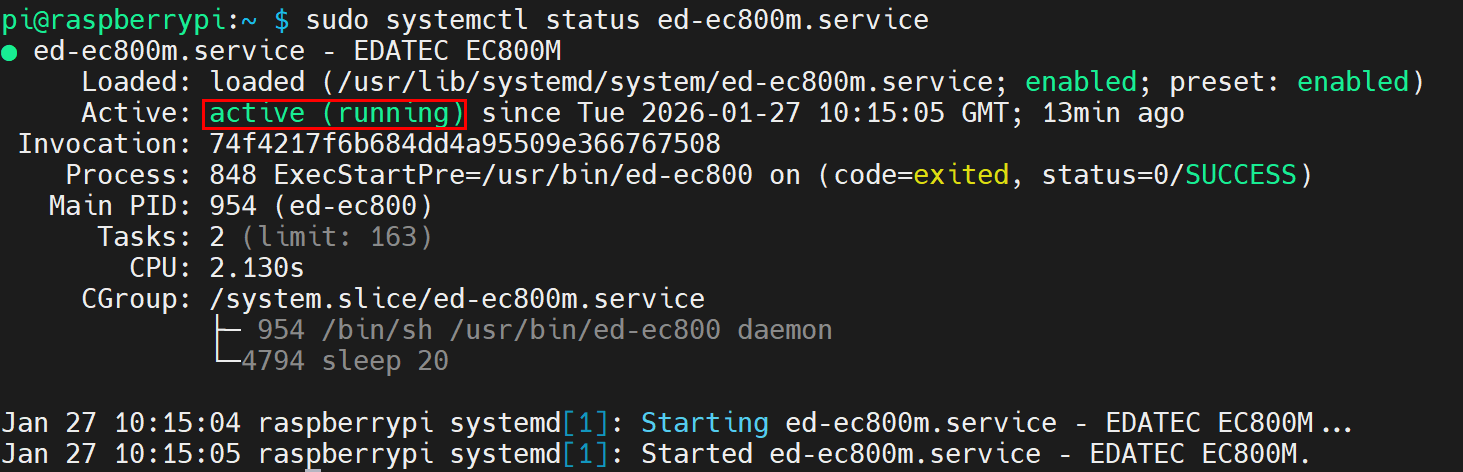
- If the information at the marked position in the returned message shows "Active: active (running)", it indicates that the 4G status is normal.
- If the information at the marked position in the returned message shows "Active: inactive (dead)", it indicates that the 4G status is abnormal.
5.7.2 Scenarios With APN Configuration
If the user's 4G network requires APN configuration, it can be configured by following the steps below.
Preparation:
- The ED-IPC1100 device has started up normally.
- A Nano SIM card with 4G network capability has been correctly installed into the SIM card slot of the ED-IPC1100.
- The APN name, username, and password have been obtained. The following information is used as an example:
- APN name: APN1
- Username: admin
- Password: admin
NOTE
Please turn off the power before inserting or removing the Nano SIM card.
Steps:
- Open the command window and execute the following commands in sequence to open the
ed-qml.confconfiguration file.
cd /etc/
sudo nano ed-qml.conf
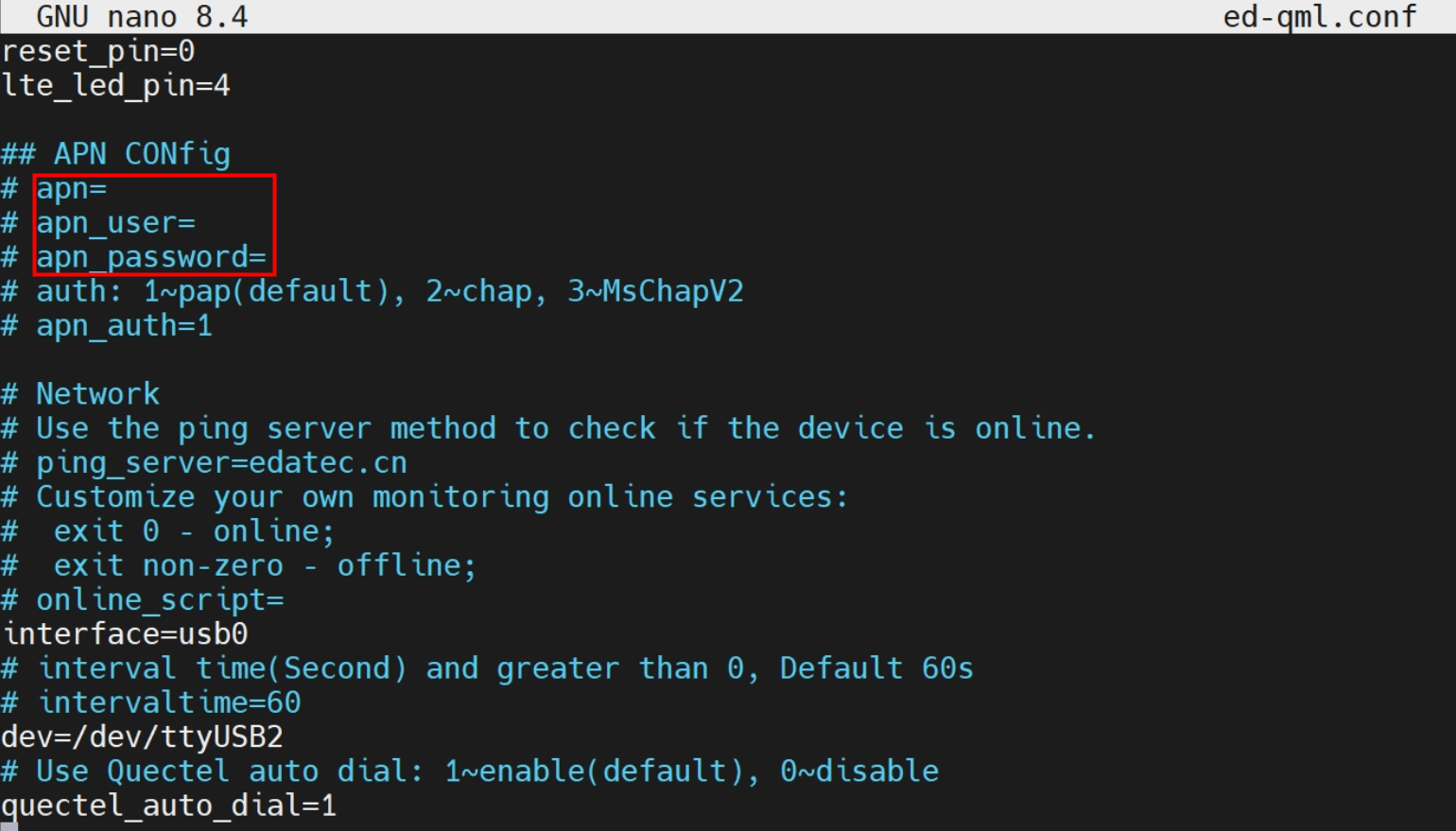
- Configure the "apn", "apn_user", and "apn_password" in the "APN Config" section as needed.
TIP
The "ping_server" and "online_script" in the "Network" section also support user configuration as needed.
Type
ctrl+oto save the file, then pressEnter, and finally typectrl+xto exit the file editing mode.Open the command window and execute the following command to check if the 4G network is connected.
ifconfig
The returned information is as shown in the figure below (the usb0 interface indicates the 4G interface):
- If the usb0 interface in the returned information displays a specific IP address, it indicates that the 4G network is connected.
- If the usb0 interface in the returned information does not display a specific IP address, it indicates that the 4G network is not connected.
- Execute the following command to query the status of the 4G service.
sudo systemctl status ed-ec800m.service
The returned information is as shown in the figure below:
- If the information at the marked position in the returned message shows "Active: active (running)", it indicates that the 4G status is normal.
- If the information at the marked position in the returned message shows "Active: inactive (dead)", it indicates that the 4G status is abnormal.
5.7.3 Basic Configuration Commands
If the 4G network cannot be connected, use the following commands for querying and configuration.
| Command | Description |
|---|---|
| ifconfig | Check whether the 4G network is connected, where the usb0 interface indicates the 4G interface, as shown in the figure below.
|
| sudo systemctl status ed-ec800m.service | Query the status of the 4G service, as shown in the figure below.
|
| sudo systemctl enable ed-ec800m.service | Enable 4G Service |
| sudo systemctl start ed-ec800m.service | Start 4G Service |
| sudo systemctl stop ed-ec800m.service | Stop 4G Service |
| pinctrl set 0 op dh && sleep 0.3 && pinctrl set 0 op dl | Reset 4G Module (Chinese Version and EU Version) - The reset pin of the 4G module is GPIO0 |
| pinctrl set 0 op dh && sleep 0.1 && pinctrl set 1 op dh && sleep 0.2 && pinctrl set 0 op dl && sleep 0.5 && pinctrl set 1 op dl | Reset 4G Module (US Version) - The reset pin of the 4G module is GPIO0 |
TIP
If the 4G service status is found to be abnormal when the 4G port connection is normal, you can enable and then start the 4G service sequentially.
5.8 Configuring RTC
5.8 Configuring Serial Port
Introduce the configuration method for RS485.
5.8.1 Installing Picocom Tool
In a Linux environment, you can use the picocom tool to debug the RS485 serial port.
Execute the following command to install the picocom tool.
sudo apt-get install picocom
5.8.2 Configuring RS485
The ED-IPC1100 includes one RS485 interface, and its corresponding COM port and device file are as shown in the following table:
| Number of RS485 Interfaces | Corresponding COM Port | Corresponding Device File |
|---|---|---|
| 1 | RS485 | /dev/rs485 |
TIP
RS485 communication supports baud rates from 2400 to 115200.
Preparation:
The connection of the ED-IPC1100's RS485 port to the external device has been completed.
Steps:
- Disable the serial port login shell.
TIP
The RS485 port of the ED-IPC1100 device defaults to serial port login shell. Before sending or receiving data via the serial port, the serial port login shell must be disabled.
a. Open the command window and execute the following command to launch the configuration tool interface.
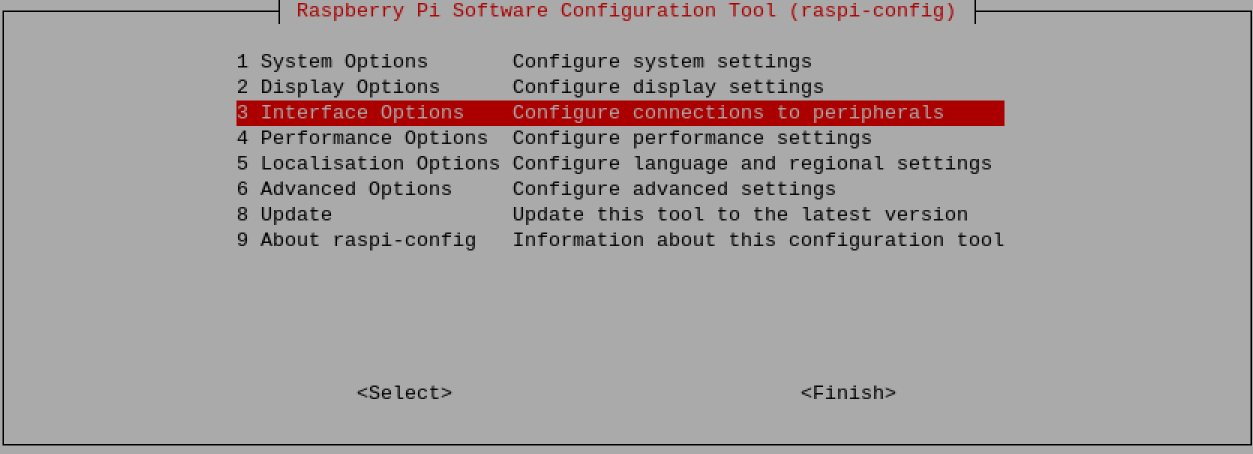
sudo raspi-config
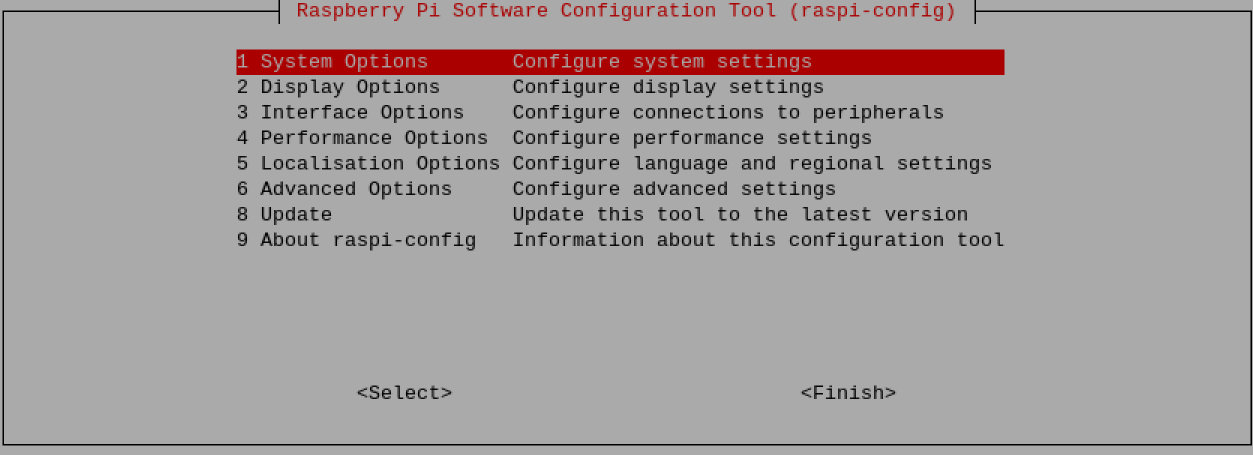
b. Select "Interface Options" from the menu, then press "Enter".
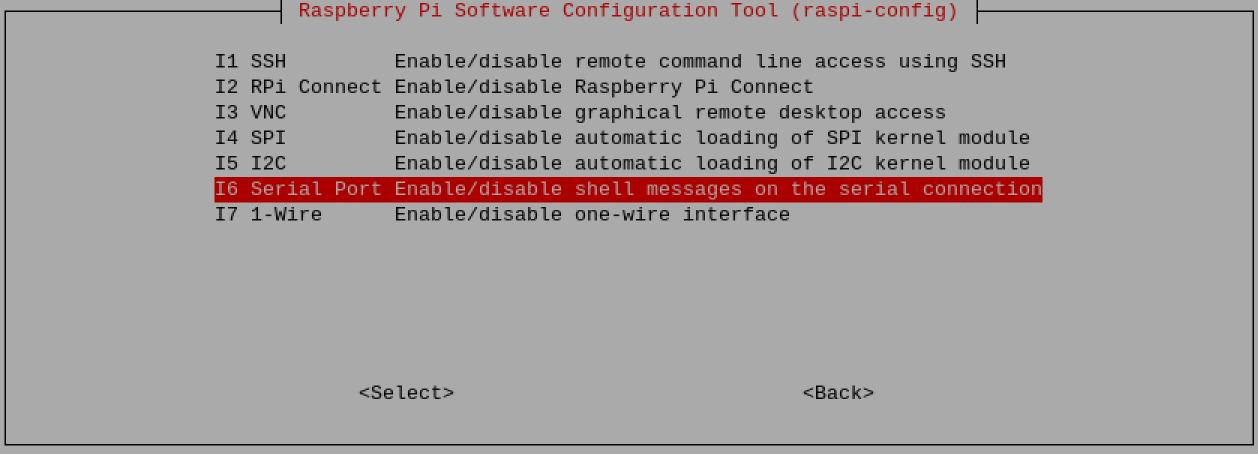
c. Select "Serial Port" from the menu, then press "Enter".
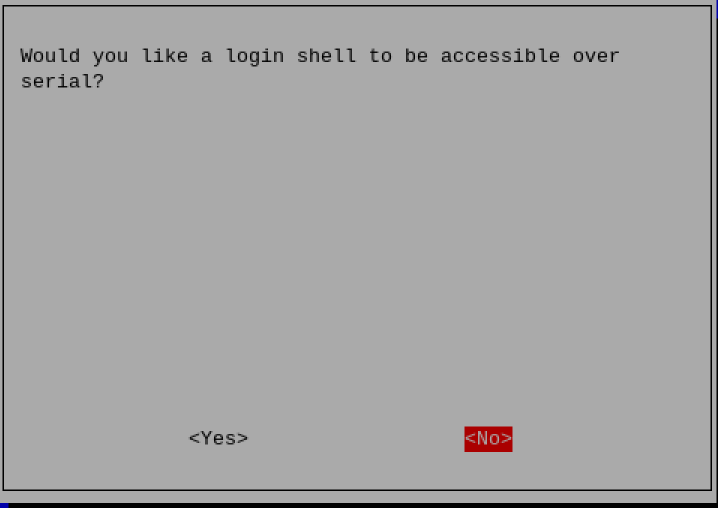
d. Select "No" in the prompt box, then press "Enter".
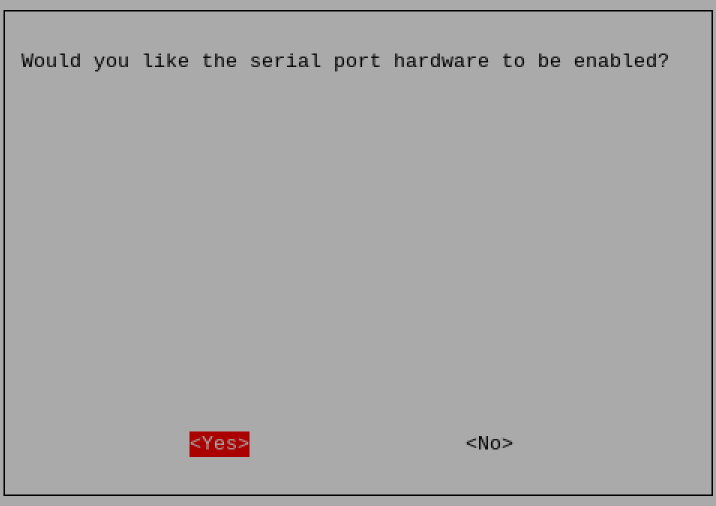
e. Select "Yes" in the prompt box, then press "Enter".
f.Press "Enter" to confirm the settings.
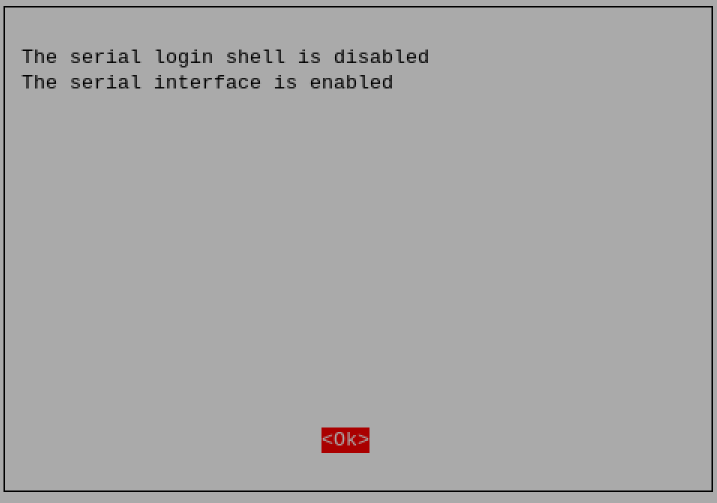
f. Select "Finish" in the configuration tool interface, then press "Enter".
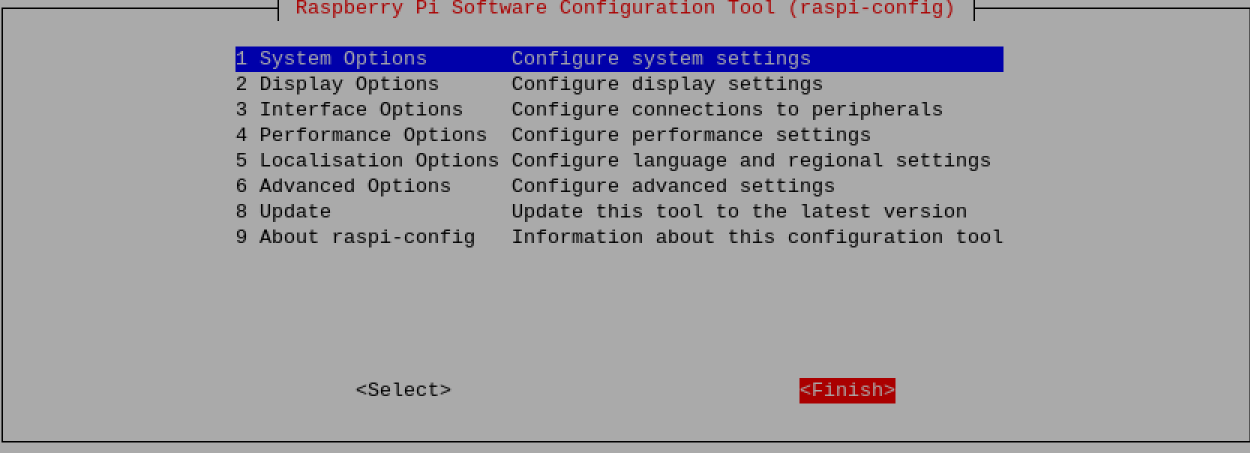
g. Select "Yes" in the prompt box, then press "Enter" to restart the device.

- Execute the following command to open the RS485 serial port and set the baud rate to 115200.
picocom -b 115200 /dev/rs485
- Enter commands as needed to control the external device.
5.9 Configuring USER Indicators
The ED-IPC1100 includes two USER indicators, namely USER1 and USER2, both controlled via GPIO. Their corresponding GPIO pins are listed in the table below:
| USER Indicators | Corresponding GPIO |
|---|---|
| USER1 | GPIO5 |
| USER2 | GPIO6 |
- Turn on the USER1 indicator
pinctrl set 5 op dl
- Turn on the USER2 indicator
pinctrl set 6 op dl
- Turn off the USER1 indicator
pinctrl set 5 op dh
- Turn off the USER2 indicator
pinctrl set 6 op dh