
2 Installing Components (optional)
This chapter describes how to install optional components.
2.1 Installing Internal Components
Introducing the detailed operations of opening/closing the device case and installing the RTC battery. Before installing the internal components, it is necessary to open the device case.
2.1.1 Open Device Case
Preparation:
A cross screwdriver has been prepared.
Steps:
Pull out the default configuration of phoenix connector (male for wiring).
Use a screwdriver to loosen two M3 screws on two sides counterclockwise.
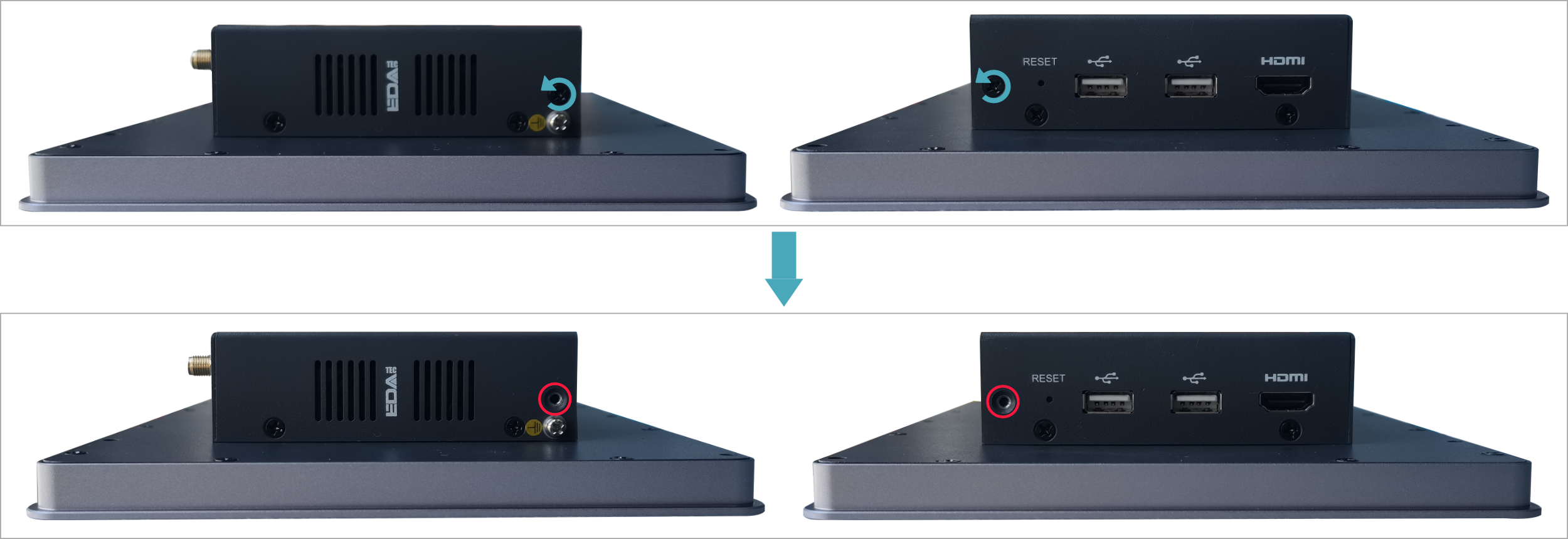
- Remove the side cover to the right.

- Use a screwdriver to loosen four M3 screws and one grounding screw on two sides counterclockwise.
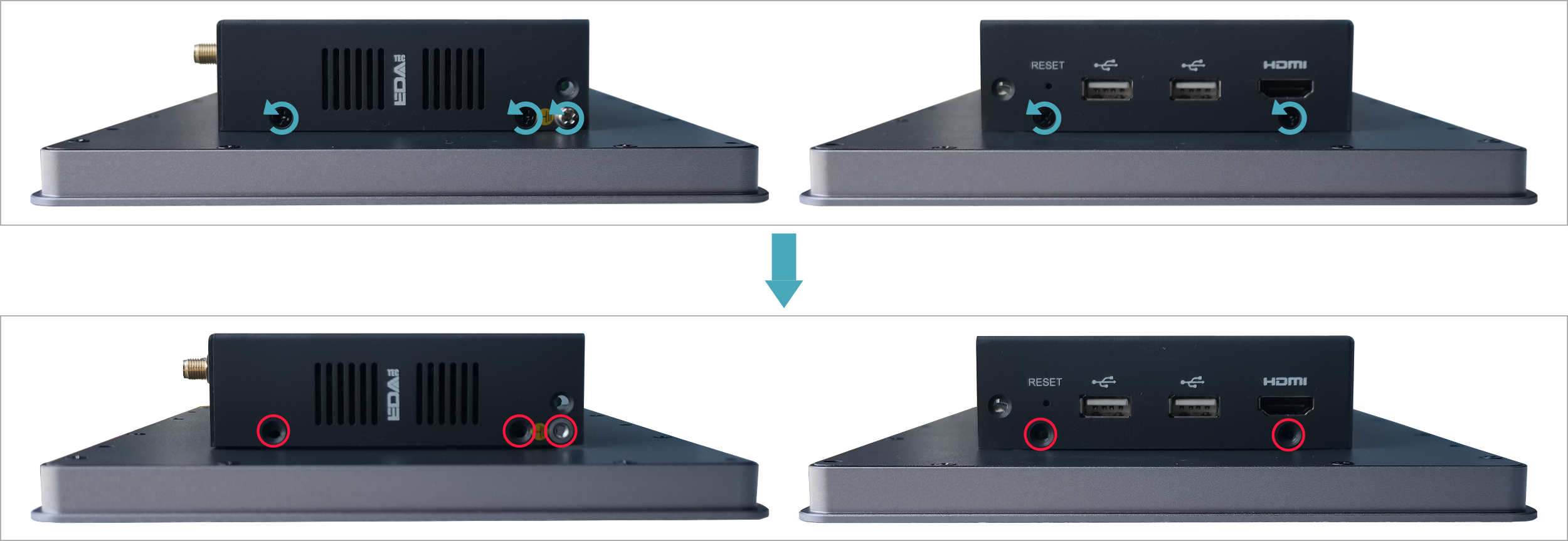
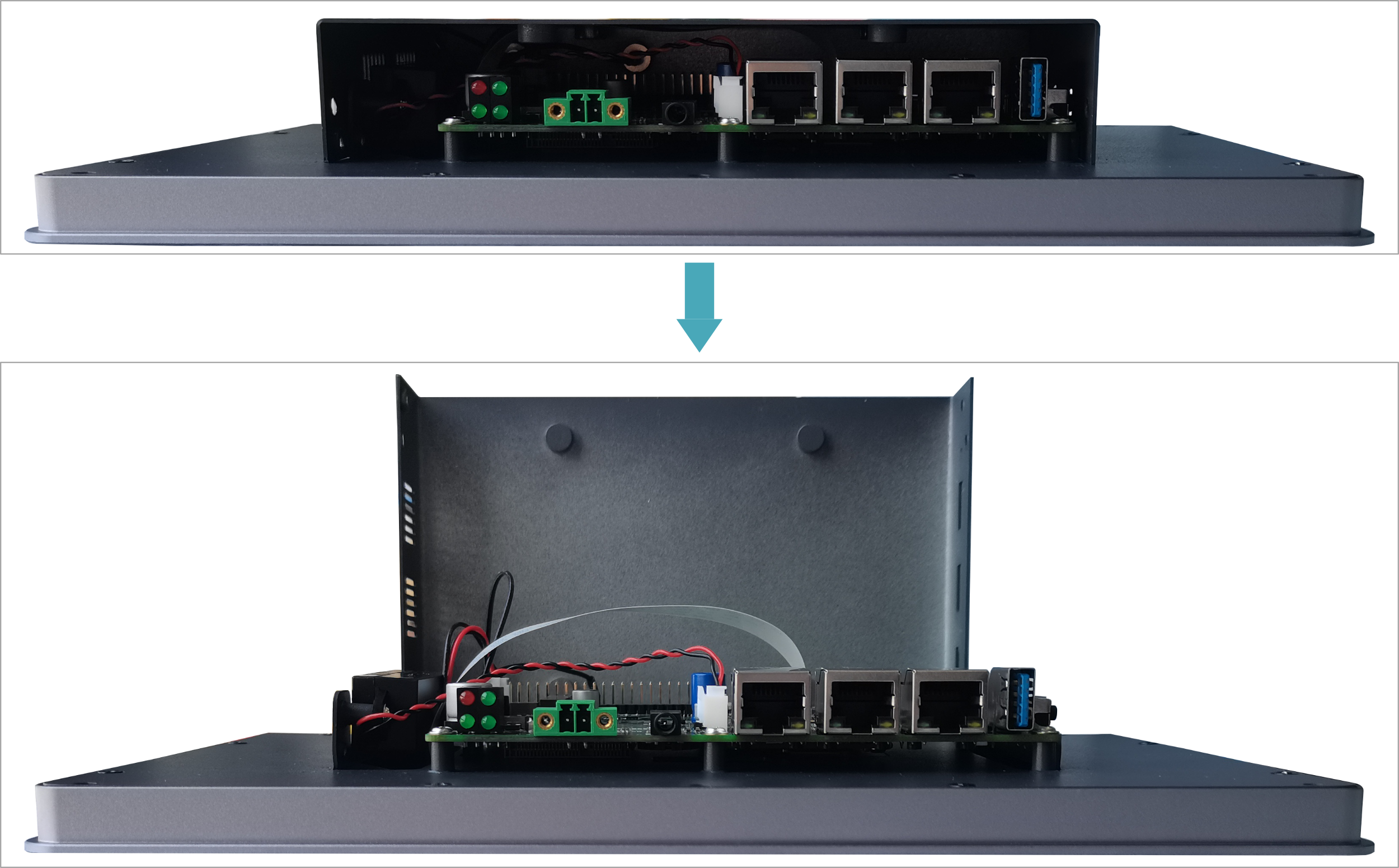
- Remove the metal case upward and turn it to the antenna port side.
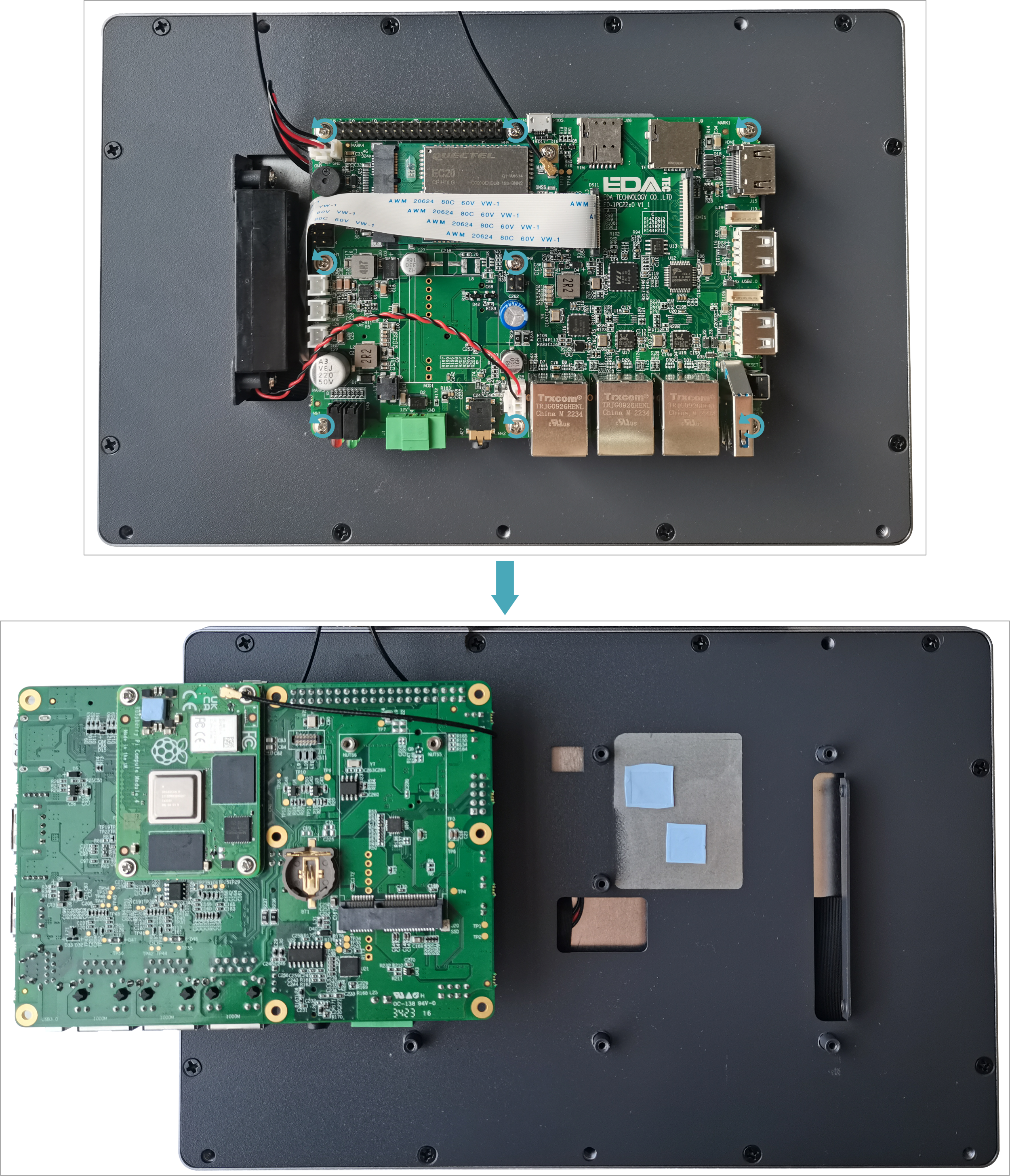
- Use a screwdriver to loosen the 8 screws fixing the PCBA counterclockwise, and flip it to the back of the PCBA.
2.1.2 Install RTC Battery
Before using the RTC, please prepare a CR1220 battery and install it onto the motherboard.
Preparation:
- The device case has been opened.
- l The CR1220 battery has been prepared.
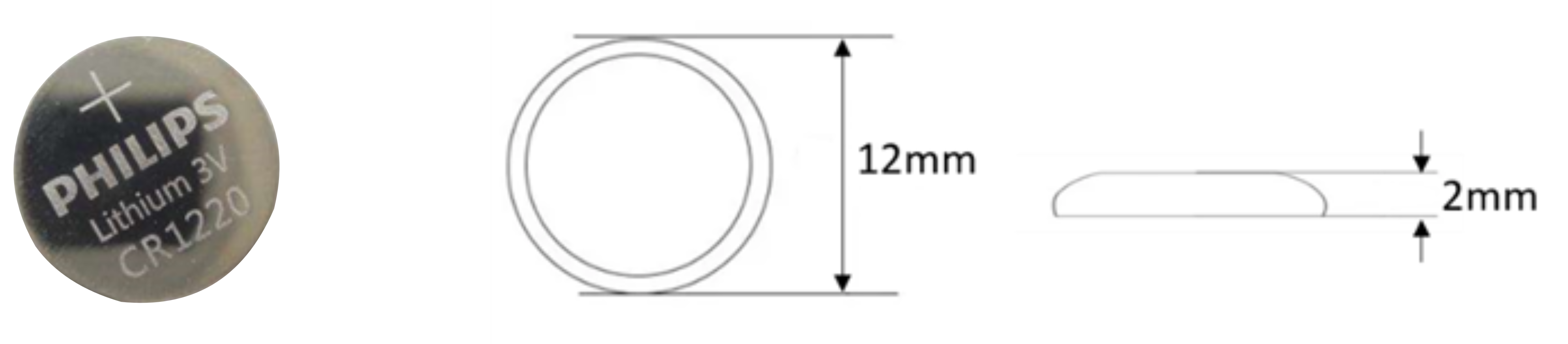
Steps:
- Locate the RTC battery base where the battery is to be installed, as indicated in the figure below.
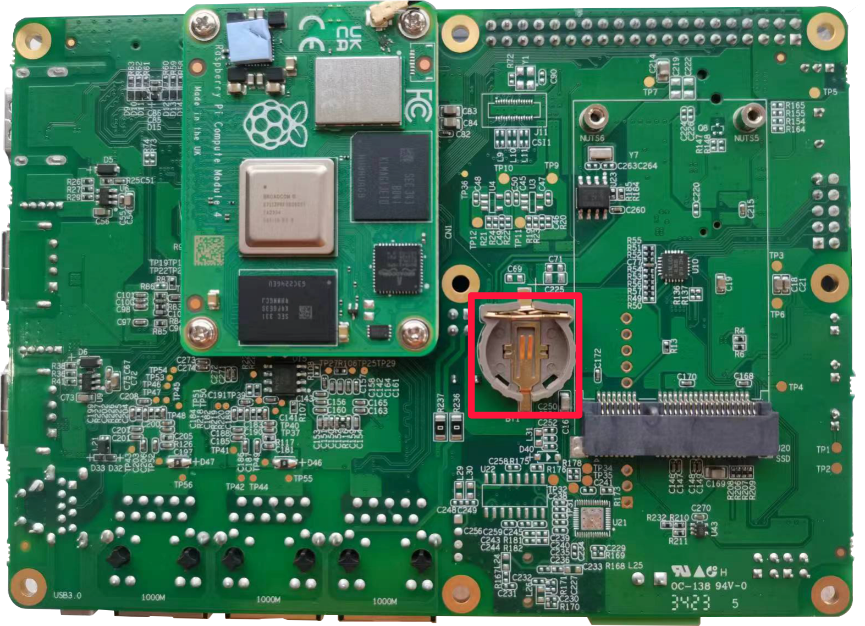
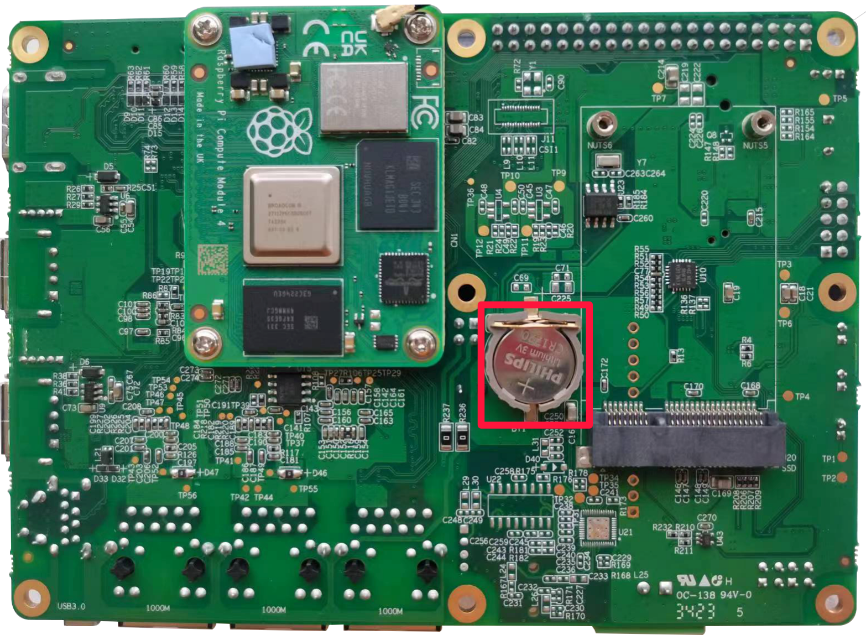
- Put the positive pole of the battery upwards and press it into the RTC base. The installation effect is as shown below.
2.1.3 Close Device Case
Preparation:
A cross screwdriver has been prepared.
Step:
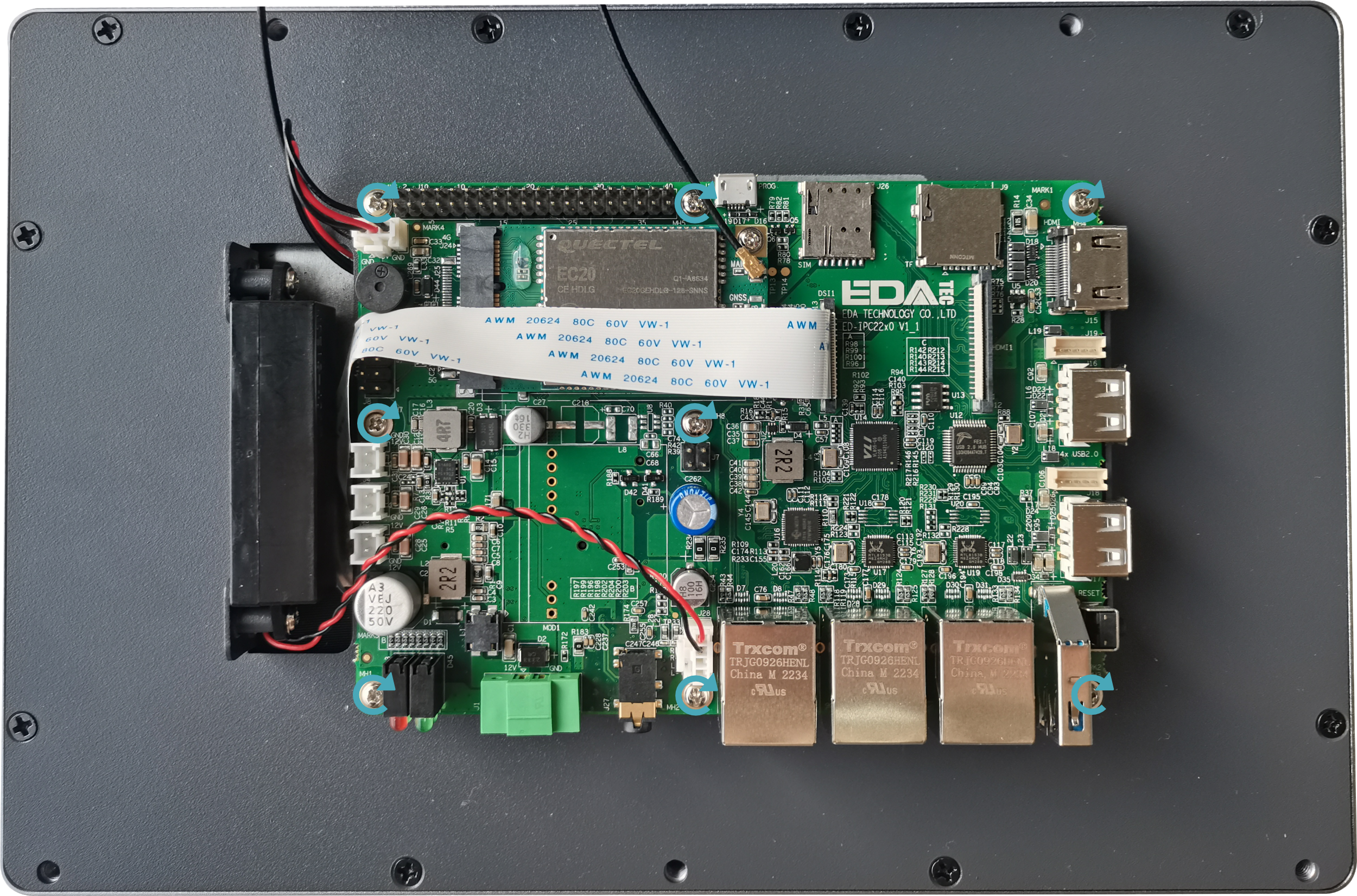
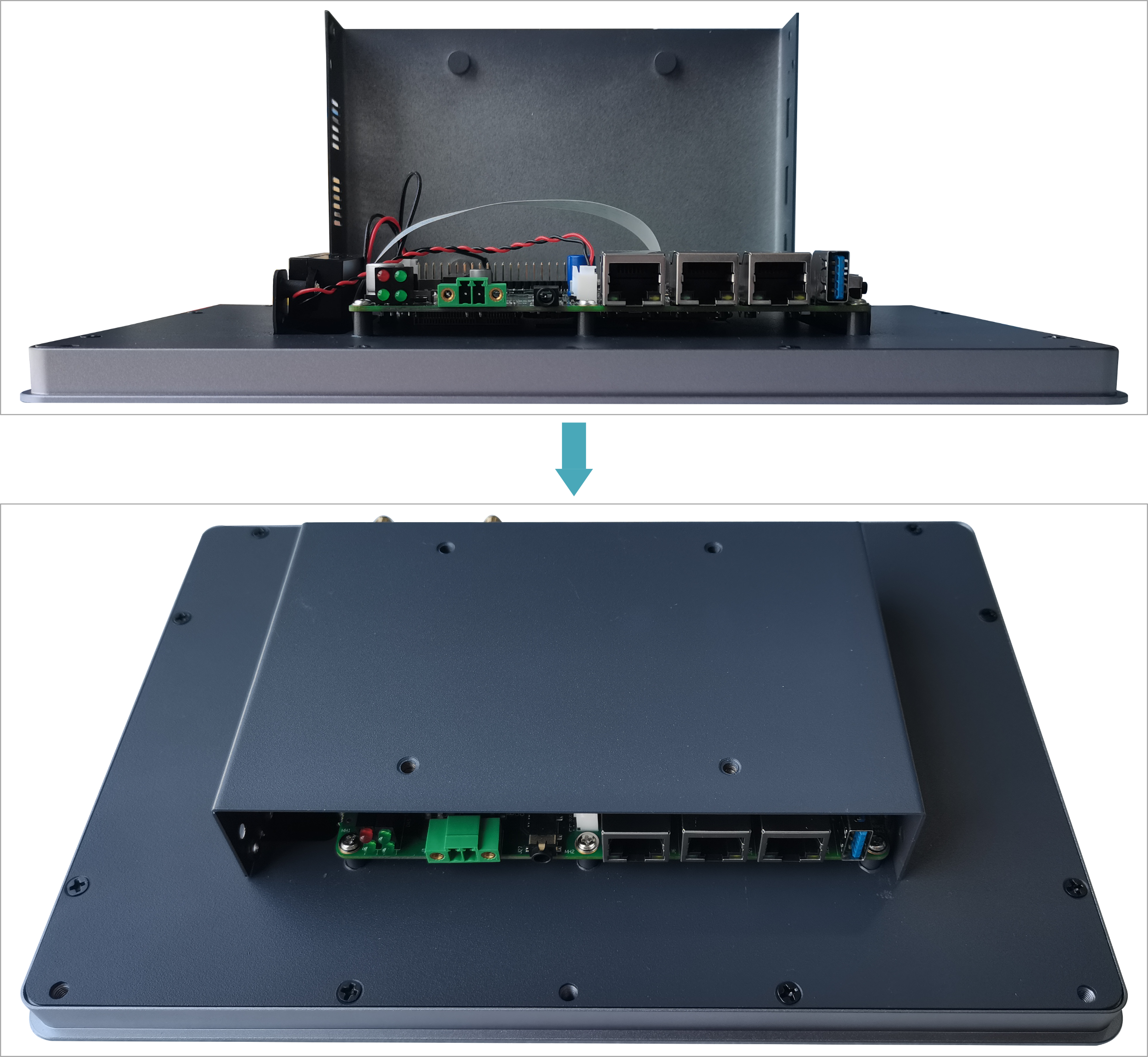
- Turn the PCBA over to the front and place it on the back of the LCD screen. Align the 8 screw holes on the PCBA with the stud holes on the back of the LCD screen. Insert the 8 mounting screws, and then use a screwdriver to tighten clockwise to fix the PCBA on the on the back of the LCD screen.
- Flip the metal case downward, align the screw mounting holes on the metal case with the screw mounting holes on the back of the LCD screen, and cover it downward on the back of the LCD screen.
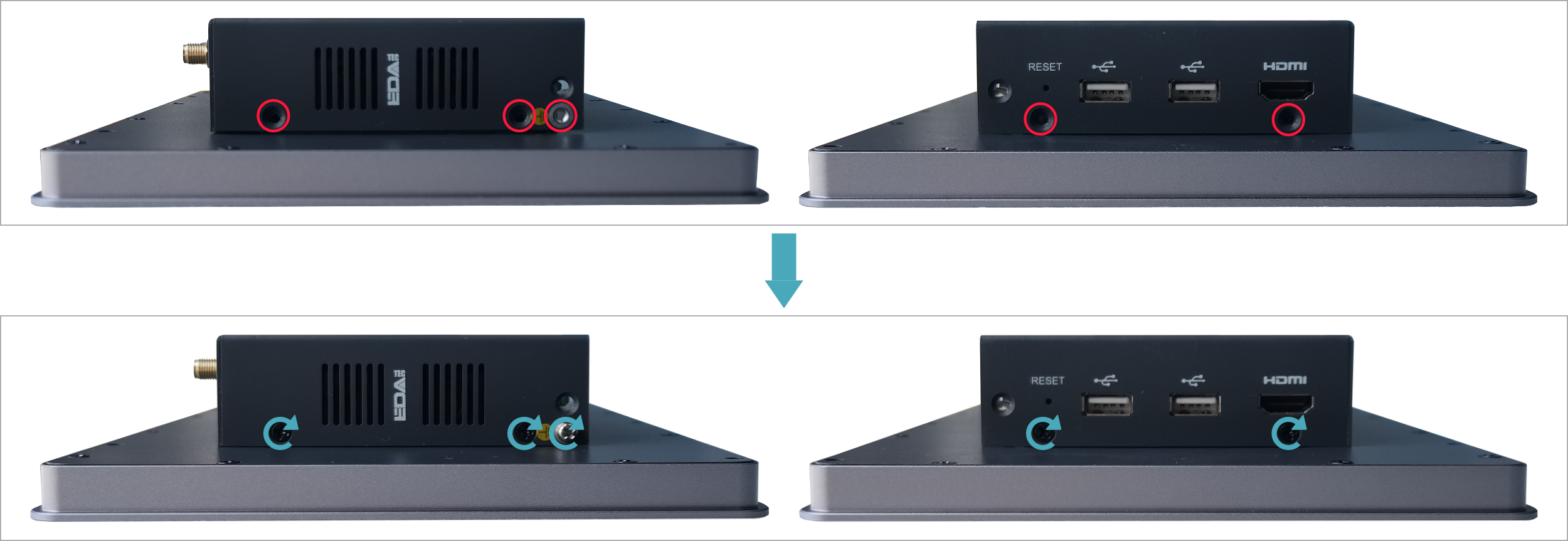
- Align the screw holes on side panels of metal case, insert 4 M3 screws and one grounding screw, then tighten clockwise with a screwdriver.
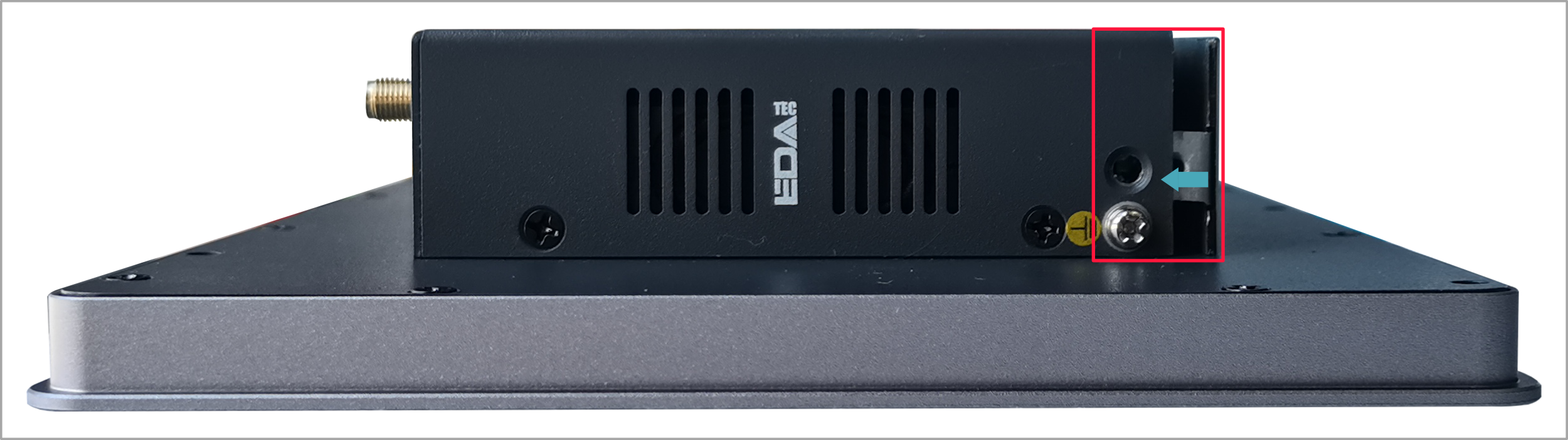
- Align the ports on PCBA with the ports on the side panel, insert the side cover.
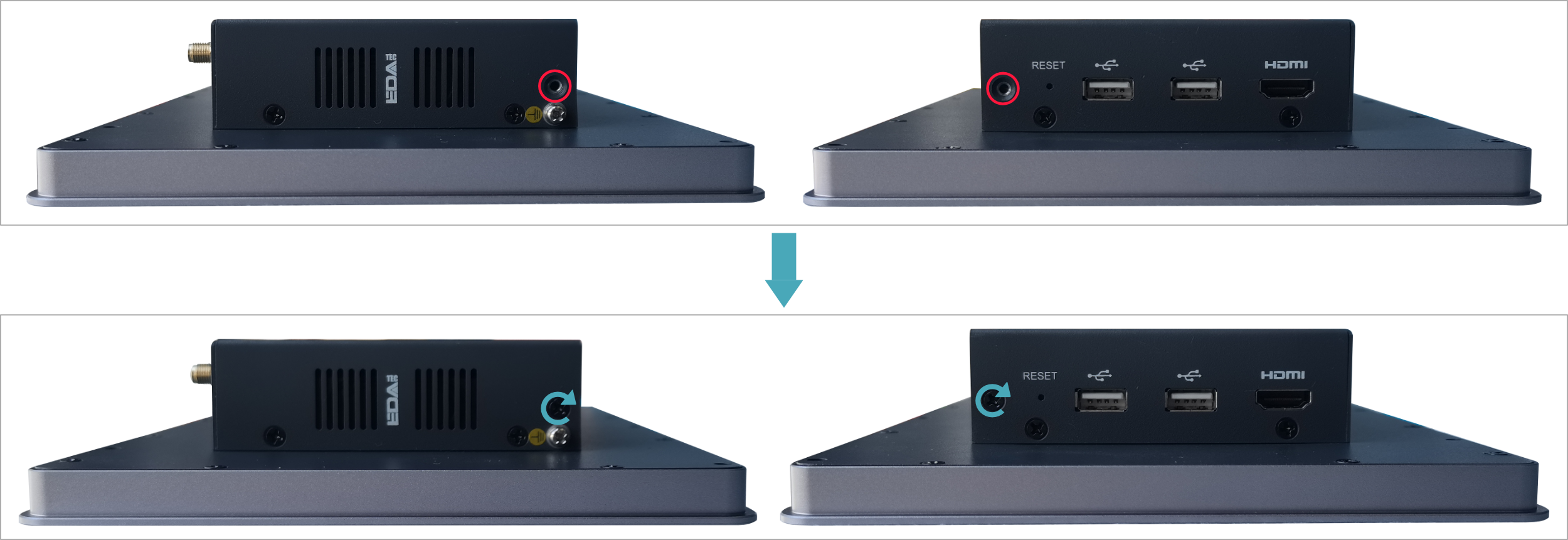
- Insert 2 M3 screws and then use a screwdriver to tighten two M3 screws clockwise.
- Plug in the default phoenix connector.
2.2 Installing/Removing External Components
Introducing the detailed operations of installing/removing some optional accessories.
2.2.1 Install Antenna
If the purchasing ED-HMI2220-101C includes 4G and Wi-Fi functions, the antenna need to be installed before using the device.
Preparation:
The corresponding antennas have been obtained from the packaging box. If there are multiple antennas, they can be distinguished by the labels on the antennas.
Step:
- Find the location of antenna port, as indicated in the figure below.

- Align the ports on both sides of the device and the antenna and tighten them clockwise to ensure that they will not fall off.
2.2.2 Install Micro SD Card
If the product model includes a Micro SD card, the Micro SD card will be installed by default. If the product model does not include a Micro SD card, you will need to use the Micro SD card later. Please refer to the following to install it.
WARNING
Please turn off the power before inserting or removing the SD card.
Preparation:
- The device case has been opened.
- The CR1220 battery has been prepared.
Steps:
- Find the location of Micro SD card slot, as indicated in the figure below.

- Insert the Micro SD card into the corresponding card slot with the contact side facing down, and hear a sound to indicate that the installation is completed.

2.2.3 Pull Out SD Card
If you need to remove the SD card while using the product, you can refer to the following instructions.
WARNING
Please turn off the power before inserting or removing the SD card.
Preparation:
The device has been disconnected from power.
Steps:
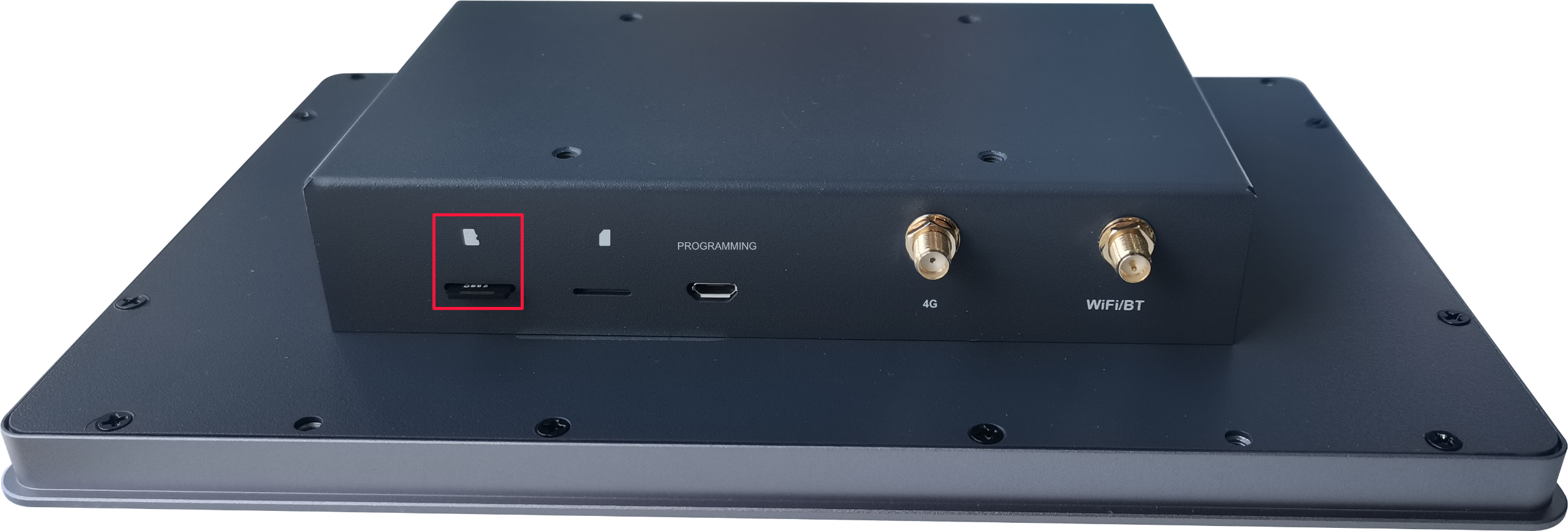
- Find the location of Micro SD card, as indicated in the figure below.

- Press the SD card into the card slot with your hand to pop it out, and then pull out the SD card.
2.2.4 Install Nano SIM Card
If the purchasing ED-HMI2220-101C device includes 4G function, the SIM card need to be installed before using 4G.
WARNING
Please turn off the power before inserting or removing the SIM card.
Preparation:
The 4G Nano SIM card is ready.
Steps:
- Find the location of Nano SIM card slot, as indicated in the figure below.

- Insert the Nano SIM card into the corresponding card slot with the chip side up, and hear a sound to indicate that the installation is completed.
