
Configuring CODESYS Target Visualization Full-Screen Display
1 Overview
Introduces the background and applicable scope for configuring CODESYS Target Visualization to display in full-screen mode.
1.1 Background
Some users have found that the CODESYS Target Visualization interface cannot display in full-screen mode when using our ED-HMI series products equipped with a CODESYS Target Visualization license. In response to this issue, our engineers conducted analysis and testing, confirming that full-screen display for the Target Visualization interface can be achieved by modifying configuration files. Therefore, we provide detailed operating instructions to help users better utilize the CODESYS Target Visualization functionality.
1.2 Scope of Application
This application applies to ED-HMI series products equipped with a CODESYS Target Visualization license.
2 Application Guide
There are two methods to configure CODESYS Target Visualization for full-screen display:
- Configuring CODESYS Target Visualization full-screen display via the labwc window manager configuration file;
- Configuring CODESYS Target Visualization full-screen display via the CODESYS Control runtime configuration file;
The following sections detail the specific steps for each configuration method.
2.1 Configuring CODESYS Target Visualization Full-Screen Display via the labwc Window Manager Configuration File
Preparation:
- The device is properly connected to CODESYS, and the CODESYS Target Visualization function is enabled and working correctly.
Steps:
- In the PC's CODESYS software interface, click the
 button in the menu bar to start the Target Visualization.
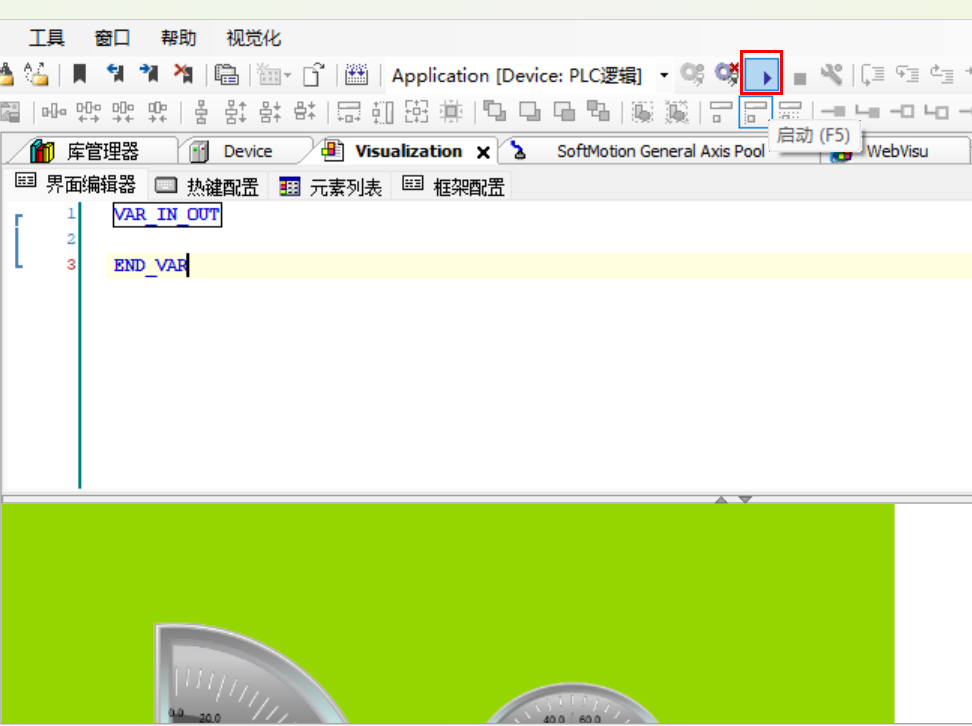
- Open the device's command terminal window and execute the following command to open the core configuration file for the labwc window manager.
sudo nano .config/labwc/rc.xml
- Add the following content to the end of the configuration file to configure displaying in full-screen mode by pressing the
F12key.
<keyboard>
<keybind key="F12">
<action name="ToggleFullscreen"/>
</keybind>
</keyboard>
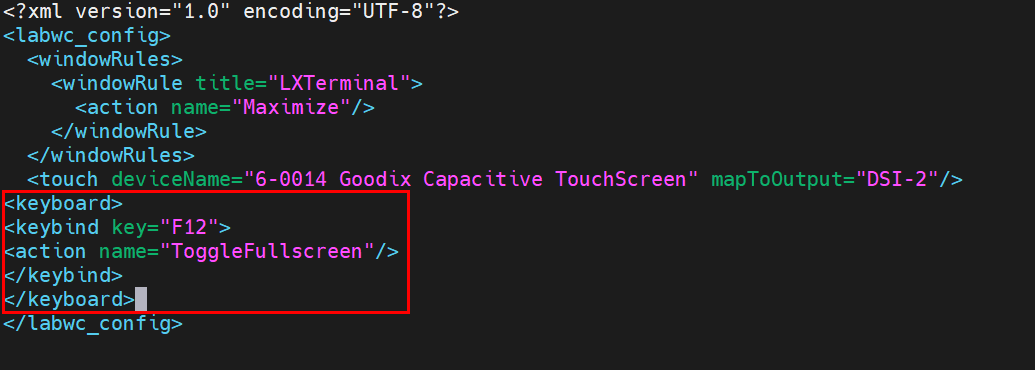
Press "Ctrl+O" to save the configuration, then press "Ctrl+X" to exit the configuration file.
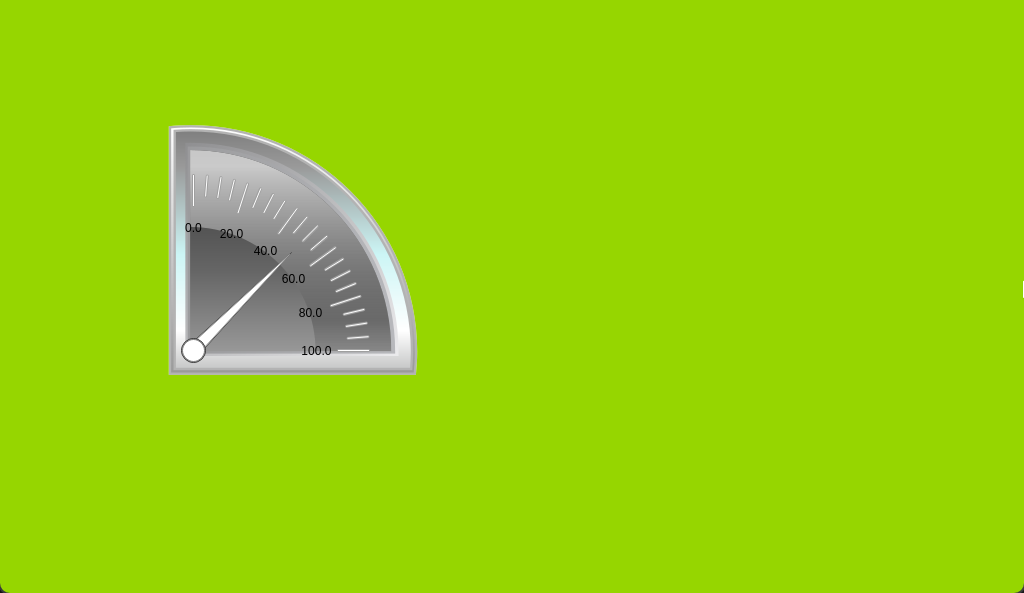
Press the
F12key on the keyboard connected to the ED-HMI device; the Target Visualization will then display in full-screen mode.
2.2 Configuring CODESYS Target Visualization Full-Screen Display via the CODESYS Control Runtime Configuration File
Preparation:
- The device is properly connected to CODESYS, and the CODESYS Target Visualization function is enabled and working correctly.
Steps:
- In the PC's CODESYS software interface, click the button in the menu bar to start the Target Visualization.
- Open the device's command terminal window and execute the following command to open the CODESYS Control runtime core configuration file.
sudo nano /etc/CODESYSControl.cfg
- In the configuration file, locate the parameters in the
[CmpTargetVisu]section, and add the following content; then modify the values ofWindowSizeWidthandWindowSizeHeightaccordingly.
HideMouseCursor=1
WindowType=1
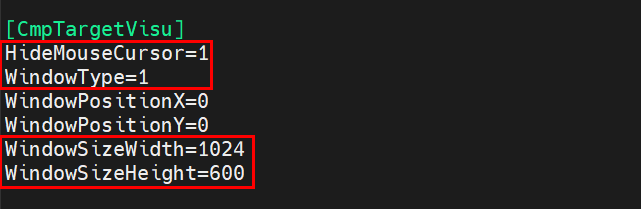
Where WindowSizeWidth and WindowSizeHeight represent the window width and height, respectively, and should be set according to the LCD screen size of the ED-HMI device:
- For a 7-inch ED-HMI device, configure the window width and height as
WindowSizeWidth=1024andWindowSizeHeight=600. - For a 10.1-inch ED-HMI device, configure the window width and height as
WindowSizeWidth=1280andWindowSizeHeight=800.
TIP
- Ensure the values for
WindowsPositionXandWindowsPositionYare both 0. If they are not 0, please modify them to 0. - If the parameters in
[CmpTargetVisu]are preceded by a#or;symbol, please remove it.
Press "Ctrl+O" to save the configuration, then press "Ctrl+X" to exit the configuration file.
Execute the following command to open the labwc autostart configuration file.
sudo nano /etc/xdg/labwc/autostart
The
autostartconfiguration file may be empty, so please refer to the following two scenarios for configuration.If the configuration file is not empty, configure as follows:
- Add a
#symbol in front of/usr/bin/lwrespawn /usr/bin/wf-panel-pi &to comment out this line, which will hide the taskbar.
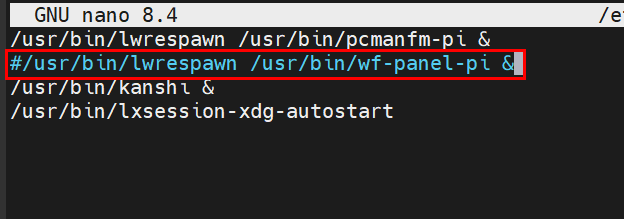
Press "Ctrl+O" to save the configuration, then press "Ctrl+X" to exit the configuration file.
Execute the following command to restart the device, making the configuration effective.
sudo reboot- After the device restarts, wait for approximately 1 minute, and the Target Visualization will display in full-screen mode.
TIP
If the CODESYS Target Visualization does not display in full-screen mode after restarting the device, you can execute
sudo systemctl restart codesyscontrol.serviceon the device to restart the CODESYS Control service.- Add a
If the configuration file is empty, configure as follows:
- Execute the following command to open the Wayfire window manager panel tool configuration file.
sudo nano .config/wf-panel-pi.ini- Add
autohide = trueto the configuration file.
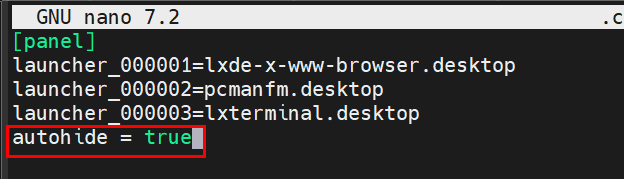
- Press "Ctrl+O" to save the configuration, then press "Ctrl+X" to exit the configuration file. You will then see the Target Visualization displaying in full-screen mode on the ED-HMI device.