
Hiding the Taskbar on Raspberry Pi OS (Desktop)
1 Overview
Introduces the background and scope of hiding the taskbar on Raspberry Pi OS (Desktop).
1.1 Background
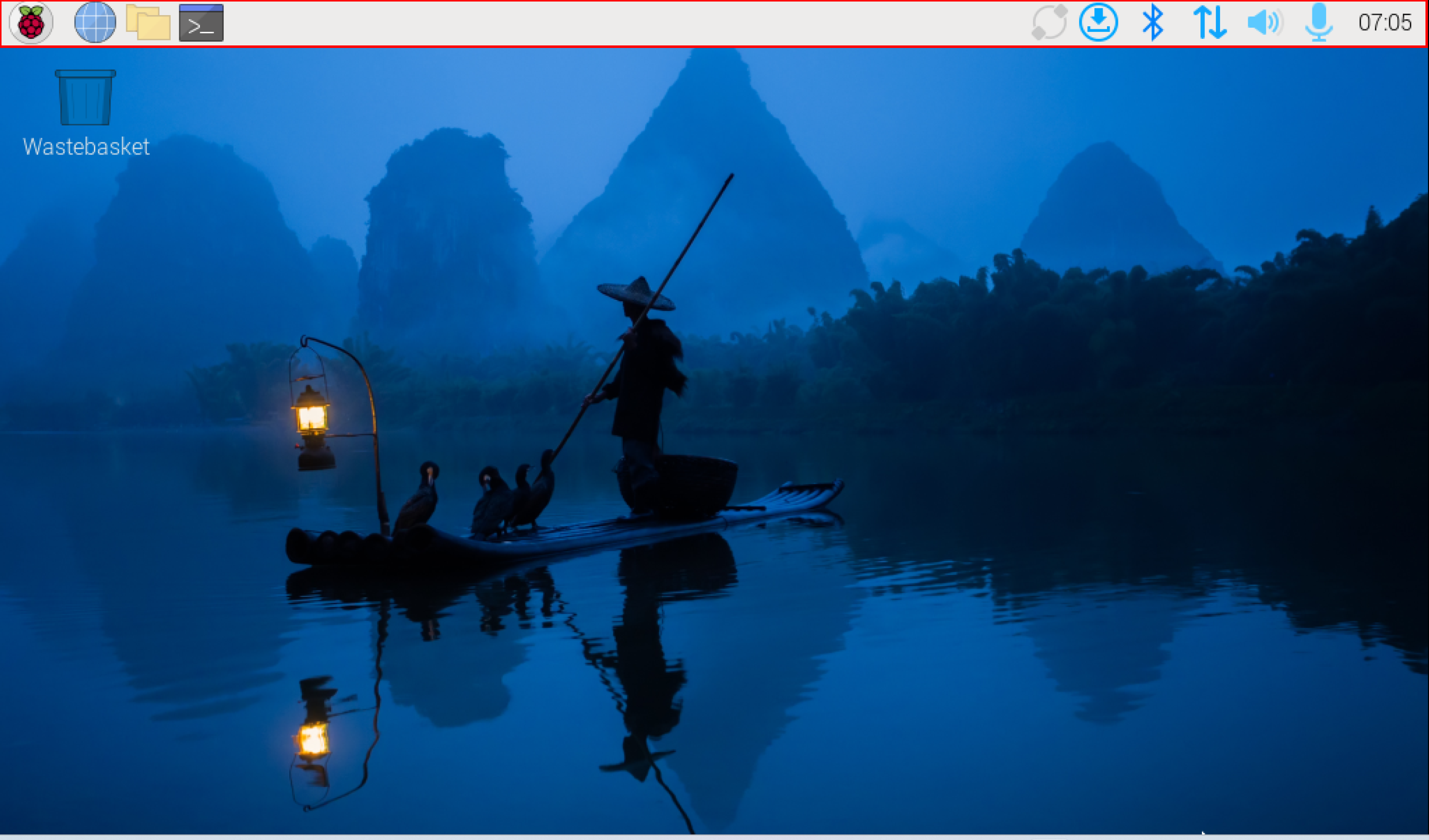
Some users, when using Raspberry Pi OS (Desktop), wish to hide the system taskbar to display critical information in full-screen mode (red box area in the image below). To address this requirement, our company provides detailed operational instructions to help users properly hide the taskbar.
1.2 Applicability
This procedure applies to all products running Raspberry Pi OS (Desktop).
2 Configuration Guide
Describes specific steps to configure automatic hiding of the taskbar on Raspberry Pi OS (Desktop).
Preparation:
- The device must have Raspberry Pi OS (Desktop) correctly installed and functioning.
Steps:
- In the terminal, execute the following command to navigate to the
.configdirectory.
cd .config/
- Execute the following command in the
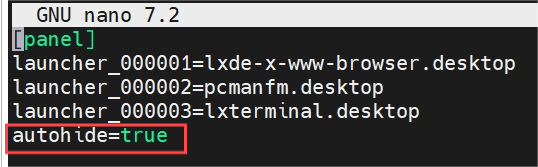
.configdirectory to open thewf-panel-pi.inifile. Addautohide=trueto the last line of the file, as shown in the red box below.
sudo nano wf-panel-pi.ini
- Press
Ctrl+Oto save the file, then pressEnter. Finally, pressCtrl+Xto exit the editing mode.
TIP
To restore the taskbar visibility, delete or comment out the line autohide=true.