How to Auto-launch a Webpage on Startup
1 Overview
Introduction to the Background and Scope of Auto-Launching Webpages on Startup
1.1 Background
Some users of Raspberry Pi OS (Desktop) require the system to automatically launch a webpage upon device startup. To fulfill this requirement, we provide detailed step-by-step instructions to guide users in achieving this functionality.
1.2 Applicability
This application is compatible with the ED-CM4SEN, ED-CM4IND, ED-IPC series, and ED-HMI series products with Raspberry Pi OS (Desktop) installed.
2 Configuration Guide
This guide outlines the steps to configure auto-launching a webpage on startup for devices running Raspberry Pi OS (Desktop). The following instructions use the ED-HMI2120-070C as an example.
Preparation:
- The ED-HMI2120-070C has successfully booted to the desktop and established network connectivity.
Steps:
- In the terminal window, execute the following commands sequentially to create the autostart file
start.desktop.
TIP
The filename (e.g., start.desktop) can be customized, but the file extension must remain .desktop.
cd .config && mkdir -p autostart
cd autostart && sudo nano start.desktop
- Add the following content to the
start.desktopfile:
[Desktop Entry]
Type=Application
Name=WebApp
Exec=chromium-browser --start-maximized https://edatec.cn/
Hidden=false
NoDisplay=false
X-GNOME-Autostart-enabled=true
Name[en_US]=WebApp
- "chromium-browser" is the browser used.
- "https://edatec.cn/" is the target URL to be accessed.
Save and Exit the File:
- Press Ctrl+O to save changes.
- Press Enter to confirm.
- Press Ctrl+X to exit the editor.
Execute the following command to restart the device and activate the new configuration.
sudo reboot
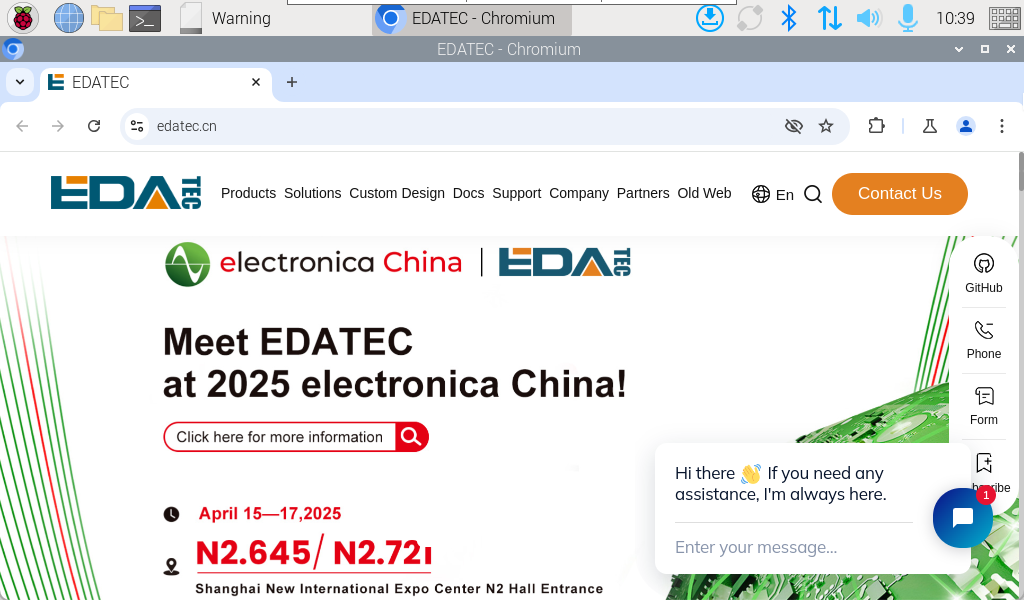
- As shown in the figure below, the target webpage will automatically launch after the device reboots.