Remote Login
There are various methods for remote login, and users can choose based on their actual needs. This article will only cover two remote login methods: SSH and VNC.
Connect To The Device Via SSH
After the device starts normally, you can choose to remotely connect to it via SSH for configuration or debugging. The remote login tool can be selected by the user based on their preference. The following section will use logging in via MobaXterm as an example for illustration.
Preparation:
- The
MobaXtermtool has been installed on the PC. - The device has been connected to the network through the router.
- IP address of the device has been get.
Steps:
- Open
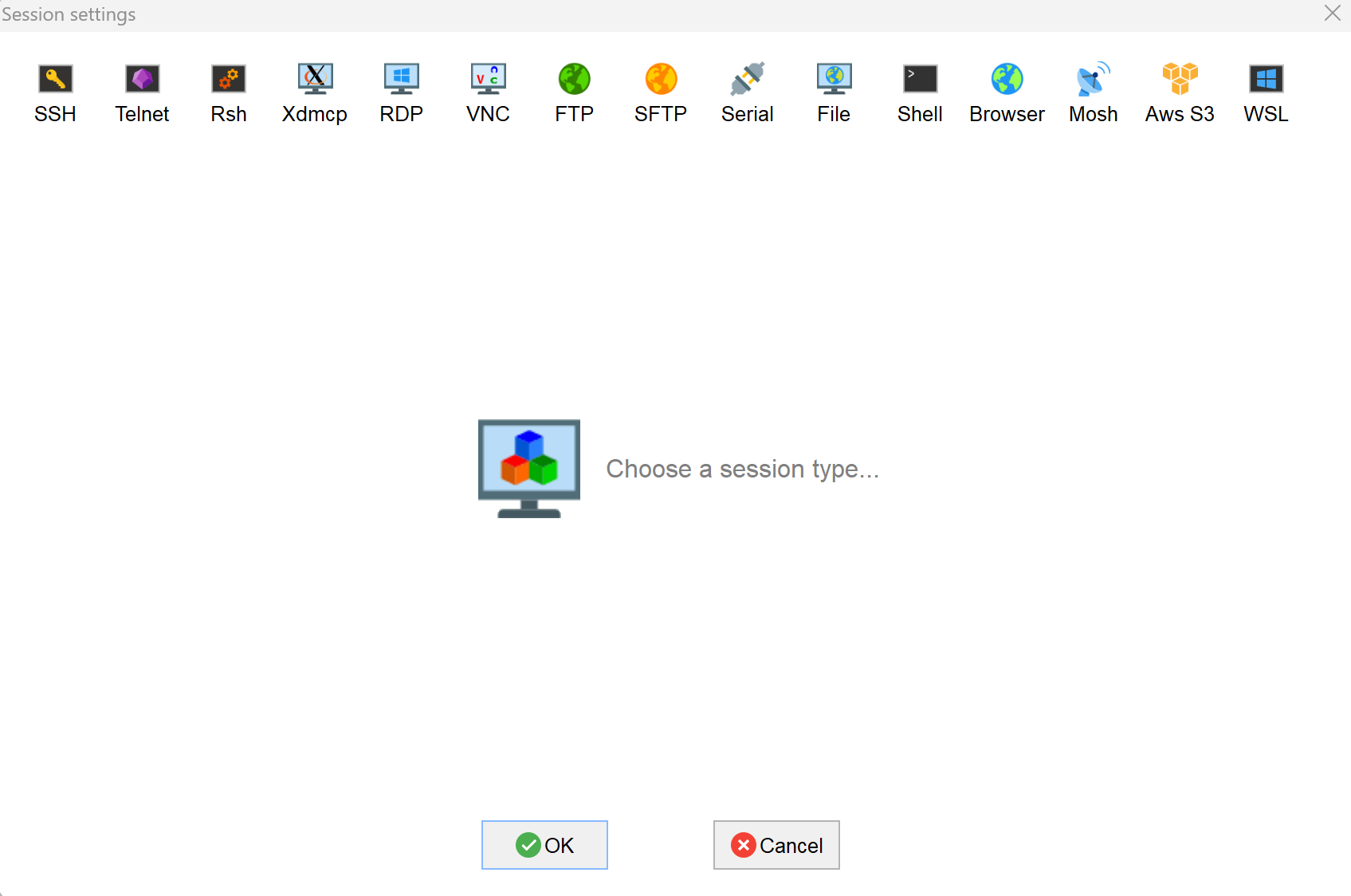
MobaXterm, click , and open the window for creating connection, as shown in the figure below.
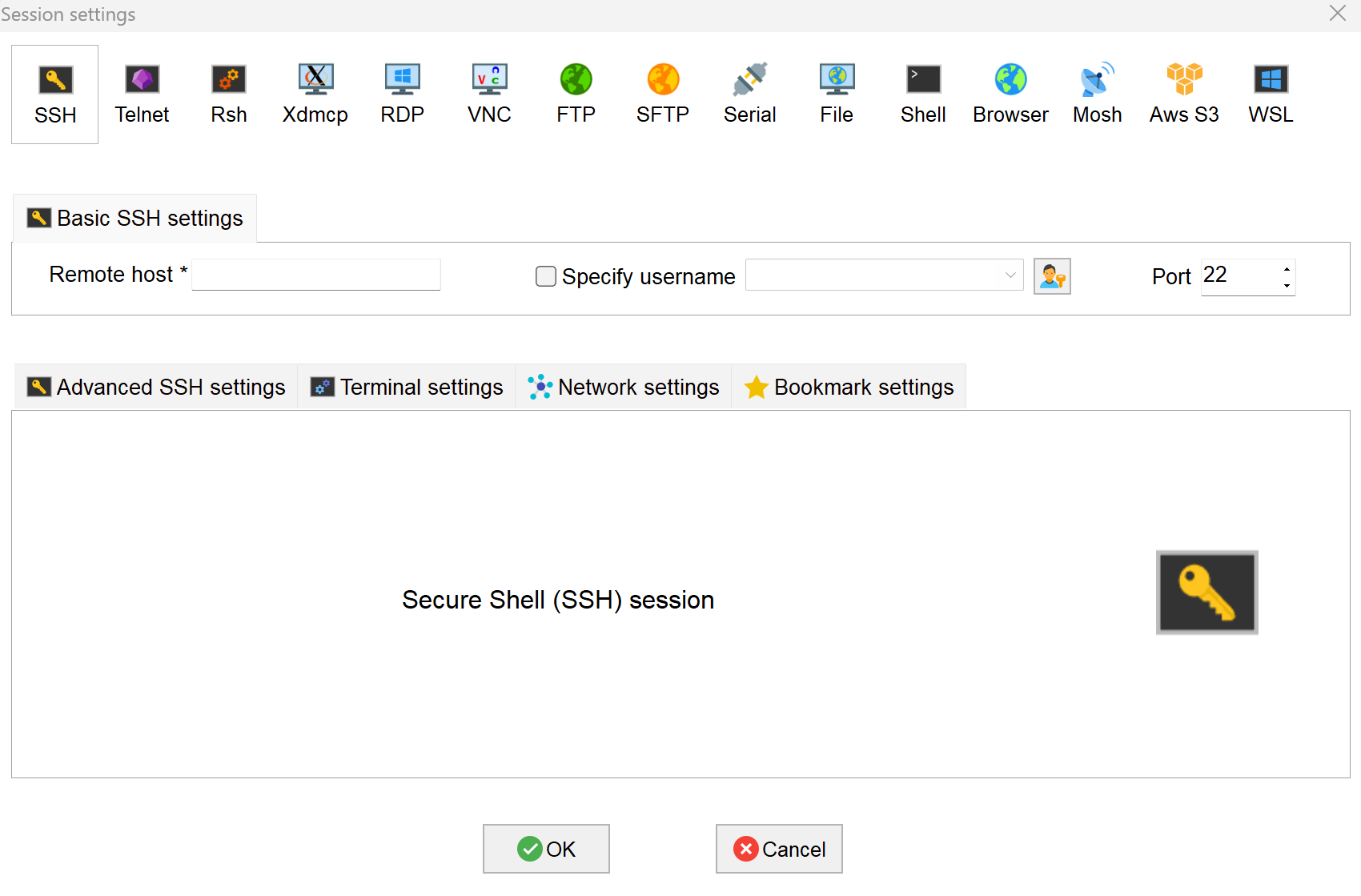
- Click
 in the upper left corner to open the SSH connection interface.
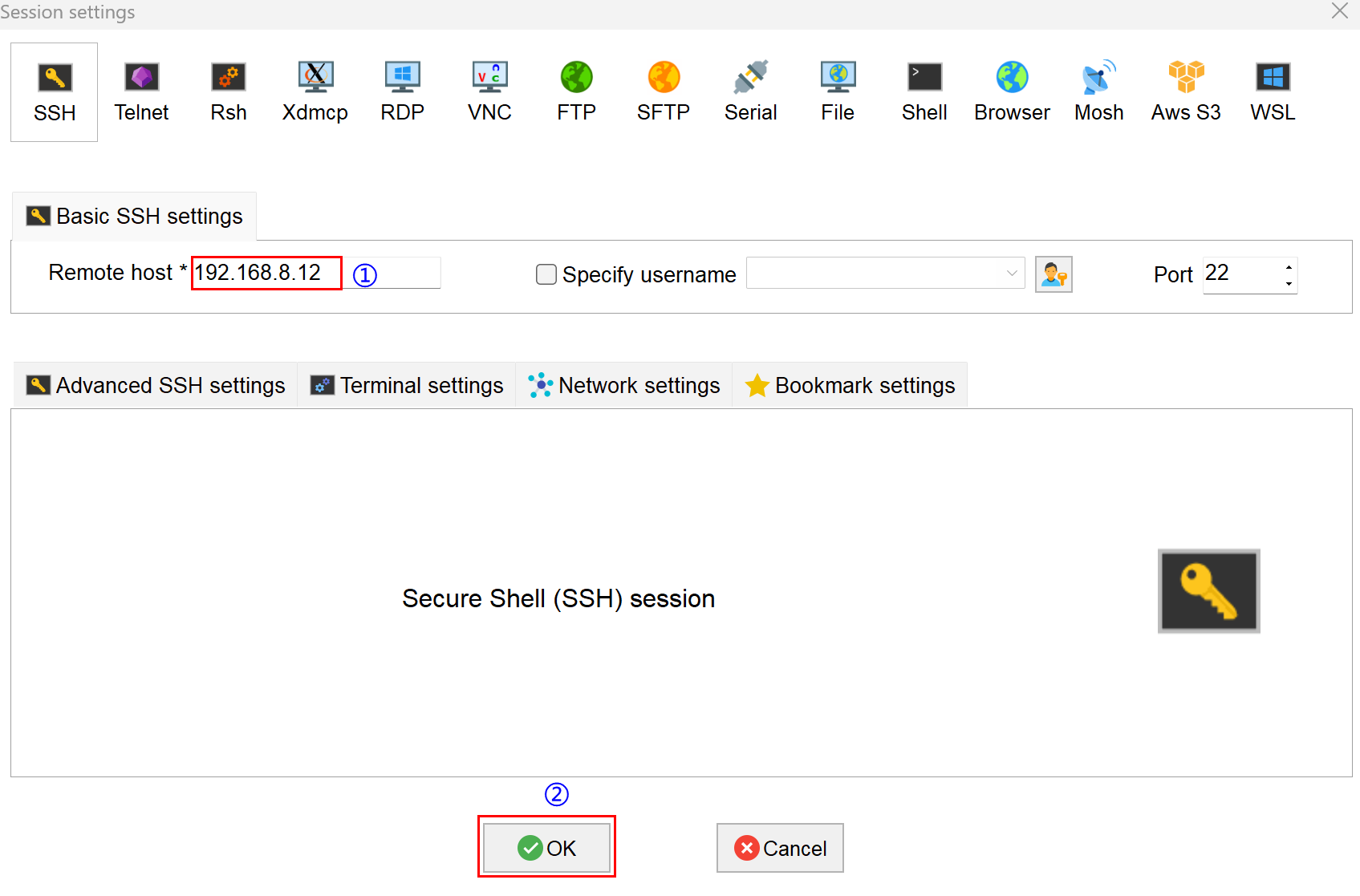
- After entering the obtained device IP address, click "OK".
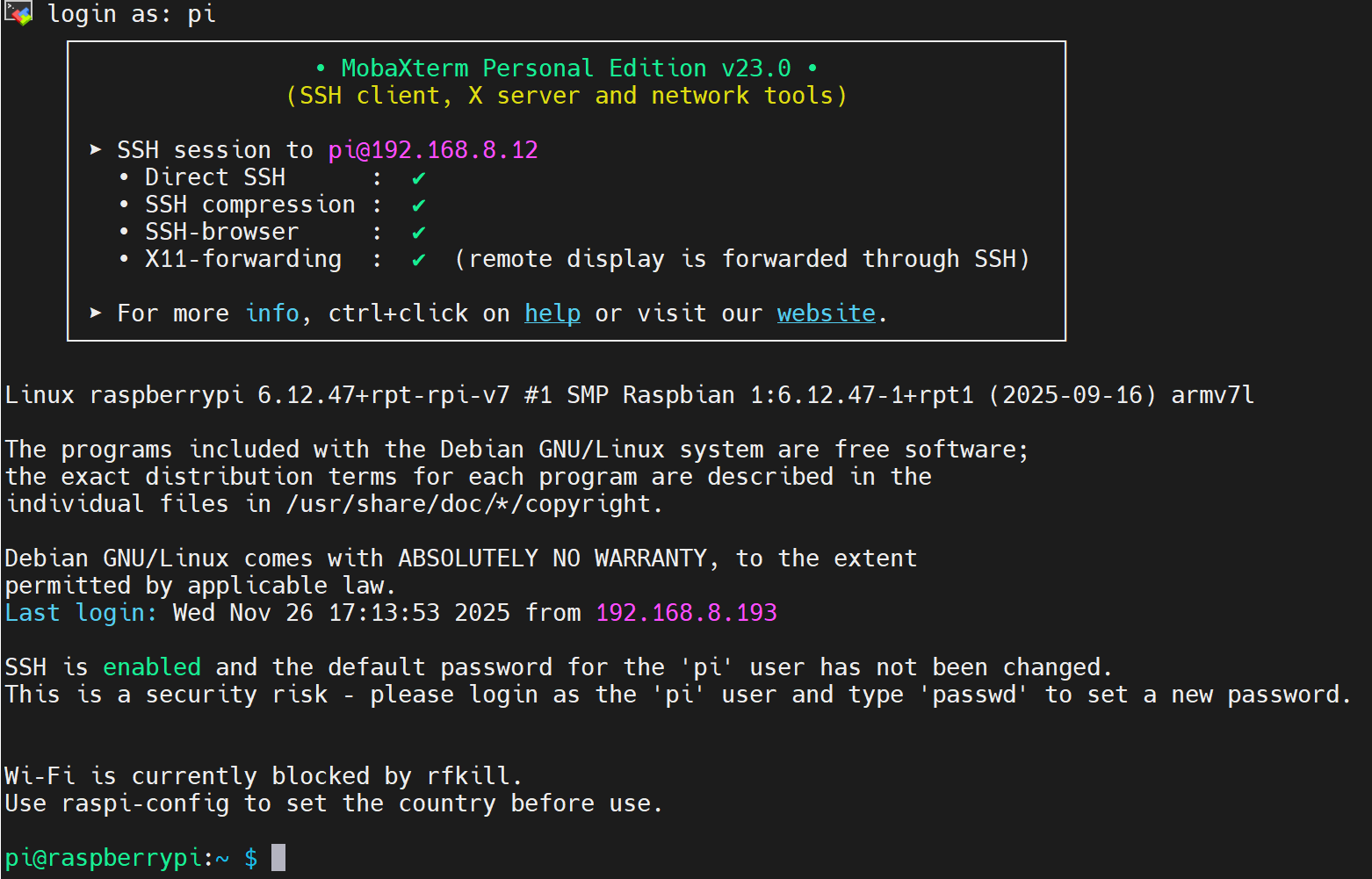
- Click "Accept" in the pop-up prompt box to enter the system login interface.
- Enter the username and password according to the prompt, and enter the system after logging in.
TIP
Default username is pi, Default password is raspberry.
Connect To The Device Desktop Through VNC
After the device starts normally, you can choose to remotely connect to it via VNC for configuration or debugging. The remote login tool can be selected by the user based on their preference. The following section will use logging in via RealVNC Viewer as an example for illustration.
Preparation:
- The
RealVNC Viewertool has been installed on PC. - The device has been connected to the network through the router.
- IP address of the device has been get.
- The VNC function in the device system has been enabled. The detailed operational steps are as follows.
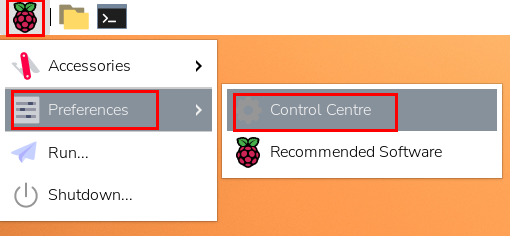
- Click the
 icon in the upper-left corner of the desktop, then select "Preferences" → "Control Center" from the menu.
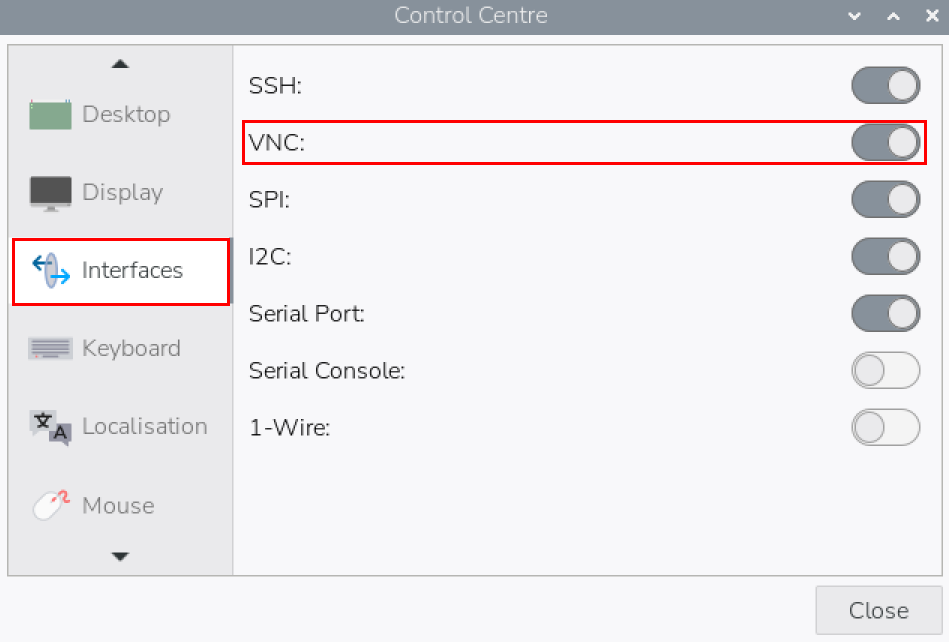
- In the "Control Center" interface, select "Interfaces" and enable VNC.
Steps:
- Open
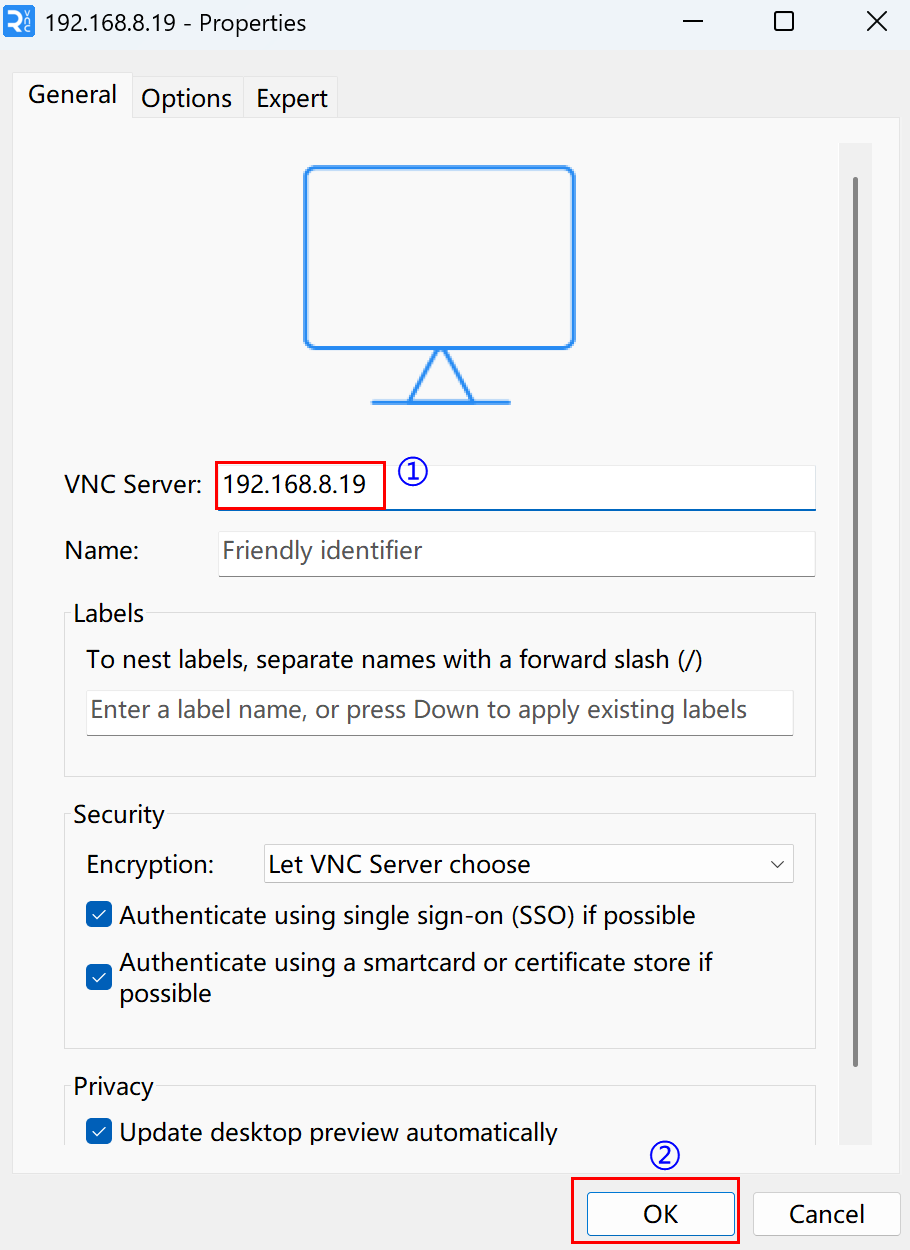
RealVNC Viewer, select "File" → "New connection..." from the menu bar to open the connection creation window, as shown in the figure below.
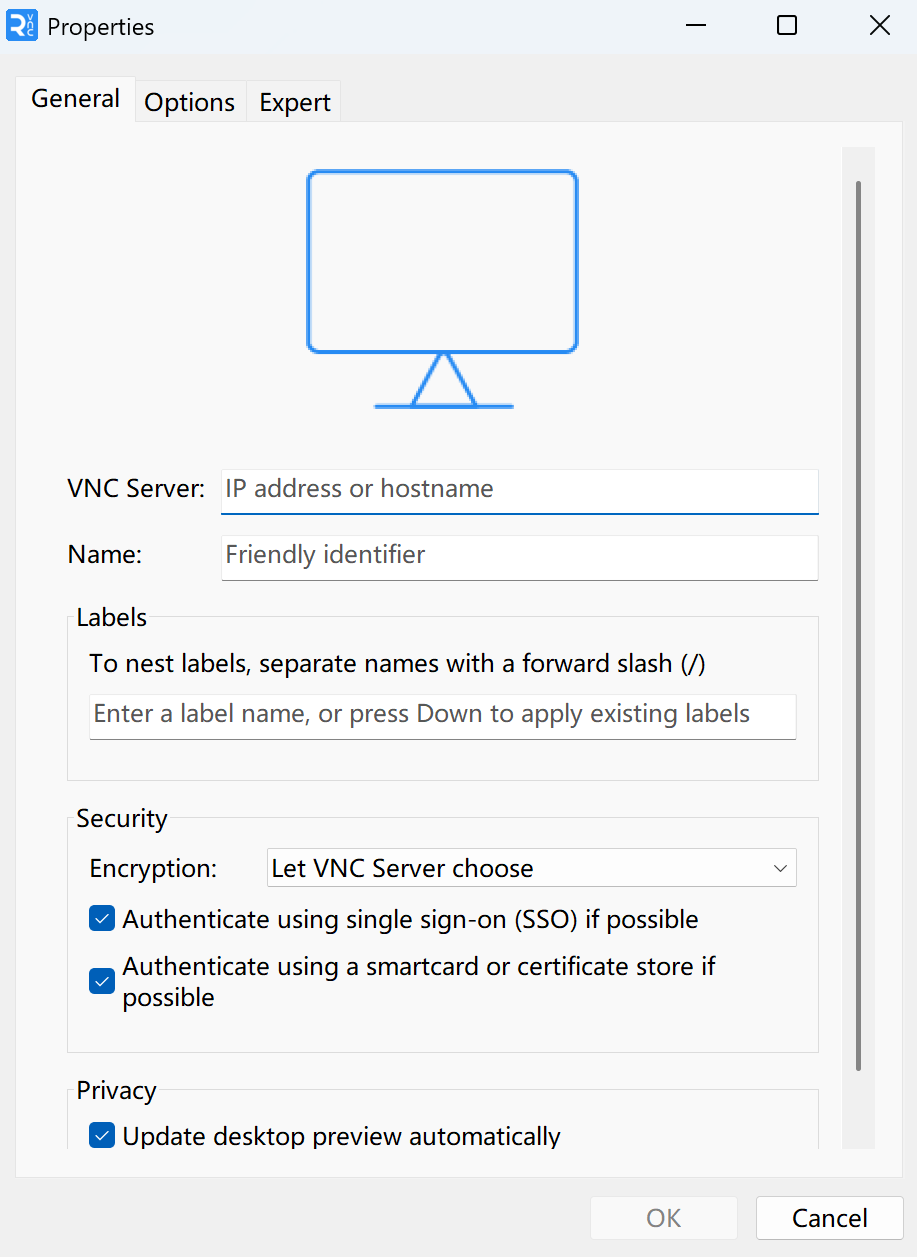
- After entering the IP address of device, click "OK".
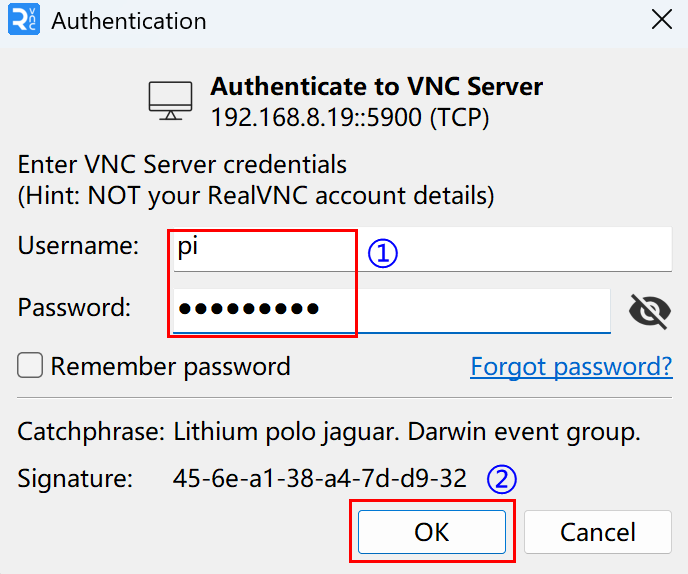
- Enter the username and password in the
Authenticationprompt box that pops up, then click "OK".
TIP
Default username is pi, Default password is raspberry.
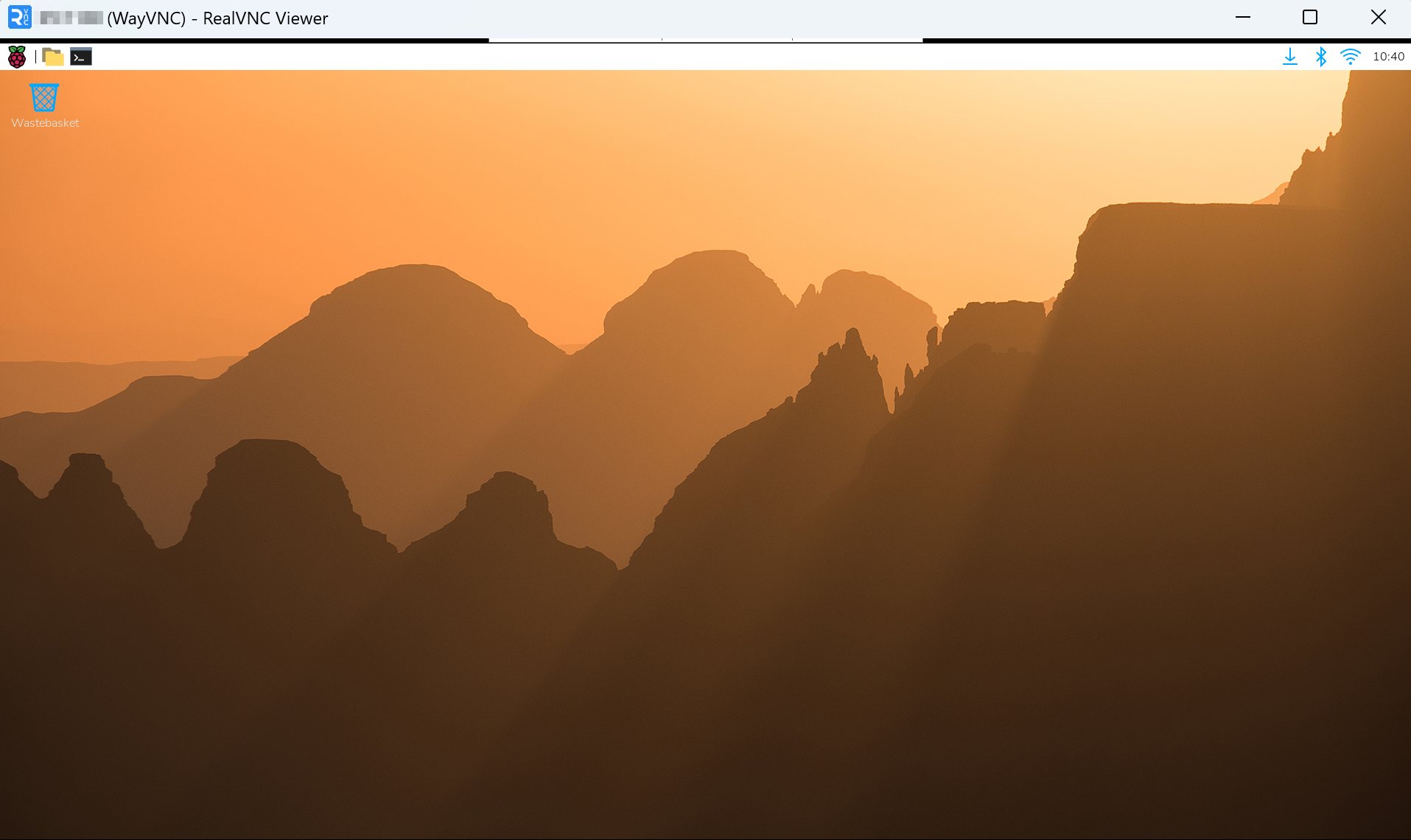
- After a successful login, you will be connected to the remote desktop.