
Finding Device IP
In some application scenarios, it is necessary to remotely log in or manage devices, so it is necessary to obtain the device IP.
View IP address at the Network icon of Desktop
After the device starting normally and the display is connected, you can view the current device IP address at the Network icon.
TIP
Only supported by Desktop version system.
Preparation:
The device has been connected to the network via Ethernet or Wi-Fi.
Steps:
Hover the mouse over the icon in the upper-right corner of the desktop, and a tooltip will appear, displaying the currently connected network and the device's IP address.

Hostname command to query
After the device starting normally and the display is connected, you can query the current device IP address by using hostname command.
Preparation:
The device has been connected to the network via Ethernet or Wi-Fi.
Steps:
Run the following command to obtain IP address.
hostname -I

Query IP by Using ifconfig Command
After the device is started normally and the display is connected, you can use the ifconfig command to view the current device IP.
Preparation:
The device has been connected to the network via Ethernet or Wi-Fi.
Steps:
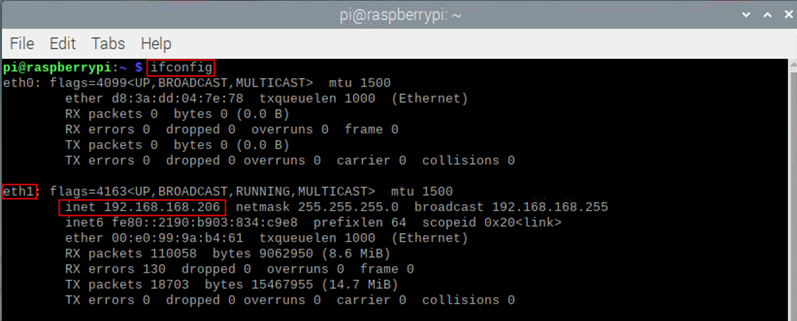
Run the following command to view the detailed information of each port of the device, where the inet value in the eth and wlan0 interface is the device IP, as shown in the following figure.
ifconfig
Query IP by Using Network Manager CLI
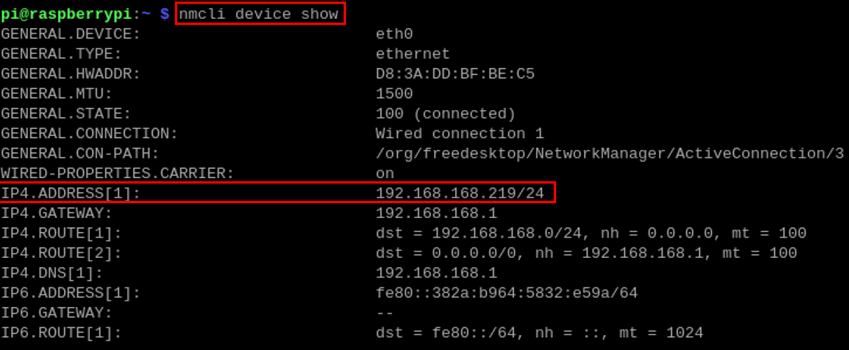
After the device starts normally, use the nmcli device show command to check the device's current IP address.
Preparation:
The device has been connected to the network via Ethernet or Wi-Fi.
Steps:
Run the following command to view the detailed network information.
nmcli device show
Login Router to Query IP
Once the device has started normally, you can log in to the router to check the device's current IP address.
Preparation:
- The device has been connected to the network through the router.
- The IP and network password of the router in the network have been obtained, and the IP address is
192.168.X.X.
Steps:
- Open a browser, Enter the router IP of the network where the device is located in the address bar:
192.168.x.x, and pressEnterto enter the router login interface. - According to the interface prompts, input the network password and enter the router management interface.
- Find the IP address of device in the terminal device of the management interface.
Scan For Using NMAP Tool
After the device starts normally, you can use the nmap tool to scan the IP addresses on the current network to obtain device IP information. nmap supports multiple platforms including Linux, macOS, and Windows.
Preparation:
- The device has been connected to the network through the router.
- The IP segment and mask of the router in the network have been obtained, for example,
192.168.X.X/24, where24is the subnet mask.
Steps:
For example, using nmap to scan the network segments from 192.168.3.0 to 255, you can use the following steps:
- Open the nmap tool and scan the hosts in the
192.168.X.X/24network segment.
WARNING
The nmap tool operates differently in different operating systems, so please follow the actual interface or command prompts.
- According to the scanned results, get the device IP.