
3 Using the device
ED-MONITOR-116C requires a PC host for operation and does not require driver installation. Connect it to the HDMI output of a PC host first, then power on the device to enable normal display. It supports backlight and volume adjustment via dedicated buttons and software.
3.1 Connecting Cables
This section describes how to connect cables.
Preparation:
- A functional power adapter has been acquired.
- A functional PC host has been acquired.
- Functional HDMI and USB cables (Type-A to Type-C USB cable) have been acquired.
Schematic diagram of connecting cables:
Please refer to 1.6 Interface to obtain the pin definitions and wiring methods of each interface.
TIP
The HDMI INPUT interface of the ED-MONITOR-116C is compatible with various PC hosts. The figure below illustrates cable connection using a Raspberry Pi as an example.

3.2 Booting the device
The ED-MONITOR-116C does not include a physical power switch. After connecting to a power source, the device will automatically power on. Once fully booted, it will display the desktop of the connected PC host.
3.3 Adjusting brightness and Volume
The ED-MONITOR-116C supports brightness and volume adjustment via physical buttons and software.
3.3.1 Adjust brightness and volume via buttons
Once the ED-MONITOR-116C is operational, the screen's backlight brightness and volume can be adjusted via five dedicated buttons located on the side panel.
| Button | Description |
|---|---|
 | Press the button to increase the backlight brightness of the LCD screen. |
 | Press the button to decrease the backlight brightness of the LCD screen. |
 | Press the button to increase the output volume. |
 | Press the button to decrease the output volume. |
 | Press the button to mute the output audio. |
3.3.2 Adjust Brightness and Volume via Software
Once the ED-MONITOR-116C is connected to a PC host and displays properly, screen backlight and output volume can be adjusted via software. The operation methods vary for Desktop and Lite OS versions.
3.3.2.1 Raspberry Pi OS (Desktop)
Introducing how to adjust backlight brightness via the UI in Raspberry Pi OS (Desktop).
Preparation:
- ED-MONITOR-116C is properly connected to the Raspberry Pi host with normal display output.
- The Raspberry Pi host has stable network connectivity.
Steps:
- Add EDATEC apt repository by executing the following commands sequentially in the terminal.
curl -sS https://apt.edatec.cn/pubkey.gpg | sudo apt-key add -
echo "deb https://apt.edatec.cn/raspbian stable main" | sudo tee /etc/apt/sources.list.d/edatec.list
sudo apt update
- Install the software toolkit.
sudo apt install -y ed-ddcci-mib-tool
- Click the
 icon in the top-left desktop corner. Then select to "System Tools" → "EDATEC Monitor".
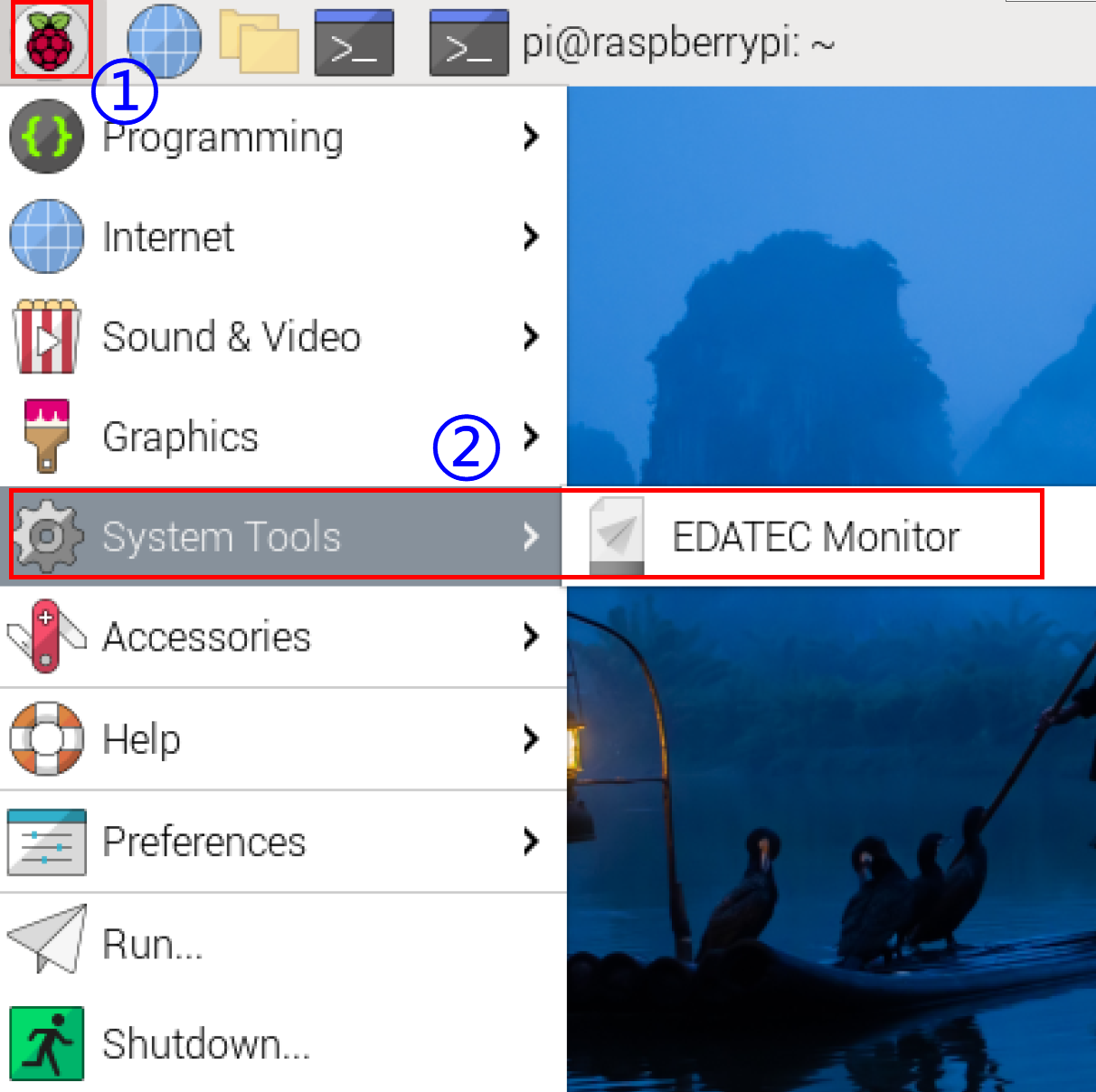
- Adjust brightness and volume using the slider in the "EDATEC Backlight" panel.
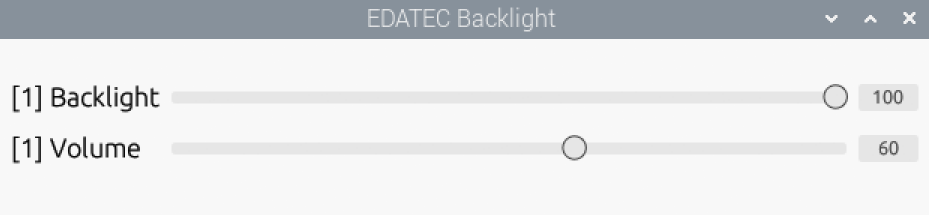
TIP
Support executing the sudo ed-ddc-ui command in the terminal window to open the "EDATEC Backlight" panel.
3.3.2.2 Raspberry Pi OS (Lite)
Adjusting brightness and volume via CLI on Raspberry Pi OS (Lite).
Preparation:
- ED-MONITOR-116C is properly connected to the Raspberry Pi host with normal display output.
- The Raspberry Pi host has stable network connectivity.
Steps:
- Add EDATEC apt repository by executing the following commands sequentially in the terminal.
curl -sS https://apt.edatec.cn/pubkey.gpg | sudo apt-key add -
echo "deb https://apt.edatec.cn/raspbian stable main" | sudo tee /etc/apt/sources.list.d/edatec.list
sudo apt update
- Install the software toolkit.
sudo apt install -y ed-ddcci-mib-tool
- Execute the following commands to query the current brightness level and volume level settings separately.
- Query current brightness level:
sudo ed-ddc-server brightness read
- Query current volume level:
sudo ed-ddc-server volume read
- Execute the following commands to set brightness level and volume level as required.
- Set brightness level:
sudo ed-ddc-server brightness write -v X
Where X represents the brightness level with a range of 0~100.
- Set volume level:
sudo ed-ddc-server volume write -v Y
Where Y represents the volume level with a range of 0~100.