
6 Installing OS (optional)
The device is shipped with an operating system by default. If the OS is corrupted during use or the user needs to replace the OS, it is necessary to re-download the appropriate system image and install it. Our company supports to install the OS by installing the standard Raspberry Pi OS first, and then install the firmware package.
The following section describes the specific operations of image download, flashing to SD card and installation of firmware packages.
6.1 Downloading OS File
You can download the corresponding official Raspberry Pi OS file according to your actual needs, the download path is listed below:
| OS | Download Path |
|---|---|
| Raspberry Pi OS(Desktop) 64-bit-bookworm (Debian 12) | https://downloads.raspberrypi.com/raspios_arm64/images/raspios_arm64-2024-11-19/2024-11-19-raspios-bookworm-arm64.img.xz |
| Raspberry Pi OS(Lite) 64-bit-bookworm (Debian 12) | https://downloads.raspberrypi.com/raspios_lite_arm64/images/raspios_lite_arm64-2024-11-19/2024-11-19-raspios-bookworm-arm64-lite.img.xz |
TIP
Our engineers are currently adapting and developing firmware packages for Raspberry Pi OS-trixie (Debian 13), so it is temporarily not supported. We recommend using the Raspberry Pi OS 64-bit-bookworm (Debian 12) version of the operating system.
6.2 Flashing to SD Card
It is recommended to use the Raspberry Pi official tools. The download paths are as follows:
- Raspberry Pi Imager: https://downloads.raspberrypi.org/imager/imager_latest.exe
- SD Card Formatter: https://www.sdcardformatter.com/download/
Preparation:
- The downloading and installation of the official tools to the computer have been completed.
- The OS file has been obtained.
- An SD card reader has been prepared.
Steps:
The steps are described using Windows system as an example.
Disconnect power from the device and remove the Micro SD card. Refer to 2.1 Pull Out Micro SD Card for detailed steps.
Insert the Micro SD card into the card reader, and then connect the card reader to the USB port on your computer.
Open
SD Card Formatter, select the formatted drive letter, and click "Format" at the lower right to format.
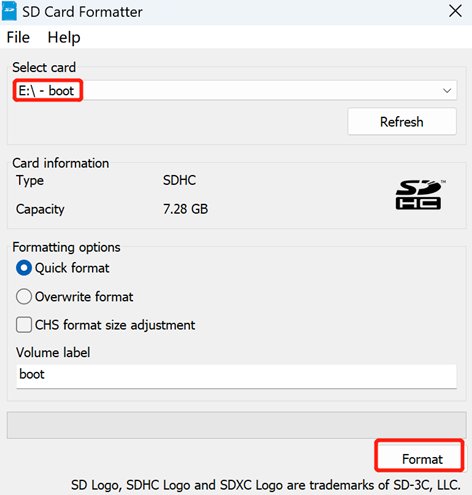
In the pop-up prompt box, select "Yes".
When the formatting is completed, click "OK" in the prompt box.
Close
SD Card Formatter.Open
Raspberry Pi Imager, select "CHOOSE OS" and select "Use Custom " in the pop-up pane.
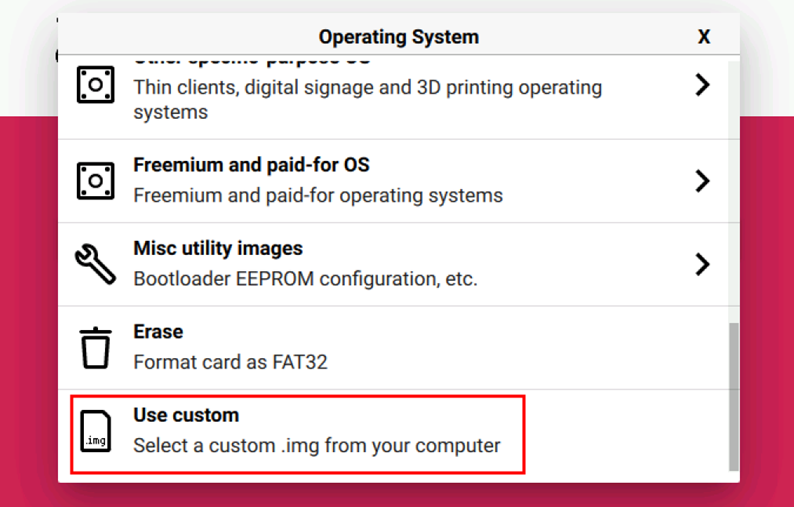
According to the prompt, select the OS file under the user-defined path and return to the main page.
Click "CHOOSE STORAGE", select the default device in the "Storage" interface, and return to the main page.
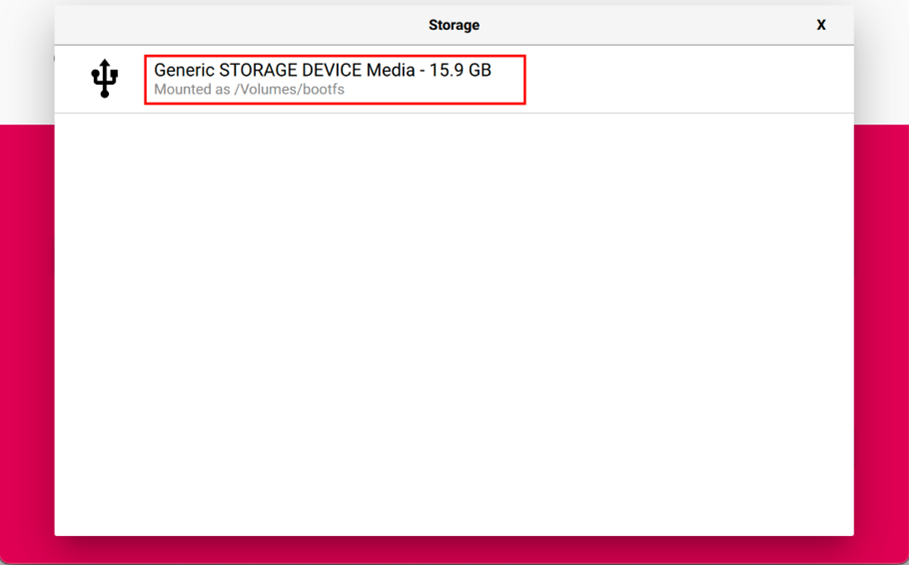
- Click “NEXT”, select "NO " in the pop-up “Use OS customization?” pane.
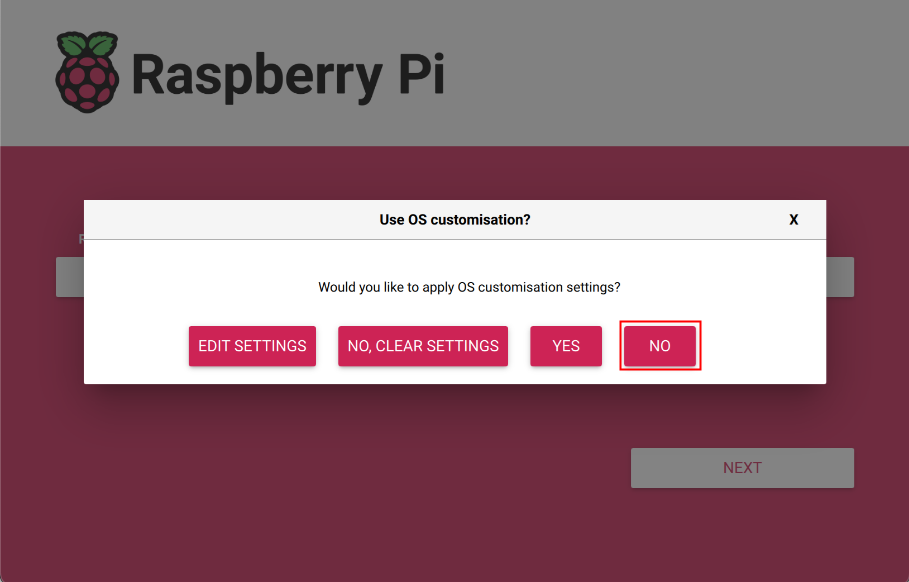
- Select “YES” in the pop-up “Warning” pane to start writing the image.
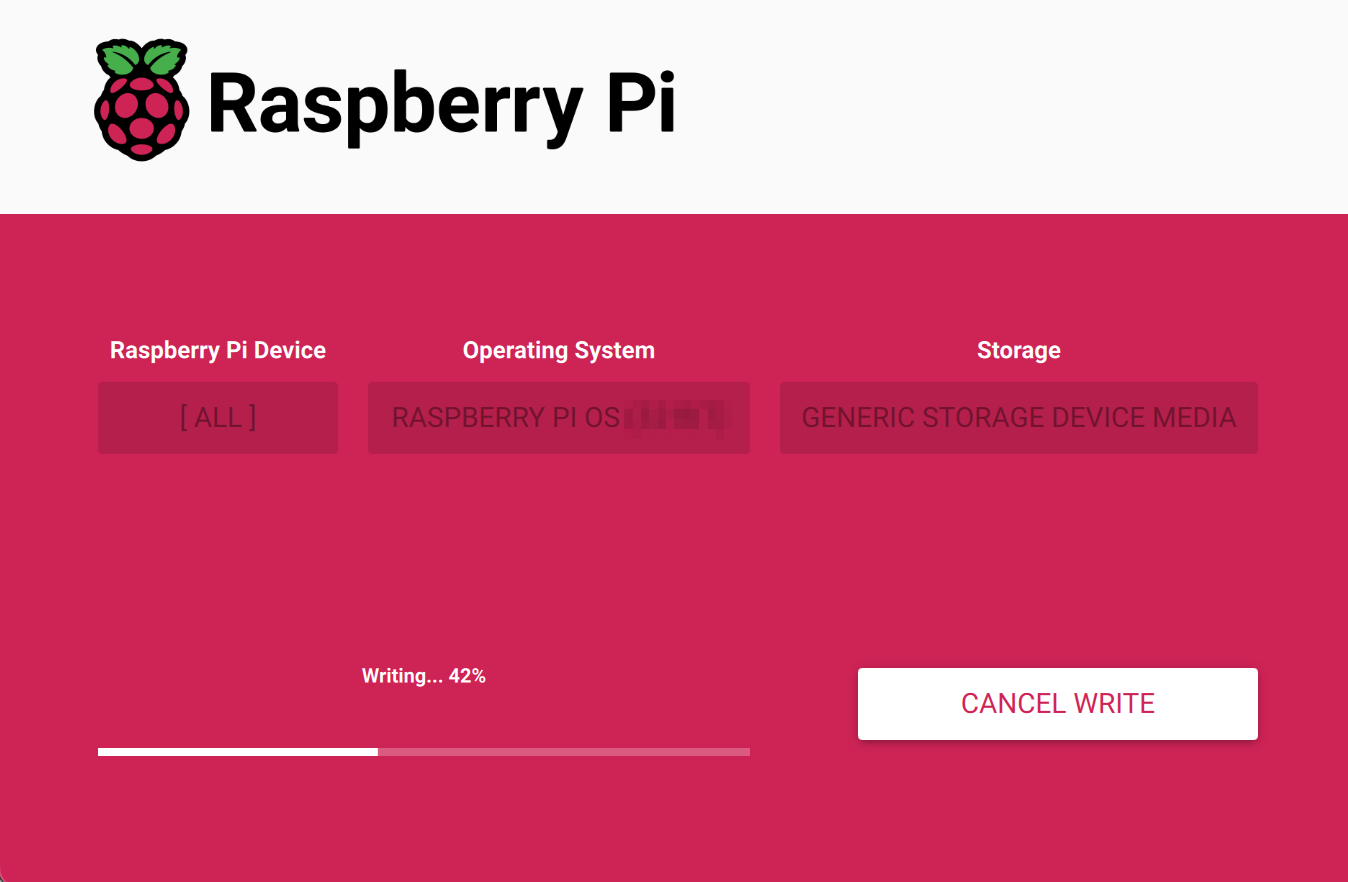
- After the OS writing is completed, the file will be verified.
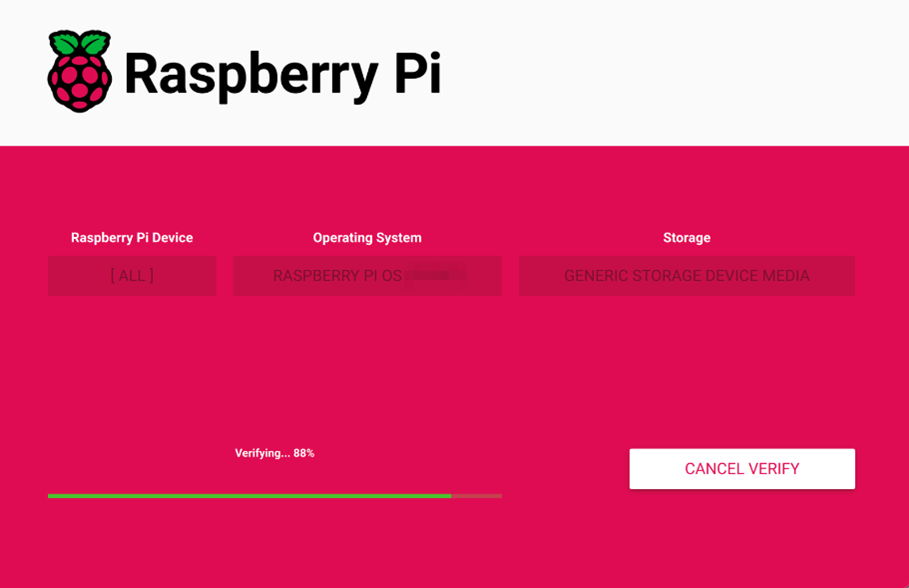
After the verification is completed, click “CONTINUE” in the pop-up “Write Successful” box.
Close the
Raspberry Pi Imager, remove the card reader and SD card.Insert the Micro SD card into the Micro SD card slot of the device. For specific steps, please refer to 2.2 Insert Micro SD Card.
Restore power to the device and initiate a normal system startup.
6.3 Installing Firmware Package
After you have finished flashing to SD card on ED-HMI3010-156C, you need to configure the system by adding edatec apt source and installing firmware package to make the system work. The following is an example of Debian 12 (bookworm) desktop version.
TIP
Our engineers are currently adapting and developing firmware packages for Raspberry Pi OS-trixie (Debian 13), so it is temporarily not supported. We recommend using the Raspberry Pi OS 64-bit-bookworm (Debian 12) version of the operating system.
Preparation:
- The flashing to SD card of the Raspberry Pi standard OS (bookworm) has been completed.
- The device has booted normally and the relevant boot configuration has been completed.
Steps:
- After the device starts normally, execute the following commands in the command pane to add the edatec apt source and installing firmware package.
curl -s https://apt.edatec.cn/bsp/ed-install.sh | sudo bash -s hmi3010_156c
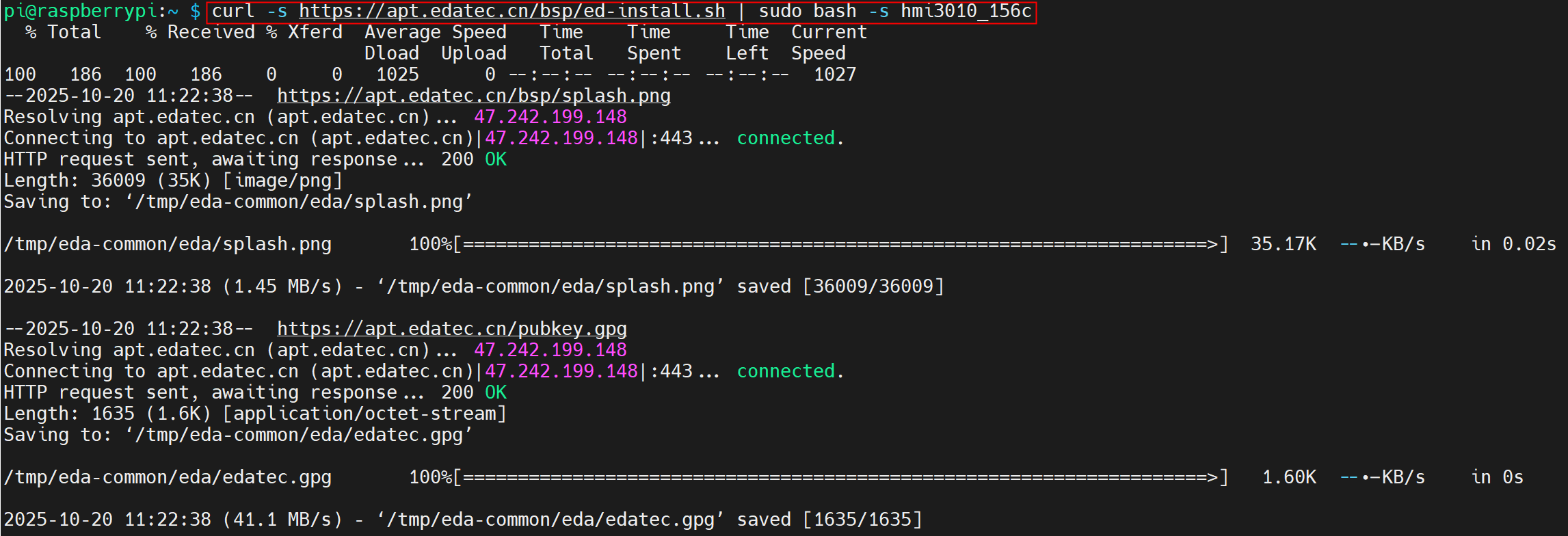
After the installation is complete, the system automatically reboots.
Execute the following command to check whether the firmware package is installed successfully.
dpkg -l | grep ed-
The result in the picture below indicates that the firmware package has been installed successfully.

TIP
If you have installed the wrong firmware package, you can execute sudo apt-get --purge remove package to delete it, where “package” is the package name.